Ah, WiFi problems—seriously, the bane of our digital lives, huh? I mean, one minute you’re happily watching your favorite show or video chatting with someone far away, and then bam! Internet’s gone. Super frustrating.
If you’re on Windows 8.1 and suddenly can’t connect, well join the club. This can be quite an adventure—or a headache, depending on how you look at it. Those quirky WiFi drivers are often the culprits behind these blips.
Ever wondered why everything seems to work fine one day and not at all the next? It might just be some sneaky little driver issue causing all this chaos. It happens more often than you’d think!
Let’s chat a bit about what might be going wrong in that device of yours. You know you’ve got company in this struggle, right?
Windows 8.1 Wi-Fi Compatibility
Having trouble with Wi-Fi on Windows 8.1? You’re not alone! Sometimes, the Wi-Fi can feel like it’s acting up just when you need it the most. Let me try to explain why that happens.
WiFi Driver Issues are one of the typical culprits on this system. Drivers are like translators for your computer’s parts and they help the operating system to ‘talk’ to the hardware. If they’re out of date or corrupted, it can lead to compatibility issues.
- Outdated Drivers: Manufacturers update drivers constantly to fix bugs and maintain compatibility with new software updates. If your driver is old, it may not work well with new updates.
- Corrupted Files: Sometimes files just get messed up. It could be due to abrupt shutdowns or even malware. When that happens, the driver might behave erratically or stop working.
Solutions You Can Try
First things first: **updating your drivers** often helps! You can visit your device manufacturer’s website where you’ll usually find them listed under support or downloads section.
To make sure you’re on track:
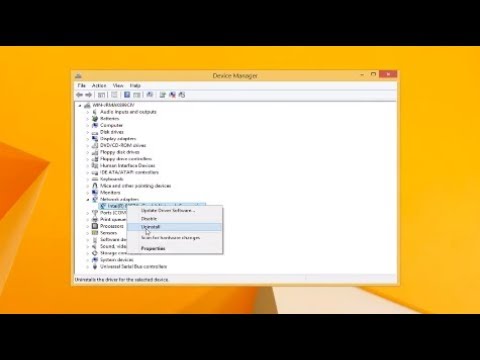
- Check Device Manager: Press (Windows key + X), then choose “Device Manager.” Look for “Network adapters” and see if there’s any yellow triangle warning sign.
- Search for Updates: Right-click on your Wi-Fi adapter and select “Update driver.” Then choose “Search automatically” for updated driver software.
Another possible fix is **resetting network settings**:
Sometimes refreshing everything gives it a fresh start:
- (Go to Control Panel > Network and Sharing Center > Change adapter settings).
- Select “Wi-Fi” then right-click and pick Disable followed by Enable again.
There have been times at home when my internet slowed down because I forgot these basic steps!
Troubleshoot with Windows Help
If things still feel off despite trying all tricks in hand there’s always trusty troubleshooting tools built into Windows itself:
- (Right-click) On network icon located next bottom right corner of screen then hit Troubleshoot problems option available within pop-up menu bar displayed!
Hoping some light has been shed here toward addressing ongoing connectivity challenges faced thus far dealing alongside particular scenario unique toward oneself utilizing Microsoft operating systems specifically version eight-point-one configuration setting setups criteria requirements needed following cautiously handling accordingly responsibly overall throughout given situations encountered whatsoever arises further down line eventually lots patience perseverance resilience required importantly above everything else wish best luck happy connecting!
Updating Windows Wi-Fi Drivers
Updating your Wi-Fi drivers on Windows can feel a bit like magic when it starts working smoothly again. Ah, the joy of a good connection, right? But when things go awry, it’s as if your device wants to test your patience! So let’s see how updating those Wi-Fi drivers could be the knight in shining armor for your connection issues.
Why update? Well, outdated drivers can cause all sorts of headaches—slow speeds, dropped connections, and sometimes no internet at all. Not fun! Updating them ensures compatibility with newer technologies and fixes known bugs.
Here’s a simple way to update your Windows Wi-Fi drivers:
- Device Manager: First up, open Device Manager. You find this by pressing the Windows key + X on your keyboard and selecting it from the list.
- Network Adapter: Once there, look for “Network adapters” and expand that section.
- Select Your Device: Find your Wi-Fi adapter—it’s usually got “Wireless” or “Wi-Fi” somewhere in its name.
- Update Option: Right-click on the adapter’s name. In the menu that pops up, choose “Update driver.”
- Search Automatically: Select “Search automatically for updated driver software.” This lets Windows catch any updates lurking about online.
And if you’re feeling extra adventurous or techy-savvy? You might download drivers directly from the manufacturer’s website. It sometimes yields even fresher versions than what Windows digs up.
Updates went through but still issues lurking? Maybe take a gander at these common causes:
- Password Glitches: A wrong password entry can drive you nuts!
- Troublemaking Software Updates: Sometimes an OS update has a beef with existing settings.
- Tweaked Settings Gone Awry:: Maybe something was fiddled inadvertently?
It’s peculiar how one little driver can tiptoe into so many areas of our tech life; though once sorted, everything feels right in the world again—or at least until another little hiccup arises!
If you’ve ever faced those stubborn moments with connections dropping every five minutes or wrestling to load anything beyond text – been there! It reminds me of an old laptop I used to have back during my college days… anyway rolling back or updating saved me countless times.
Remember keep things current; regular updates help maintain peace between our devices and sanity levels too!
Resetting Wi-Fi Adapter on Windows 8
Alright, let’s chat a bit about Wi-Fi adapters on Windows 8. You know how sometimes you’re all set to dive into your favorite online stuff but then—boom!—your Wi-Fi gives up on you? Frustrating, right?! Well, resetting the Wi-Fi adapter might just be the trick to get everything back in line.
Why Reset the Wi-Fi Adapter?
Sometimes those little gremlins in tech can cause connections issues. By resetting the adapter, you basically tell Windows 8 to restart and try connecting again from scratch. It’s like giving your PC a fresh start without needing to turn it off.
Steps to Reset Your Wi-Fi Adapter
1. Access Control Panel: First things first. Head over there by pressing Windows + X, you’ll see a list pop up, pick ‘Control Panel’ from there.
2. Dive into Network Settings: Once inside Control Panel, find ‘Network and Sharing Center.’ Click on that.
3. Find Your Connections: Look for ‘Change adapter settings’ on the left side of that window.
4. Select Your Wi-Fi Connection:
- You’ll see various networks listed.
- Your active connection will have a green signal icon beside it.
5. The Magic of Disable and Enable:
What happens here is it’ll turn off your network connection temporarily.
Troubleshooting Common Issues: Drivers control communication between hardware software-latest versions ensure compatibility &efficiency; visit manufacturer site download possible updates!
2:Explore Firewall/Antivirus Settings>: Antivirus programs sometimes block net access; temporarily disable when testing connections-see if difference occurs ✨💪
There’s nothing like resolving pesky connectivity problems knowing solution lay within finger-tap reach alright good luck fixing wires-wifi hassles! 🙌
Ah, WiFi driver issues on Windows 8.1—those can drive anyone a bit batty! Just picture yourself all settled in for some online binge-watching or maybe a crucial video call, and bam! Your connection goes kaput. Frustrating, right?
Let’s chat about what might be causing these pesky disruptions. First up, outdated drivers are like that old toaster you keep meaning to replace. They work… sometimes! But seriously, without updating them, you’re asking for trouble because newer software needs updated drivers to run smoothly.
And then there’s the infamous clash of incompatible software. It’s like when you invite those friends who just don’t get along over for dinner—they’re bound to cause some drama. Certain updates or third-party programs might wiggle in and disturb how things should work with your WiFi.
Have you ever checked your power settings? No joke—sometimes the system may decide it’s time to save energy by turning off your WiFi adapter randomly! It’s kind of like falling asleep at the wheel (not recommended).
Finally—you remember those sneaky little viruses? Yep, malware is another culprit lurking around and messing with your network settings without even telling you they’re there!
I remember this one time my uncle had this issue at home during an important remote presentation. Panic set in quick! After some digging and grumbling around device settings (while he stressed out), we figured one of his auto-updates messed with the driver compatibility.
Now that I think about it—it’s often about keeping everything up-to-date and checking which ghoulish app is meddling where it shouldn’t be! Or maybe having good ol’ antivirus coverage keeps things under control too.
Anyway—watch out for these typical culprits when dealing with Windows 8.1 WiFi woes; they pop up more than you’d hope!