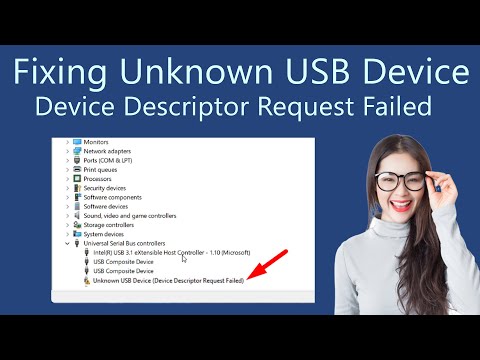
Oh man, isn’t it the worst when you’re all set up to connect a gadget and—bam!—your computer decides it’s not having it? Especially when it’s something as simple as plugging in a USB device. That’s kind of like expecting a nice evening with popcorn and movies, only to find the TV’s not working. Frustrating, right?
So there you are, holding your fancy little USB device, waiting for that satisfying ding or whatever sound your computer makes that basically says, “Hey there, I’ve got this!” But instead… nothing. Zip. Nada. And honestly you think: Is it me or is it just the universe having a laugh?
But hey no worries! We can totally figure this out together. Let’s chat about how to make peace between your Intel USB driver and your PC again.
You ready?
Intel USB Driver Connectivity Issues on Windows 11
If you’re trying to get your Intel USB drives to work with Windows 11 and they’re just not playing nice, you’re definitely not alone. Lots of folks encounter this sort of hiccup. Let’s see if we can make this whole process a bit smoother for you.
What could be causing the issue? Often, it’s about USB drivers not being recognized correctly by Windows 11. This can happen due to outdated drivers, or maybe even incompatible ones.
- Check for driver updates: The first step is making sure your drivers are up-to-date. Head over to the Device Manager—just type it into the search bar then click on it when it pops up.
- Expand the ‘Universal Serial Bus Controllers’ section: Here you’ll see a list of all USB-related devices and drivers.
Whoa! Things looking too techy? No worries! Just find any entry that might say ‘Intel’, right-click it, choose ‘Update driver’, then select ‘Search automatically for updated driver software’.
If that doesn’t work:
- Uninstall and reinstall: Sometimes, removing the driver entirely and letting Windows reinstall it does wonders. In the same list under Device Manager, right-click your Intel USB driver again but select ‘Uninstall device’. Now restart your computer—cross those fingers—and let Windows handle the rest.
Still unlucky? Okay! Onto a next possible fix.
- Tweak power settings: There’s this thing called selective suspend which saves power by turning off USB devices when they’re not in use but sometimes messes with connectivity.
To check this:
-
Select ‘Change plan settings’ next to whatever plan you’re using
- Check Your USB Port: Before diving into technical fixes, start simple—try another USB port. You know how it is sometimes; one just doesn’t feel like working today.
- Update Drivers: Often, the driver isn’t recognized because it’s outdated. Go to Device Manager, find “Universal Serial Bus controllers,” and let’s update those drivers! Right-click the device and choose “Update driver.” Select “Search automatically for updated driver software.” This should help!
- Disable Power Management: Sometimes Windows tries to save power by turning off devices—and that could include your USB ports. You don’t want that happening when you’re mid-file transfer! In Device Manager, under Universal Serial Bus controllers, right-click on each “USB Root Hub,” go to Properties > Power Management tab and uncheck “Allow the computer to turn off this device…”.
- Uninstall & Reinstall Drivers: If updating didn’t do the trick, uninstalling might be what’s needed. Still in Device Manager, right-click on the problem device and select “Uninstall device.” Restart your computer after that; Windows usually reinstalls a fresh version upon reboot.
- Check BIOS Settings: Sometimes changes in BIOS can affect how ports function. It’s a bit technical here—restart your PC and enter BIOS setup by pressing something like F2 or Delete during boot-up (it’ll flash quickly on screen). Check if there’s a setting related to USB configuration—you want them enabled.
- Outdated Drivers: If you haven’t updated your drivers in a while, they might not work well with newer devices.
- Corrupted Drivers: These can cause all sorts of connectivity hiccups.
- USB Port Issues: Sometimes the port is the culprit and not the driver.
- Bios Settings: The BIOS might need a little tweaking if it’s misconfigured.
- Update Your Drivers:
Go ahead and check if there’s an update available for your drivers. You can usually find these on Intel’s official website. It’s like giving your system fresh new glasses to see those USB devices clearly.
- Uninstall Corrupt Drivers:
Head over to Device Manager by right-clicking on My Computer and selecting Properties.
Locate Universal Serial Bus controllers and uninstall any device showing an exclamation point or error message.Restart your PC; sometimes Windows gets its act together and reinstalls them correctly.
- Troubleshoot Your USB Ports:
Try plugging into different ports just in case one’s gone rogue. If nothing changes, maybe borrow another device or USB stick from someone just for testing. - Edit BIOS Settings (With Caution!):
Restart your computer press F2 (or whatever key gets you into BIOS). Look for settings related to USB configurations—ensure they’re enabled! - First things first: restart your system. I know it sounds cliché but sometimes that’s all it takes.
- If that doesn’t work head over to ‘Device Manager.’ You can access this by right-clicking on the ‘Start’ menu.
- Look for ‘Universal Serial Bus Controllers.’ That’s where all your connected USB devices usually show up.
- Right-click on each ‘USB Root Hub’ and select ‘Update Driver.’ Let Windows search automatically for any driver updates.
Resolving Intel USB Driver Detection Issues on Windows 10
Sure thing! Let’s get into it. Having issues with your Intel USB driver not getting detected on Windows 10? It’s like when you try to plug in your phone to charge at night, but the charger just doesn’t connect right. It’s a common hiccup, but don’t worry, there are some steps you can follow.
Troubleshooting can be trial and error. But don’t lose hope! It took my friend ages before realizing it was an outdated driver causing him grief with his new webcam not getting detected.
Also remember: If none of these steps work—and you’ve double-checked using another device or cable—it might just be a hardware issue with either your port or cable.
Anyway keep these things in mind next time you’re sorting out those pesky connections!
Intel USB Driver Recognition Issues on Windows 7
Having trouble with Intel USB drivers on your Windows 7 machine? It can be a real headache when your computer decides not to play nice with your USB devices. Let’s try to sort this out together, shall we?
Common Causes
Look, there are several things that might be causing this issue. Sometimes it’s the driver itself, other times it’s something more sneaky within the system.
A friend of mine once had a printer that just refused to connect because of a faulty BIOS setting—took us forever to figure it out! Anyway, back to what you can do.
Fixing Driver Recognition Problems
Here’s what we’re going to do. First off, take a deep breath and let’s try these steps:
PATIENT AND GENTLE REMINDER: Messing around with BIOS isn’t something any average joe should regularly do without some know-how or guidance so don’t hesitate reaching out if unsure.
Working through driver recognition woes may take patience but following these steps tends resolve most issues faced by users experiencing similar concerns under Windows-7 environment particularly using Intel’s suite hardware solutions.
Got yourself unstuck already through one those suggestions mentioned earlier above perhaps OR requires more assistance navigating further adjustments necessary turning tide back favorable side repair ongoing tech struggle happening? Well then remember always welcome learn additional info surrounding resolutions arrive safely efficient manners achieve ultimate functionality desired computing experience front end!
Hope everything turns smooth soon enough eventually given time exerted here carefully following methods described undertaken responsibly addressing potential pitfalls troubling annoying persisting nuisance ceasing previously thought never-ending dilemmas contracted having struck own personal journey crossed paths thus far along life roadways navigating continuing toward brighter future horizon untangled hallelujah finally occurred realizing salvation near YAY #sadnotanymorehappyfreedomahead :)))) .
Ah, the joys of plugging in a USB device and expecting it to work seamlessly—only to be met with that dreaded “Driver Not Recognized” message. It’s like being locked out of your own house, isn’t it? Well, let me tell you a little story.
A friend of mine, we’ll call him Dave, sent me an SOS recently. He was working on an important project (or binge-watching his favorite series; honestly, who can tell these days?), when his mouse just stopped working. You can imagine the frustration! Anyway, he called me up because suddenly his computer decided not to recognize any USB devices anymore.
You might find yourself in Dave’s shoes due to one simple thing: outdated or corrupted USB drivers. Think of them like translators between your computer and the device you’re trying to use. If they can’t communicate properly… well,, nothing happens! That’s where things get dicey.
Here’s what you could do if you’re facing similar troubles:
My friend followed these steps—I mean after a bit more back-and-forth because he ignored my first piece of advice to check if everything was plugged in correctly—and wouldn’t you know it? His mouse started working again! Just like magic but really just some good ol’ fashioned troubleshooting.
Sometimes tech glitches feel downright mysterious but often there’s a straightforward fix hiding somewhere inside those tangled wires and complex codes we rely on every day. And remember if all else fails contacting support is never off the table!
So yeah whenever tech acts up don’t lose heart! There’s almost always light at end of tunnel – whether it’s flashing from flashy LED mouse or virtual applause as device gets detected once again!.