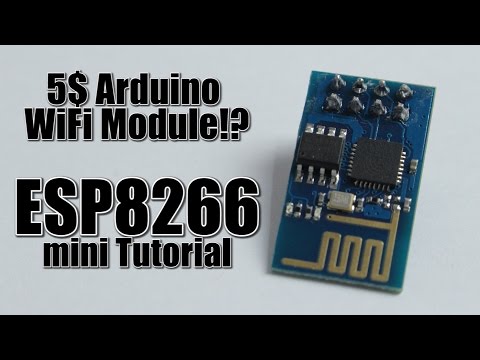
You know those moments when you’re all set, excited to play with your Arduino Uno and boom—the WiFi module just won’t cooperate? Yeah, we’ve all been there. It’s like the universe’s way of saying, “Not so fast, tech enthusiast!”
Picture this: you’ve got your project laid out, the pieces fit together perfectly. Well, except for that pesky WiFi connection issue that keeps popping up. How frustrating!
Let’s be honest. Sometimes these gadgets seem to have a mind of their own. Like they’re rebelling or something. But hey, don’t stress! You’re not alone.
We’ll navigate this little hiccup together and figure out how to get things running smoothly again!
Arduino Uno Wi-Fi Module Compatibility
Alright, let’s chat about the Arduino Uno and its tango with Wi-Fi modules. Sometimes, you just want your Arduino project to connect to the internet, right? It’s like trying to teach a cat to dance – it might be tricky at first, but when it works, it’s quite impressive.
Understanding Compatibility
Arduino Uno is a super popular microcontroller board. Its charm lies in its simplicity and robustness. However, when it comes to hooking it up with a Wi-Fi module, there are some things you need to consider:
- Type of Wi-Fi Module: The ESP8266 module is often the go-to choice due to its popularity and support in the community. It’s compact and doesn’t break the bank.
- Communication Protocols: Arduino Uno communicates using serial communication (those TX/RX pins). Most Wi-Fi modules like ESP8266 or ESP32 use these too! But here’s a catch: voltage levels differ. Arduino Uno uses 5V logic while most modules prefer 3.3V.
Tackling Connection Issues
You’re probably going “Okay that’s nice but what about those pesky connection issues?” Here’s what you might wanna check out:
- Power Supply: Make sure your Wi-Fi module has enough power. It’s common for these modules to draw more current than your standard USB port can supply.
- Voltage Levels: Remember that voltage mismatch? You’ll need a level shifter or resistors if you’re working with different voltages between the devices.
- Coding Errors: Double-check your code! Even seasoned programmers forget semicolons sometimes.
The Debugging Adventure
You know those moments where nothing seems wrong but nothing works either? Yeah! Time to debug:
- Blink Test: Start simple by blinking LEDs through serial commands from your computer first before jumping onto anything complex like sending data wirelessly.
- Error Messages:: Use serial monitors on IDEs (like Arduino IDE) which can give useful error messages when something goes afoul during upload attempts!
In short keep calm shout *Eureka* once everything clicks into place stick around until they do because tech here isn’t always straightforward gets real satisfying once things actually start happening!
Remember have patience maybe make yourself some strong coffee because this journey needs both brains perseverance well happy coding good luck out there connecting all those wires getting stuff running beautifully online!
Arduino Uno Connection Issues
Oh, connecting your Arduino Uno with a WiFi module can sometimes be a fiddly endeavor, huh? Like trying to untangle a bunch of Christmas lights. It’s not uncommon to run into a few roadblocks along the way.
First off, let’s say you’ve got your Arduino Uno and you’re trying to connect it with something like the ESP8266 WiFi module. It should be pretty straightforward, but sometimes these things have their quirks! If you’re having issues, there might be a couple of common culprits causing those connection headaches.
Power Supply Issues
- Sometimes the power supplied by the USB port isn’t quite enough for both the Uno and the WiFi module. Double-check if you’re giving them enough juice.
- Try using an external power supply—something like a barrel jack adapter might help.
Wiring Problems
- Mixing up TX/RX pins can often result in problems. The TX (Transmit) pin from one device should connect to the RX (Receive) pin on the other device.
- Double-check every wire and connection; even seasoned tinkerers make that mistake sometimes.
Baud Rate Mismatch
- Your UNO and WiFi module need to ‘speak’ at the same speed. If their baud rates don’t match, they’re gonna have trouble understanding each other.
- If default settings aren’t working—and let’s face it, they don’t always—consider adjusting them via software commands until you find something that clicks.
Oh! Here’s something funny: I once knew someone who was pulling their hair out over an issue just because they forgot to download the right library in their Arduino IDE! It happens more than you’d think.
Software Library Misses
- The specific library you need for communication might not be properly installed or even present in your setup yet.
- If ESP8266 isn’t connecting as expected, ensure necessary libraries are installed from Arduino’s Library Manager—this can solve many unexplained gremlins.
Inconsistent connections can also come down simply due physical environment interference—in which case relocating away slightly from wireless routers or microwaves helps stabilize interactions!
Remember folks: patience is key here; many small adjustments add up big-time when resolving connectivity kinks between UNO boards & complementary modules alike—happy experimenting out there friends!
Arduino 5G Network Compatibility
Diving into the world of Arduino is like opening a door to endless possibilities, huh? But sometimes you hit a bump or two, and one question that pops up often is about , especially if you’re tinkering with the Arduino Uno WiFi Module. So let’s chat about this.
Picture this: You’ve got your Arduino project ready and you’re all pumped to get it online. You connect it to your WiFi but wait! It doesn’t seem to play nice with your snazzy 5G network. What’s going on?
- Frequency Bands: First things first, understand that most Arduino boards, including the beloved Uno WiFi module, usually support only the 2.4 GHz band. Many newer home networks operate on both 2.4 GHz and 5 GHz bands—often called dual-band routers. If your router’s set only to operate on 5 GHz for some reason, your Arduino might not even see it—like trying to find someone at a masquerade ball when everyone’s masked!
- Check Router Settings: Dive into those router settings (usually found by typing an IP address into a web browser). Look for something like “Dual Band” mode or “Guest Network.” Ensure that the 2.4 GHz band is enabled.
- Firmware and Libraries: Keeping software up-to-date can solve loads of headaches! Check if there’s updated firmware or libraries for your specific WiFi module or shield by visiting the manufacturer’s site or relevant community forums.
- Troubleshooting: Still nothing? Try restarting everything: Your router, modem, and even the Arduino board itself—it’s surprising how often a simple reboot does wonders!
Here’s an example: Suppose you’re using an old wireless module like ESP8266—it won’t dance with anything but a 2.4 GHz band because it doesn’t have antennas capable of interpreting signals above that frequency.
But hey, don’t panic! Issues around connectivity are super common in this techy age. Many have been where you are now—scratching heads over whether they should upgrade their boards—or toggle some setting!
Just remember: investigate frequencies first because that’s usually where these connections hiccup most often.
If tweaking settings isn’t cutting it—and everything else seems fine—you might be dealing with something else entirely regarding physical placement within electronic interference zones; so relocate gear closer together if possible…and Mess around until eureka moment arrives!
Ah, the joys and tiny frustrations of working with Arduino Uno and its WiFi module! Have you ever been in the middle of an exciting project—like maybe building a smart home gadget or a weather station—only to have your spirits crushed by connection issues? I sure know how that feels. You know, you’re all set up, wires carefully aligned, code ready to upload, and suddenly… nothing connects. Gah! So frustrating.
First off, let’s chat a bit about what might be going on when your WiFi module just refuses to connect. Sometimes it’s something super simple like forgetting to double-check whether the SSID and password in your sketch match your actual network settings. I know it sounds obvious but hey—it happens to the best of us.
Another hiccup might be interference from other devices around. Picture this: You’re at home surrounded by all sorts of gadgets trying to snatch that precious bandwidth from each other. It could mess with connectivity for sure! Ever tried changing the channel on your router? It can make a difference sometimes—just like finding that perfect spot for good cell reception.
Then there are firmware updates (or lack thereof). On more than one occasion, I’ve been stumped only because my module needed an upgrade. Whoops! Keeping firmware current could help tackle those sneaky bugs causing trouble.
It also doesn’t hurt giving attention where it counts—a reliable power source is crucial here too; low voltage can lead to erratic behavior beyond just WiFi problems…like unexpected resets right when everything seems finally sorted out!
In short: patience becomes part-and-parcel of any tinkerer’s toolkit right alongside resistors and breadboards; taking time diagnosing connectivity quirks ensures smoother sailing toward DIY success stories later down line—you’ll get it figured out eventually!