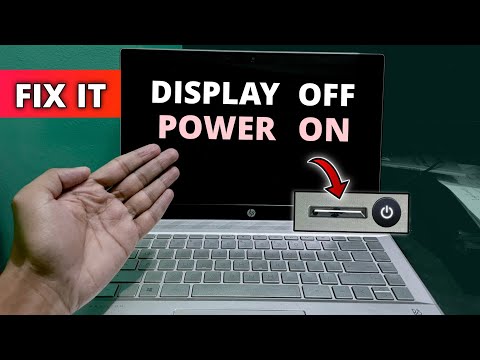
Oh no, your HP laptop screen isn’t turning on? Total bummer! I’ve been there. Picture this: you’re all set to start binge-watching your favorite show after a long day, only to find the screen’s as blank as a piece of paper. Sigh.
You might be thinking about kicking back and hoping it fixes itself. But let’s try something else first. What could be going on with this stubborn screen? It’s usually a few usual suspects acting up.
Don’t worry! We’ll chat through some common causes that might help you get that screen glowing again in no time. You got this!
Force Restart for Black Screen on HP Laptop
Oh, the dreaded black screen! It’s like waking up in the middle of the night and stumbling around in the dark. When your HP laptop screen won’t turn on, it can leave you feeling just as lost. Let’s dive into helping you get that screen up and shining again.
First things first: check if your laptop is powered on. I know, it sounds simple, but sometimes we miss the obvious—like forgetting your keys when you’re rushing out of the house. Make sure that all power lights are glowing happily. If they’re not, give your power button another loving press.
If your laptop powers on but still shows a black screen, try a force restart. It’s a bit like telling your HP to take a deep breath and start fresh.
- Press and hold down the power button for about 10-15 seconds until you see those lights finally go off.
- Once it’s off completely (no more blinking lights), wait for a few moments to let it rest.
- Press that trusty power button again and hope for some action on the screen!
Still seeing nothing? Oh man, let’s keep going. Check if some lingering peripherals are creating trouble—like those extra USB devices or maybe an HDMI cord connected to another monitor. Unplug them with love and try restarting one more time.
Now if you’re still left staring at darkness wondering what went wrong in life, there’s potentially something amiss under-the-hood: display issues or even hardware snags could be at play here—not everything is sunshine when computers act up! Consider also whether there might’ve been any system updates recently gone rogue—or maybe ’tis time for expert help?
Remember those pesky driver updates too… they really do need their attention sometimes—you wouldn’t want Santa delivering gifts without his sleigh bells ringing just right now would ya?!
Take care with these steps; restoring visuals isn’t always instant yet keeping calm often helps solve most tech mysteries quicker than panicking ever could!
Keep gabbin’ away nicely now won’tcha? Hope you find light soon enough!
Causes for HP Laptop Screen Not Turning On
Oh no! Your HP laptop screen stubbornly refuses to wake up, right? That can be super frustrating. But before you chuck your beloved machine out the window in frustration, let’s explore some reasons why this might be happening. Believe it or not, there are a few common culprits for this issue. And hey, sometimes it’s a simple fix!
Power Supply Issues
First things first, is everything plugged in? I know it sounds basic, but you’d be surprised how often it’s just a matter of reseating that power cable or making sure the battery is charged up enough. Laptops need juice to run and all too often we overlook the basics.
Brightness Settings
Seems obvious but sometimes those pesky brightness controls get accidentally turned all the way down! It happens. Give that brightness key on your keyboard a little nudge just in case. It won’t hurt.
Screen Issues
Sometimes it’s not what’s inside your laptop causing trouble; it’s the screen itself. Try connecting your laptop to an external monitor using VGA or HDMI cables (if you have one lying around). If an image pops up on that monitor, there’s probably something funky with your laptop’s screen.
- Backlight Malfunction: Screens have backlights, kind of like that bright flashlight you keep for emergencies. If they’re kaput, the screen appears completely black.
- Loose Connections: Over time and with regular use those internal connectors can come loose!
Overheating Problems
Electronics don’t like getting too hot – they’re picky like that! Sometimes laptops overheat and shut off as their way of saying “cool it.” Make sure vents aren’t blocked and maybe give fans some room to breathe?
Malfunctioning Hardware
If none of these do the trick then possibly there’s hardware causing mischief inside…RAM chips coming loose might cause chaos too!
Take heart though—an unexpected adventure into computer troubleshooting might help restore order within minutes—or at least offer insight into what needs fixing next time around!
Checking Causes for HP Laptop Screen Issues on Windows 10
It’s really frustrating when your HP laptop screen decides not to turn on. I mean, you press the power button, and nada! You might feel lost for a moment, but hey—let’s walk through some possible reasons why this could be happening.
Power Issues:
This might seem obvious, but verify if your laptop is actually powered on. Sometimes the battery might be completely drained or the power cable isn’t plugged in properly. Trust me; it happens to the best of us! Ensure your power adapter is working by checking if any lights come on when it’s connected.
Screen Brightness:
Another typical oversight. You know that function key combo that controls screen brightness? Yeah, sometimes it gets pressed accidentally, making things super dim and leading you to think there’s a bigger issue than there really is.
External Display Check:
Using an external monitor can help confirm if your laptop’s display has issues rather than something else inside. Connect it using an HDMI or VGA cable and see if anything appears. If everything looks good externally, then let’s focus only on internal stuff.
Graphics Card Problem:
The graphics card can also have its share of problems Here’s where it starts getting tricky—sometimes drivers get corrupted or outdated after updates (Windows 10 isn’t always friendly). Updating those drivers through Windows Device Manager could give new life back into those visuals again!
- Outdated Drivers:
- BIOS Glitch:
Ensure all video/graphics-related drivers are up-to-date.
Resetting BIOS settings may resolve software conflicts that affect display behavior.
Hardware Problems:
Issues like loose connections inside cause black screens too—even though they’re less common—and very much require fiddling under-the-hood stuff (you know how technicians always love tinkering).
Troublesome RAM Sticks:
Faulty RAM sticks do weird things beyond preventing boot-ups—sometimes affecting screen startup portions entirely right away during POST periods without logical reasons why otherwise!
Ah, that moment when you press the power button on your HP laptop, fully expecting it to spring to life, and… nothing. The screen stays stubbornly black. We’ve all been there—it’s both frustrating and a little panic-inducing. But hey, before you start picturing yourself lugging your laptop to a repair shop or worse buying a new one let’s chat about some things you can check first.
First off, make sure your laptop’s actually getting power. I know it sounds silly but sometimes it’s just as simple as making sure the charger is plugged in properly or that the electrical outlet is working fine. One time I spent almost an hour fiddling with my old laptop only to discover the problem was a switched-off power strip!
Assuming you’ve got power sorted out but still no luck? It might be worth doing what tech folks fondly call a “hard reset”. Basically (you might chuckle at this), just remove the battery if it’s not sealed inside hold down the power button for about 15 seconds and then try turning it on again. Sometimes that’s all it takes!
Another thing—that blinking cursor or power indicator you notice? It’s not talking Morse code to annoy you; often it’s hinting at what’s wrong! If it’s blinking in patterns that can help identify hardware issues like RAM problems or motherboard failures.
One more thing: have you tried connecting your laptop to an external monitor? Sometimes it’s the screen itself that’s acting up rather than anything internal. And if an image pops up on another screen that tells you quite a bit.
And then there’s always the classic: seeking help from someone else who’s had their fair share of tech troubles—not just because they might fix it faster but also because sharing these woes can be surprisingly comforting!
Tech problems may feel isolating but remember we’re all navigating them together pretty much daily these days! Hope this makes sense—and perhaps sheds some light (pun intended) on why your HP isn’t lighting up like expected yet!