Hey, have you ever had your computer suddenly decide it doesn’t want to play any sound? It’s super frustrating, right? You’re all set to watch a movie or join a work call, and bam—silence.
I remember once when I was settling in for the newest episode of my favorite show. Then nothing but that eerie quiet instead of the show’s intro music. Ugh! Turns out, it was my audio driver throwing a fit.
But here’s the thing: fixing audio drivers doesn’t have to be a big deal. It sounds all tech-y and scary at first, but trust me, with a little bit of patience (and maybe some caffeine), you’ll get through it.
We’re going to dive into the world of PC audio drivers and see what usually goes wrong—and how you can fix it without breaking a sweat! You ready? Let’s roll up those sleeves and make sure your computer’s singing again in no time!
Resolving Generic Audio Driver Issues
Oh boy, dealing with audio driver issues can be quite a headache, right? That dreaded moment when your sound just decides to take a vacation. But don’t worry, I got you. Let’s dive into the nitty-gritty of those pesky generic audio driver problems and how you might sort it out.
Understanding the Issue
You know what? Audio drivers are like interpreters—they translate computer language into sound for our ears. Sometimes, due to updates or changes in configuration, these drivers could decide not to work properly. When this happens, you may get no sound at all or maybe just some funny crackling noises.
Steps to Resolve Audio Driver Issues
Here are some steps that might help get the audio back on track:
- Check for Updates: First things first, see if there’s an update available for your audio driver. Head over to Device Manager (just type it into the search bar) and look under “Sound, video and game controllers.” Right-click on your audio device and select “Update driver”. Most of times this helps.
- Reinstall the Driver: If updating doesn’t change anything—big sigh here—you can try reinstalling it altogether. In Device Manager again, right-click on your audio device and choose “Uninstall device”. Restart your PC afterwards; Windows should automatically reinstall the correct driver.
- Tweak Audio Settings: Sometimes, it’s a matter of settings being out of whack. Go into Control Panel > Hardware and Sound > Sound. Check if your speaker is set as default.
- Use Generic Drivers: If nothing works still—yikes—you can force Windows to use its own generic drivers as a last-ditch effort. Back in Device Manager under “Sound”, right-click your audio device again but this time choose “Update Driver”. Then pick “Browse my computer…” followed by “Let me pick from a list…” Finally select “High Definition Audio Device” instead
My friend had an older laptop that once played tricks like this after every big update—it was something else! Eventually we found out that manually installing older versions from manufacturer’s website worked wonders too! Yep—sometimes going backwards does help!
A Few Considerations
Keep backups handy because plan Bs never hurt anyone! Also if problems persist even after trying everything here…it’s possible there are hardware issues underneath where someone’s hands-on expertise could save day!
So yeah—that sums up most ways around these common compatibility hiccups concerning PC sound huh?! With hope (and little patience), soon enough everything will harmoniously hum along once more…
Windows 11 Audio Driver Compatibility Fix
When you’re dealing with audio issues on Windows 11, it can feel like you’re in a silent film, right? Text looking at a movie without sound effects or music. But don’t stress too much! Even though it might sound complex at first, resolving audio driver compatibility issues is something you can tackle.
Now, let’s go through some steps to get your sound back:
- Check Your Drivers: Audio drivers are like the translators between your computer and speakers. If they aren’t working right, you’ll get silence. First step? Ensure you’ve installed the latest drivers for your audio device from the manufacturer’s website. Look for updates under device manager.
- Automatic Driver Update: Sometimes Windows gets a bit clever and updates things automatically for you. But occasionally this creates more problems than it solves. Check under the Windows Update settings for any recently installed driver updates.
- Rollback Driver: If an update messes up your sound (it happens!), you can roll back to an older version that worked before.
Here’s how:
- Open Device Manager by typing “Device Manager” in the search bar.
- Select “Sound, video and game controllers”.
- Right-click on your sound card and select “Properties”.
- Select the “Driver” tab then click on “Rollback Driver“.
That might just bring back joyful noise!
- Troubleshooter To The Rescue: The Troubleshooter is like that helpful neighbor who somehow fixes stuff magically.
Steps:- Go to Settings > System > Sound.
- Select “Troubleshoot” under Output section.
Follow along with what it tells you; could save ya plenty of head-scratching.
A personal anecdote here—once my laptop decided all on its own there was no speaker attached while I was in middle of binging series finale! You know panic struck real quick! Gotta love tech.
Resolving Windows 10 PC Audio Driver Compatibility Issues
Having audio issues with your Windows 10 PC can be pretty frustrating, right? Sometimes, you just want to play a song or watch a video, and then bam! Silence. Often, these problems can be traced back to compatibility issues with your audio drivers. It’s more common than you might think!
Understanding the Basics:
You see, audio drivers are like that invisible bridge between the operating system and your computer’s sound hardware. They ensure everything works smoothly. But mismatches happen when updates occur or new devices are added.Step-by-step Solutions:
So, let’s go over some ways to tackle these pesky issues:- Update Your Drivers: The simplest fix often involves updating the audio driver. Go into Device Manager—type “Device Manager” in the search bar—and once there, find ‘Sound, video and game controllers.’ Right-click on your sound card and select ‘Update driver.’ Follow the prompts! Sometimes Windows finds them automatically.
- Roll Back Driver: If an update caused the problem rather than fixing it (a real facepalm situation), rolling back to a previous version could help. Just go back into that same menu where you found ‘Update driver’ and explore ‘Properties.’ There’s an option called ‘Roll Back Driver’ under the Driver tab.
- Use Compatibility Mode: Occasionally drivers don’t play nice in newer Windows versions but work fine in older ones. In this case, installing them using compatibility mode is worth trying. Right-click on the setup file before installation—choose Properties—and then switch over to Compatibility tab where you’ll choose an older Windows version.
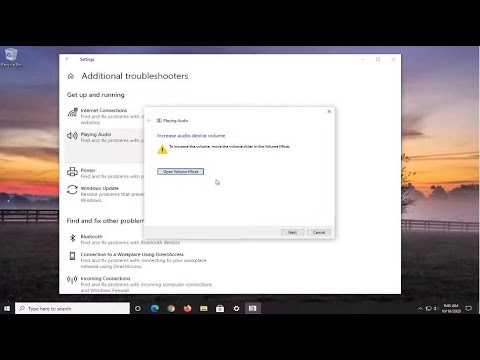
- Troubleshooting Tool: When all else fails—or even if you’re just feeling lazy—a built-in troubleshooter might pinpoint what’s wrong effortlessly! Head over again into Settings via Start menu > Update & Security > Troubleshoot > Additional troubleshooters > Playing Audio.

Anecdotal Evidence:
I remember helping my friend who couldn’t get his headphones working after updating Windows 10 around holiday season because he wanted stress-free music streaming during festivities—it was heartbreaking seeing him struggle without background melodies until he came across driver rollback solution which worked wonders instantly restoring cheerful vibes.These solutions aren’t guaranteed fixes since each system varies—but they’ve done wonders countless times before restoring sound seamlessly without turning hairs gray prematurely in exasperation.
You know when you’re all set to enjoy your favorite tunes or watch a movie on your PC, and then bam! There’s no sound? Or it’s just crackling like an old vinyl record that’s seen better days. Ah, the frustration. I’ve been there too, struggling to figure out what was wrong with the audio.
The thing is, more often than not, it boils down to these pesky little things called audio drivers. They’re like translators between your PC’s operating system and the sound hardware. And sometimes this communication gets fuzzed out due to compatibility issues.
So picture this: your audio drivers are supposed to work hand in hand with both your hardware and software. But if one of them—say the driver itself or maybe a new OS update—decides it’s not going to play along nicely, you end up with those irksome sound issues.
I remember one time I updated my Windows OS and poof! My speakers went silent. Initially, I thought maybe I’d broken something (again). Turned out it was just an outdated driver that needed a little nudge—or update if you will—to get back in sync with the new system updates.
Fixing these issues isn’t always rocket science but can feel daunting if you’re not much into tech stuff. Usually starts by checking for any driver updates through Device Manager or heading over to the manufacturer’s website directly for downloads—oh boy does that bring back memories of my first computer build!
Then there are times where uninstalling and reinstalling does wonders—it’s like giving things a fresh start without actually getting any screws involved (thank goodness!). Don’t even get me started on how many times I’ve told folks about rolling back drivers when updates aren’t cooperating—like taking two steps forward but needing one step back sometimes!
Honestly though? The relief when those speakers finally start blaring again—I swear it’s as satisfying as finding hidden ice cream at the back of your freezer!