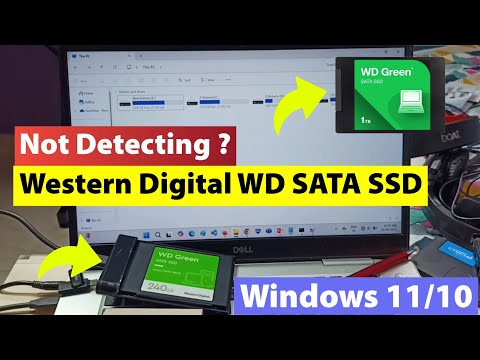
Oh man, there’s nothing quite like the frustration of plugging in your MX500 and—bam!—nothing happens. It’s like you’re waiting for that magic moment, but all you get is… silence. I mean, we’ve all been there, right? Staring at your computer screen like it’s going to suddenly start talking back.
Trust me, I get it. It feels like these gadgets have a mind of their own sometimes. You’re ready to back up your files or install that new game you’ve been dying to try out and then—surprise!—your computer doesn’t even acknowledge the drive exists.
But hey, before you throw in the towel or start questioning every tech decision you’ve ever made, let’s just take a deep breath together. We can figure this out step by step without pulling our hair out.. Hopefully!
Crucial MX500 Firmware Bug Symptoms
Oh, the joy of turning on your computer only to find that your Crucial MX500 SSD is playing hide and seek. Not exactly a fun game, right? If you’re nodding along, keep reading because you might have stumbled upon one of those pesky firmware bugs. So, let’s delve into what symptoms you might encounter with the Crucial MX500 firmware issue and help you understand what’s going on a bit better.
- Device Not Detected: First up, the most noticeable symptom. You power up your PC and suddenly it feels like you’ve been ghosted by your drive. It’s just not showing up in Windows or even in BIOS! This can feel pretty frustrating—you know it’s there, but where?
- Intermittent Recognition: One moment it’s there; the next—poof! It disappears like magic. Sometimes restarting might make it pop back up again for a while, which can almost seem like you’re dreaming when everything works fine temporarily.
- Unexpected Freezes or Crashes: Your system might start to freeze sporadically which could make you question if your computer has taken up ice skating as hobby! And crashes… well they’re never fun reminders that something isn’t quite right.
You might be wondering why these things happen at all? A likely culprit could be outdated firmware on the SSD itself blocking proper communication between hardware components.
What’s Next?
- Check Cable Connections: Before jumping into complex solutions—start simple by double-checking all those connections inside your rig: power cables snugly secured and data cables properly attached (we often overlook basics).
- Tinker with BIOS Settings:– Sounds techy but trust me—you got this! Just enter BIOS setup during startup (usually by hitting Delete or F2 repeatedly)—wiggle around SATA settings until they align neatly (use AHCI mode typically for best results).
- Sneak Peek Firmware Updates from Crucial’s Website: They say knowledge is power; sometimes updated software solves issues instantly so download latest version available there onto USB stick (these updates prevent tech wizardry nightmares!).
Remember when my friend Kathy had similar issues? She spent several frantic hours thinking she’d lost everything forever before realizing her cables weren’t perfectly secure after swapping cases—sigh of relief much?! Jump starting her device connection fixed everything without further ado.
So if any quirks sound familiar next time then breathe easy knowing tweaks are within reach because hey—we’ve all been down this road once or twice throughout tech journeys haven’t we?!
Windows 10 Connection Troubleshooting for MX500 500GB
Alright, imagine this: you’re all set to upgrade your desktop with a shiny new MX500 500GB SSD, and it just won’t show up on your system. Frustrating, right? Well, let’s figure out what’s going on and get that drive working!
First off, when your computer doesn’t recognize a new drive, it could be due to a few simple things. Let’s dig into those possibilities:
- Check Physical Connections: This might sound simple but double-check the SATA cable connections between the SSD and motherboard. It should fit snugly. Sometimes giving these cables a little wiggle can make sure they’re properly connected.
- Power Supply Issues: Make sure the power cable is securely attached to the SSD. Without power, obviously, it’s not gonna spin up.
- BIOS Settings: Restart your computer and jump into the BIOS setup (usually by pressing Del or F2 during boot). Check if the SSD is listed there. If you see it here but not in Windows, well then we gotta look at Windows settings themselves.
- Drive Initialization: In Windows 10 sometimes new drives aren’t automatically initialized. Head over to “Disk Management” by right-clicking Start and selecting it from there. Do you see an “unallocated” space that matches the size of your MX500? Right-click and select “Initialize Disk” if necessary.
- Troubleshoot Drivers: Sometimes drivers can cause hiccups like this too! Navigate to Device Manager from the Control Panel or search in Start Menu. Look for any warnings under “Disk Drives” or “IDE ATA/ATAPI controllers.” Update these drivers if needed.
Now here’s an anecdote: my buddy once swapped his HDD for an SSD only to find nothing was detected because he accidentally didn’t push one connector all way in! Just shows how even little things can trip us up.
If All Else Fails:
Try connecting your MX500 500GB SSD to another computer—sometimes different systems give us more clues! Also consider updating motherboard firmware—manufacturers release updates solving issues like unrecognized drives.
Remember we’re taking this step by step—you’ll have data whizzing through that shiny MX500 before long!
MX500 500GB Connection Detection Issue
Oh no, you’re having trouble with your MX500 500GB SSD not being detected? That’s super frustrating! Let’s break things down. This is a common issue and thankfully, usually fixable. Just follow along, and we’ll try to get you sorted.
First off, when a drive isn’t showing up, it could be due to a few different reasons. Sometimes it’s as simple as a loose cable or maybe something needs updating on your computer.
Check Connections:
You’d be surprised how often this is the culprit! If your SSD isn’t recognized by the system, make sure all cables are snug. Check both data (SATA) and power cables. You might find one just slightly loose.
Try Another Port:
If all connections are tight but no dice? Try connecting the SSD to another SATA port on your motherboard. There’s always a chance that one of them decided to take a vacation!
Update Your Drivers:
You know, computers love their drivers like plants love water. Go into Device Manager in Windows—right-click on ‘This PC’, choose ‘Manage’, then click on ‘Device Manager’. Look for any alerts that might indicate an issue with any component—especially under Disk Drives or IDE ATA/ATAPI controllers—and update those drivers if needed.
BIOS/UEFI Check:
Yeah, sometimes you gotta dive into BIOS/UEFI settings because that’s where hardware gets recognized first. When starting up the computer (before Windows loads), access your BIOS setup—usually by pressing keys like DEL or F2 immediately after powering on—and ensure that the SATA port is enabled.
- If it shows disabled for some reason—or perhaps didn’t auto-detect—you’ll need to change those settings manually.
- If you spot it there but it’s still not showing in Windows? Might require reinstalling its driver!
Assign A Drive Letter:
Assuming everything physically looks good but no sign in File Explorer: let’s assign it a drive letter through Disk Management! In Windows Search bar type “disk management,” select ‘Create and format hard disk partitions.’ If you see our stubborn friend listed without a drive letter next door: Right-click -> Change Drive Letter -> Add one—it’ll pop right up afterward!
Sometimes dealing with technology can feel overwhelming; however, remember—it doesn’t have to ruin our day completely 😉 These steps should cover most connection mishaps so hang tight through each step patiently until success finds us again!
Ah, the joys and occasional headaches of working with technology! You know, I remember this one time when I was trying to upgrade my friend’s computer with a new MX500 500GB SSD. We were both super excited to see how it would improve system performance. But as these things go, once installed, it wasn’t detected by the system. Oh, the frustration!
When an SSD like your MX500 isn’t showing up, it’s often due to a few common hiccups that could be easily resolved. First thing you might wanna check is if it’s seated properly in its connector. It sounds simple but trust me, loose connections happen way more often than you’d think.
And then there are BIOS settings. You know those mysterious little menus you access before the operating system starts? Sometimes, you have to tell your computer “hey, there’s a new drive here!” So make sure everything’s configured correctly.
One interesting find from our little adventure was learning about SATA cables being tricky at times; yes they can just give out or not fit snugly enough without us noticing. It’s always worth trying another cable if things aren’t quite clicking into place.
Now jumping into software territory: Updating drivers or checking disk management tools on Windows can reveal loads of info too. It’s like opening up a treasure chest of details about what’s connected (or what’s supposed to be connected).
Anyway! The whole experience reminded me that every encounter with tech issues brings its own set of lessons and sometimes unexpected solutions surface when you least expect them—usually after some head-scratching moments!
So next time your SSD decides to take a coffee break from being detected, remember these small steps could help coax it back into action and get things running smoothly again!