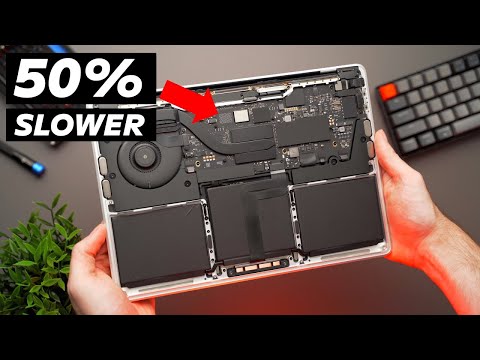
You know when your computer feels like it’s dragging itself through mud? Yeah, super annoying, right? Could be your M.2 SSD that’s not delivering the pep it promised.
I had this moment the other day. I’m sipping my coffee, ready to dive into work. Then boom, I’m waiting ages just to load a browser. Frustration level: Max.
So, could that shiny 500GB SSD be slacking off on you? It’s wild but true—sometimes, they just don’t play nice.
Let’s get cozy and figure out what’s going on with that little speedster of yours!
Causes of M2 SSD Slow Performance
Sure, let’s chat about why your M.2 SSD might be acting a bit sluggish. It’s kind of like when you’re driving and suddenly feel like the car isn’t responding as it should, even though on paper everything seems fine.
- Thermal Throttling: Picture your SSD like an athlete. It can get really hot when working hard. And just like you might slow down to avoid overheating, your drive does too. M.2 SSDs can throttle performance to manage high temperatures.
- Firmware Issues: You know those software updates your phone always pesters you for? SSDs have them too. If the firmware is outdated or glitchy, it can seriously tangle up performance speeds.
- NAND Flash Wear: Now, this sounds fancy, but what happens is that all flash memory wears out over time—kind of like how shoes eventually give up after miles of walking. If you’ve been using your SSD heavily, it could be showing signs of wear that slow it down.
- SATA vs NVMe Interface: It’s easy to mix these two up since they both can use the M.2 slot, but here’s the thing: NVMe drives generally smoke SATA drives in speed tests because they talk directly with the CPU via PCIe lanes instead of through a bottlenecked SATA interface.
- Bios Settings: Ah, BIOS… Remember when you first learned to drive and that weird moment realizing there’s more buttons than just gas? Getting BIOS settings wrong is similar; if misconfigured for power management or storage settings—it throws everything for a loop!
- Background Processes: Sometimes it’s not even about what’s wrong with the SSD itself! Ever notice how many tabs you leave open on your browser because you swear you’ll revisit them later? Background apps do something similar—they’re bandwidth hogs chewing through precious resources.
So anyway if any of these sound familiar or ring true based on how you’ve used (or abused) that M2 beastly beauty already—you’re definitely onto something! There’s no shame in troubleshooting or maybe asking for help keeping track especially since technology’s evolving faster than we often realize ourselves!
Checking M-2 SSD Health
Let’s dive into the world of M.2 SSDs to get a better understanding of checking their health. If you’re finding that shiny new 500GB drive running slower than expected, it might be due to some wear and tear.
Why Check M.2 SSD Health?
Your computer’s speed can sometimes dip because your SSD isn’t as sprightly as it used to be. These drives like any other component, have a certain lifespan.
Signs of Trouble
You might notice some pesky symptoms like:
- Sluggish boot times: It feels like forever for your computer to start up.
- Slow file transfers: Moving files takes way longer.
- Frequent crashes: Those unexpected system freeze-ups.
Steps to Check SSD Health
1. **Use Built-in Tools:**
Windows has tools like the **Task Manager** and **Resource Monitor** where you can spot performance hitches.
2. **Third-Party Health Check Software:**
Some applications help keep tabs on every aspect of your drive’s health:
- CristalDiskInfo: Simple tool showing everything from temperature to read/write errors.
- Samsung Magician or Crucial Storage Executive: Specific brands offer software tailor-made for their products.
3. **Regular Backups:**
It’s always wise, not just a safeguard but a smart move—keep copies of allll your important data in cloud storage or other drives.
Maintenance Tips!
– **Avoid Overloading:** Try not fill up the whole entire drive.
– **Enable TRIM Command:** This keeps things neat by reducing writing cycles.
– **Firmware Updates:** Occasionally drives need updates too; keep them current.
A personal story… Once I found my own laptop taking ages just to power up! Turned out my M.2 was almost full, affecting its speed bigtime, didn’t know extra space mattered that much!
Anyway remember every tech issue isn’t always hardware failing—often simply needs bit management tweaking . Keep an eye on those storage stats!
Knowing how stay informed empowers—you’ll save headaches down road while keeping devices whirring happily along!
SSD Speed Bottleneck Causes
When your SSD is not working as fast as you expected, it can feel like running through mud. An SSD, especially those nifty M.2 500GB ones, should be quick like a cheetah. But sometimes they’re not and it’s frustrating! Here’s what’s possibly happening.
Check the Interface: Your M.2 SSD connects to your computer using an interface—like talking through a phone line, so to speak. Some are faster than others! If your M.2 is hooked up using a slower interface like SATA instead of NVMe, it could slow things down big time.
- NVMe vs SATA: NVMe uses PCIe lanes and is super speedy compared to good old SATA.
Thermal Throttling: Just like us on a hot day might slow down if we get too hot, SSDs do the same thing. They can heat up when working hard and slow themselves down to cool off.
- Solution: Keep your computer in a cool spot or use better cooling solutions.
Overfilled Drive: An almost-full drive can become sluggish because it needs some free space for its operations—kind of like needing elbow room when cooking in the kitchen!
- Free Space Importance: Try keeping at least 10-15% of space free on that SSD.
Firmware Outdated?: Sometimes just updating your SSD’s firmware can magically fix these issues. It’s like updating an app on your phone for better features!
- How-To: Head over to the SSD manufacturer’s website for updates.
Cable Issues (for External): If by chance it’s an external setup you got going on there, check those cables! A loose or dodgy cable might cause bottlenecks too.
Ever had one of those days where no matter what you did nothing seemed right? It happens with computers as well! The simple act of turning off and restarting could clear out some digital cobwebs slowing things down.
And remember, if you’re still stuck after all this, it’s totally okay—it happens! Don’t hesitate getting some expert eyes on it who can take a closer look under the hood.
Ah, slow SSD performance—that’s a pickle many folks hit from time to time. You know, you got this shiny M.2 500GB SSD because everyone told you it’s the speed demon you need for your computer. And don’t get me wrong, these little powerhouses are generally super quick! But if you’re finding things aren’t zipping along like they used to, it might just be your drive acting up.
I’ll never forget the time when my cousin called me up in sheer frustration. He’d just installed an M.2 SSD and expected his computer to blow his socks off with its speed. At first, everything was lightning fast—he was thrilled! But then, gradually, it started dragging its feet.
Now, there’re a bunch of reasons why an SSD might slow down. It’s kind of like how sometimes we have too much on our minds and can’t focus properly—SSDs have their own version of ‘too much.’ If there’s not enough free space or too many files scattered all over (we call them ‘fragmented,’ fancy word), that little drive could start feeling cluttered.
And speaking of cluttered, keeping firmware updates in mind is critical too. Sometimes manufacturers roll out updates that fix bugs or make them run smoother than before—a bit like getting a mental refresh!
Temperature can be another sneaky culprit; yeah that’s right even your hardware needs to cool off once in a while! If it’s running hot as a result of being crowded by other components or poor ventilation inside the PC case—it might throttle itself down so it won’t overheat—and oops there goes your speed.
If you’ve been transferring massive files all day every day—or using tons of writes—those can add up over time causing wear on flash cells inside SSDs affecting performance leading eventually towards sluggishness.
So anyway what do you do? Free up some space by deleting unnecessary data; maybe think external storage solutions if needed! Dealing proactively ensures better efficiency long term which ultimately saves any head-scratching moments later when things seem unbearably laggy again right?
Anyway take care monitoring usage habits performing regular maintenance smart choices regarding file management helps maintain those blazing fast speeds we’re on about initially happen again hopefully before tech-support calls become necessary hmmm?
Really hope this makes sense provides helpful insight moving forward possibly figuring out whether errors slowing down current experience finally resolved sooner than expected fingers crossed huh!?