Hey, have you ever been there, trying to get something done online, and bam! The internet just decides it’s break time? Ugh, right? We’ve all been there. You’re sitting on your couch, laptop in hand, and suddenly everything’s loading slower than a turtle in peanut butter. Infuriating!
Sometimes the culprit is something as sneaky as a hiccup with DNS or Winsock settings on Windows 10. Sounds techy? Don’t sweat it—I’ve got your back. Fixing this kind of network issue is much easier than you might think. Let’s kinda unravel this mess together and get you connected again.
You’re going to be right back zipping through the web before you know it!
Effects of Flushing DNS and Resetting Winsock
Hey, network troubles can be a real headache, right? Let me tell you about this thing called flushing DNS and resetting Winsock. It’s like giving your computer a little nudge when it’s having a bad day with network issues.
Flushing the DNS Cache: It’s an interesting process. What you’re doing here is clearing out old data that helps your computer connect to websites. You see, when you visit a site, your computer stores its address so it can find it again quickly. Sometimes, though, these records get mixed up or outdated. Flushing the DNS cache is like cleaning out that drawer full of old menus you never eat from.
- How to do it: Open Command Prompt as an admin—you know, that black screen where you type things in—and type:
ipconfig /flushdns.
The Result? Think of it as refreshing your internet experience. You’ll often see faster page loading because your system will seek fresh info on websites.
Resetting Winsock: Now onto Winsock! This one’s like the little translator between Windows programs and web services. If it’s misbehaving, well, talking to the internet might not go smoothly for any app you are using.
- The process is easy peasy too: Again in Command Prompt (as admin), just type:
netsh winsock reset.
Resetting Winsock means you’re asking Windows to fix its relationship with networking programs—sounds dramatic I know—but crucial during annoying connectivity issues.
You ever feel like even simple steps can make a big diff? Once I was at my wits’ end over lagging connections while streaming my favorite series (no spoilers!)—but after trying these methods everything sped up. Relief washed over me; it felt almost magical!
Just remember after doing this magic reset dance above—to restart the computer afterward! That’ll help apply those changes properly across all apps running on startup…oh yeah🔄️
In short terms?
DNS Network Problem Solutions
You know that feeling when your internet connection just doesn’t want to cooperate? One moment it’s all working fine, and the next, boom—nothing loads. Often, the culprit is a DNS or Domain Name System issue. Sounds fancy, right?, but it’s really just about translating those user-friendly website names into IP addresses that computers can understand.
DNS Network Problems can stop you from accessing websites, even if everything seems okay on your computer or network. It feels like being stuck in traffic with no way around it! And speaking of solutions, let’s talk about resetting Winsock on Windows 10; it’s one way to potentially fix these issues.
First things first. When you run into these DNS problems, a Winsock reset might be your golden key. Winsock is basically responsible for managing connections between Windows and the network. Sometimes it gets all tangled up—like a knot in your shoelaces—and needs a good reset to get things working smoothly again.
Here’s how you can do it:
- Open Command Prompt: Type “cmd” in the search box and run it as an administrator. This gets you inside the control center without any fuss.
- Enter the Magic Commands:
netsh winsock reset: This resets Winsock.netsh int ip reset: Resets TCP/IP stack which can also affect DNS resolution.
- Restart Your Computer:. Often overlooked—but crucial! A reboot ensures changes take effect.
Sometimes after doing all this magic trickery, things don’t immediately spring back to life—that’s frustrating! Patience is key here; give it a bit of time and then check if your Internet woes have vanished.
And look if resetting doesn’t help there are still other possibilities too…
For example:
- Tweak Your DNS Settings:. Change primary/secondary server addresses in network settings (Google’s public DNS servers: 8.8.8.8 & 8.8.4.). Trying something different might do wonders!
- CLEAR Your Cache:. A simple flushing out cache using command prompt (type ipconfig/flushdns) makes way new info—sometimes stale data causes hiccups causing everything go haywire suddenly without warning signs beforehand…just like unexpected rain showering down soaking dry clothes hanging outside under sunny skies minutes earlier typically would alrighty?
-
In many cases with enough patience luck,’ll untangle messy situations enroute happier browsing destination ahead enjoy seamless experience newfound freedom.”
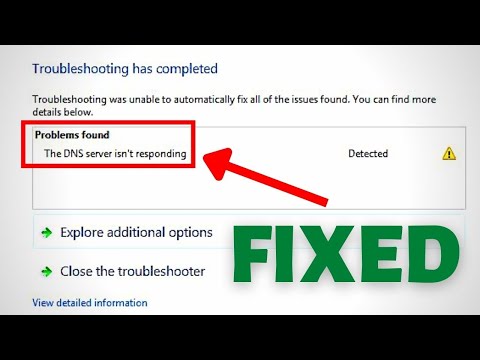
DNS Server Not Responding Error on Windows 10
Hey, if you’ve ever gotten stuck with that “DNS Server Not Responding” error on your Windows 10, you know how frustrating it can be. It’s like when you’re really craving a slice of pizza but all the shops are unexpectedly closed—you just can’t get what you want!
Here’s the thing: DNS, short for Domain Name System, acts like a phonebook for the internet. It helps translate user-friendly website names into those technical IP addresses computers use to communicate. When it goes haywire, well, it feels like you’ve lost your internet roadmap.
So let’s chat about what might be happening and how you might go about fixing this issue.
- Check Your Internet Connection: Seems simple enough, but sometimes it’s not actually your DNS server at fault—your connection might just be down or unstable.
- Disable Antivirus Software Temporarily: Yeah, antivirus programs can sometimes block network access without us noticing. Just try turning it off for a bit to see if that solves anything.
- Change Your DNS Server: Your current server could be having one of those off days. You can switch to public servers like Google’s (8.8.8.8 and 8.8.4.4) or Cloudflare’s (1.1.1.1). To do this:
- Press the Windows key and type “Control Panel”. Hit Enter.
- Select “Network and Sharing Center” then click on “Change adapter settings”.
- Right-click on your network connection and choose “Properties”.
- Select “Internet Protocol Version 4 (TCP/IPv4)” and click “Properties”.
- Select “Use the following DNS server addresses” and enter new values.
- Reset Winsock:This step can feel like hitting refresh on your network settings, which sometimes is exactly what you need! Open Command Prompt as an administrator (just right-click Start), then type in:
“`sh
netsh winsock reset
“`
After that restart your computer.Update Network Drivers:Your drivers are kind’a like little translators between Windows and your hardware components; outdated ones could cause hiccups.
To update them:-
>Press Windows + X keys together and choose Device Manager.”
>
Right-click on your network device under “Network adapters,” select “Update driver.” Choose “Search automatically for updated driver software.” Give it few minutes while checks online!
>This should get things back up-and-running! Sometimes fiddling ’round tends bring everything into swing again… kinda therapeutic even though unexpected glitches seem endless otherwise bleak days!
Anyway stay connected without interruption soon enough; fingers crossed luck turns around fast meanwhile until defeating smallest irksome problems isn’t challenge anymore—feels rewarding once resolved at least now doesn’t require magic wand being tech-savvy guru either–just persistence patience paying attention details casual troubleshooting tips shared above yield results!
Oh, network issues. We’ve all been there, right? You know how it goes: you’re in the middle of something important online—maybe a call, a game, or just binge-watching your favorite series—and suddenly, bam! Your internet connection acts up. It can feel so frustrating when the Wi-Fi icon on your laptop mocks you with that sneaky little exclamation mark. But hang in there; sometimes, it just takes a little tinkering to get things back on track.
One of those hidden tricks that can work wonders for your Windows 10 is performing a DNS Winsock Reset. Now, I know what you’re thinking—DNS what? Don’t worry; it’s not rocket science! It’s like giving your network settings a fresh start by scrubbing away any bad info that’s clogging things up.
Let’s break it down simply: DNS stands for Domain Name System. Imagine it’s like the phone book of the internet—translating those unfathomable numerical IP addresses into names you actually recognize and type into your browser (like “cute_puppies.com”). And Winsock? It’s short for Windows Sockets API—not as scary as it sounds. Think of it as the interface that connects all networking programs to the internet.
Anyway, doing a reset basically clears out whatever’s stuck and stubborn in your connection pipes. It’s kinda like when I had this old radio at my grandma’s place; every now and then, we’d need to jiggle things around or reset its frequency to bring back the tunes we loved so much.
Performing this on Windows 10 isn’t complicated either—even if tech jargon isn’t exactly up your alley. A simple command prompt dance will do: hit Start, type “cmd,” right-click to run as administrator (fancy!), and then just enter two magical lines:
- netsh winsock reset
- netsh int ip reset
After this neat trickery? Well… then you simply reboot and cross those fingers! Odds are you’ll see improvements in no time flat.
It might seem small or trivial compared to other computer mysteries out there—but trust me—it saves plenty of headbanging moments against keyboards trying futilely getting connectivity restored manually through endless settings poking & prodding!
So next time fate throws unnecessary hiccups amid deadlines into mix via dodgy networks—you’ll have one handy tool ready without sweating bullets too much over technical gobbledygook grinning back defiantly onscreen!