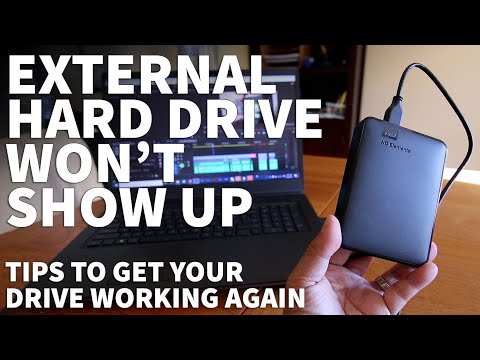
Oh boy, technology, right? One minute everything’s working just dandy, and the next—bam! Your shiny new Seagate 20TB drive isn’t even getting a nod from Windows 10. Yikes! That’s like buying a ticket to your favorite concert and then forgetting where it is.
I remember the time I plugged in a new gadget and my computer looked back at me like, “What is this alien object?” Talk about frustrating.
But hey, don’t sweat it. You’re definitely not the only one scratching your head over this.
Ready to dive into some easy-peasy solutions together? Let’s make that drive shine on your screen again!
Seagate Drive Setup on Windows 10
Setting up your Seagate drive on Windows 10 can seem a bit tricky, especially if your system doesn’t immediately recognize that massive 20TB of goodness. Let’s unravel this together, step by step.
- First things first: Make sure you’ve connected the drive properly. Sometimes, it just boils down to a loose USB cable or using the wrong port. Check those snug connections!
- Check Disk Management. If Windows Explorer isn’t showing your drive, don’t panic just yet. Hit Windows + X, and select “Disk Management.” Your drive might be there but unallocated.
- Create a new volume. If you see your drive as unallocated in Disk Management, you’ll need to create a new volume. Right-click on it and choose “New Simple Volume.” Follow the wizard—it’s like baking a cake with instructions!
- Assign a letter: Giving your Seagate a proper letter from the alphabet soup like ‘E:’ or ‘F:’ helps Windows keep its memory together about what you have plugged in.
- The driver update detour: Have you caught yourself wondering about drivers? Well, they’re essential little programs for getting your stuff recognized—like translating between two languages! Right-click on “This PC” in File Explorer, select “Manage”, then find “Device Manager”. Under “Disk Drives,” right-click on your Seagate and hit “Update driver.”
Sometimes technology throws us curveballs we don’t see coming! For instance: my cousin once struggled with exactly this (yes indeed!). It turned out he was trying to access his oversized external darling through an ancient USB port… oh boy!
Anyway—breathe easy. You’ve got everything you need now to get that monster storage working beautifully with Windows 10. Patience is key!
Seagate 20TB Drive USB Recognition Issues on Windows 10
You know, when a Seagate 20TB drive isn’t recognized by Windows 10, it can feel like trying to find your way through a maze without a map. Frustrating! There could be several reasons for this hiccup, ranging from simple connection issues to more complicated software conflicts.
Here’s something you can try first. Make sure the USB cable is securely connected to both your drive and your computer. Seems basic, right? But you’d be surprised how often cables look connected but aren’t making full contact. If possible, swap the cable with another one that you know works well—sometimes cables get tired with age and wear.
Next up, let’s check if the device shows up in Device Manager:
- Hit the Windows key on your keyboard and type “Device Manager”.
- Once it’s open, scroll down to “Disk Drives” and see if your Seagate is listed there.
If you spot an icon that looks like a caution sign next to it or under “Unknown Devices”, then it’s time for some driver updates or reinstallations.
- Right-click on the drive name.
- Select “Update driver“, then pick “Search automatically for updated driver software“.
Crossing fingers here could solve any recognization problems stemming from outdated drivers!
If that doesn’t help out much—or at all—go ahead and plug this drive into another USB port on your PC; sometimes ports themselves have quirks.
Now here comes an odd yet surprisingly common trick: try connecting it initially via a powered USB hub instead of directly into your computer’s ports. Sometimes there’s just not enough power coming through certain ports especially when dealing with larger-capacity drives like these ones can require more juice than usual!
And hey! Don’t overlook initiating some system troubleshooting steps such as checking disk management settings:
- Right-click Start Menu/button;
- Select Disk Management.
- If lucky—or unlucky depending where we stand—it should appear here under unallocated space section waiting initialization/setup before hands gets recognized back onto main window browsing action scenes!
When diving deep fails help make progress feeling fruitless without result-oriented outcomes popping forth worthwhile efforts poured invested activities – remember calling customer service team put questions queries rest guaranteed support might end being answer prayers.
Seagate Hard Drive Detection Issue
Ah, the good old Seagate hard drive not singing along with Windows 10. I mean, you’ve got this shiny new 20TB drive full of potential, and boom! It’s like a ghost in the machine. Let’s see how to tackle this sneaky issue together.
Start with the Basics. First, double-check those connections—sounds simple, right? But it happens more often than you’d think. Sometimes just unplugging and plugging it back in can work wonders.
Then, make sure your USB ports are up for the challenge. Older or faulty ports might play hard to get with such a massive drive.
Dive Into the Device Manager. Open your Windows Device Manager (just type it in the search bar). Look out for any yellow exclamation marks or unknown devices under “Disk drives.” If you find something suspicious, that could be your culprit!
Here’s what you might spot:
- Unknown Device: This could be your wayward drive needing a driver update.
- Yellow Exclamation Mark: Indicates some conflict or issue that needs sorting.
To attempt a fix:
1. Right-click on it.
2. Pick “Update driver.”
3. Follow through with what Windows suggests.If your PC’s keeping up with its updates game but still no joy? Might need to check out another solution.
Initialize Your Drive. Maybe Windows is seeing it for the first time? Head to Disk Management (right-click start button > Disk Management) and see if your drive pops up as “Not Initialized.”
What you do next is:
- Select your disk.
- Right-click and click on “Initialize Disk.”
- Choose either GPT (for larger capacities) or MBR based on what works best for you.
Check File System Format. Oh man, sometimes it’s down to tiny things like formatting incompatibilities! If it appears but isn’t straightforwardly usable, right-click on that new volume—then format using NTFS which plays nice with Windows systems.
Tweaking BIOS Settings!. Last resort alert here! Go into BIOS settings when starting up (usually hitting Delete/F2 does this). Check “Boot Options” making sure nothing’s stopping those external drives from showing love at start-up time.
There’s always some trial-and-error hum-drum involved when tech seems uncooperative though don’t lose heart everything has its way around giving techwarmth -even cold machines break under right touch y’know? Anyway hope things get rolling smoothly soon enough—it’ll work out cheers!
Gosh, isn’t it just the most frustrating thing when technology doesn’t do what you expect? Picture yourself eagerly plugging in your shiny new Seagate 20TB drive, dreaming of all that sweet space for movies, photos, and files. But then—all of a sudden, Windows 10 plays hard to get and doesn’t even recognize it. Makes you want to throw up your hands and groan!
Now let’s breathe a bit. This kind of hiccup happens more often than you’d think, and there’s usually a straightforward fix around the corner.
Firstly, start by checking connections. Sometimes a cable sneaks loose; it’s just what happens! Re-seat those cables snugly into both the drive and the computer. You never know—it might just do the trick.
If it’s still playing hide and seek, delve into Disk Management in Windows 10. You hit that magical Windows key plus X for a menu where Disk Management lives. See if your drive is there but being shy as “unallocated.” If this is what you see, it might need formatting or partitioning before taking its place proudly among other drives.
Still no joy? Well then check drivers next—outdated ones can stir up quite a bother. Peek at Device Manager (same menu magic with Windows + X), see any warning signs or exclamation marks near your disk drives? Update those drivers if anything looks off!
Lastly—and this one’s less fun—you may want to test your Seagate on another device entirely or swap cables completely just to rule out hardware mischief lurking about.
In my earlier days experimenting around computers as hobby rather than habit—I once spent an entire afternoon blaming software before realizing I’d plugged things wrongly altogether! Goes without saying—but triple check!
Keeping calm amidst technological quirks like these keeps frustration at bay – remember each little lesson prepares us better next round!