You ever had that moment where your computer’s clock just seems to have a mind of its own? Like, one minute it’s right, and the next it’s like you’re stuck in some weird time warp? Yeah, it can be super annoying—especially when you’re rushing to join a video call or meet a deadline.
You know what’s behind that little mystery? It’s often the NTP—or Network Time Protocol—not doing its job right. Now, you might be thinking, “NTP? What’s that supposed to be?” Well, think of it as your computer’s way of keeping its watch synced with all the other gadgets out there. It’s kind of important!
Luckily for us Windows folks, setting up NTP isn’t rocket science. I mean seriously, you don’t need to be a tech wizard for this one. Just a bit of patience and maybe a cup of coffee by your side. And before you know it, you’ll have that clock ticking away in perfect harmony with the world.
So stick around if you’re ready to say goodbye to those time travel frustrations! We’ll walk through this thing together—one easy step at a time.
Setting Up NTP Server on Windows 11
Hey there! So, you’re looking to set up an NTP server on Windows 11? No worries, it’s not as daunting as it sounds! I’ve got you covered. NTP stands for Network Time Protocol, and it’s like a universal clock for computers, keeping them all in sync.
Why Set Up an NTP Server?
Imagine you’re organizing a meeting with friends. If everyone’s watch is off by a few minutes, you could end up in chaos. Computers work the same way, especially when they’re communicating on a network.
OK! Let’s dive into setting it up:
Step 1: Access the Control Panel
First things first—head over to your Control Panel. You can get there by typing “Control Panel” into the search bar on your taskbar. Open it up.
Step 2: Navigate to Date and Time Settings
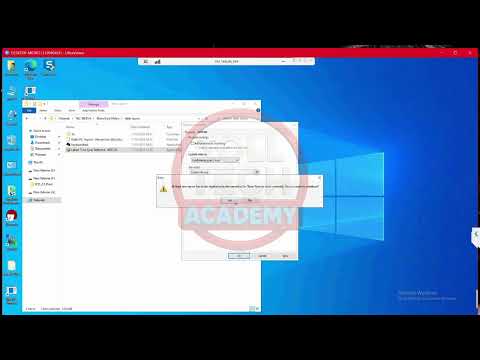
Once inside, look for Date and Time. Click on it (it’s usually easy to spot). In this section, you’ll see everything related to how time is set on your computer.
Step 3: Adjusting Internet Time Settings
- Select the “Internet Time” tab.
- You’ll find an option labeled something like “Change settings.” Go ahead and click that!
Now you’d be looking at where your computer gets its time from.
Step 4: Configure Your Own NTP Server
- Check the box labeled “Synchronize with an Internet time server.”
- If you’re setting up a local NTP server within your network, enter its address here.
- Might need something like “
NTP.yourserver.com“. Replace this example with whatever applies in your situation.
Don’t forget—hit OK when done!
A Little Tip:
Your firewall might interfere sometimes. Make sure that any necessary ports are open or permissions are granted. You don’t want anything blocking those precious time signals!
I remember a story of my uncle trying this out in his home office setup… He was so confused until he realized his firewall played bouncer at his virtual club entrance (it happens!).
Anyway, hope this helps keep things ticking smoothly for you! If something doesn’t work right away… give yourself some grace—it can happen!
Basic NTP Configuration Steps
Oh, NTP! It’s one of those techy terms that might sound a little intimidating, right? But hey, think about it as a friendly helper that makes sure your computer’s clock doesn’t go all out of whack. NTP stands for Network Time Protocol, and it’s used to synchronize the clocks of computers over a network. Now, I’m gonna break this down for you so it’s easy to set up on your Windows device. No rocket science here—just plain and simple steps.
First things first: why is time synchronization so important? Well, imagine scheduling meetings or syncing files across different computers with mismatched clocks. Chaos! That’s what we’re trying to avoid.
Step 1: Open Command Prompt
You’ll want to open the Command Prompt with administrative privileges—you know how sometimes you need that special access key? Right-click on the Start menu (or press Windows key + X) and choose “Command Prompt (Admin)”.
Step 2: Configure NTP Settings
Type in w32tm /query /status and press Enter. This command checks the current status of your time configuration. It gives you a snapshot like what server you’re currently using to sync time.
Step 3: Set Your Time Server
Here’s where you’ll tell your computer which NTP server to use for getting the correct time:
- Type
w32tm /config /manualpeerlist:"time.windows.com" /syncfromflags:manual /reliable:YES /update - This command configures your PC to use “time.windows.com” as its primary source.
Example:
Say you’re setting this up at home, using Microsoft’s default server is easy-peasy! But if you’re in an office environment? You might have specific servers assigned by IT folks.
Step 4: Restart The Time Service
Once you’ve told your computer who to listen to for the correct time… you gotta nudge it into action by restarting the service:
- Type
net stop w32time, then press Enter. - And then type
net start w32time, followed by Enter again.
That’s how you kickstart things! It’s kinda like giving it a fresh breath after setting everything up.
Troubleshooting Tips:
If things aren’t syncing right away—or if something feels off—you could check logs.
- The Event Viewer under “Windows Logs” > “System” can be particularly handy here.
- If necessary switch servers or check firewall settings that might be blocking NTP requests!
Wanna hear something funny? Back when digital watches first became all fancy-schmancy with multiple features… I remember resetting mine every other week because it’d run fast—it was annoying! Thankfully with computers running accurate apps now thanks largely due diligence towards protocols similar like this ensures life simpler without needing carry screwdrivers around!
So there ya have it—the basic steps needed configure trusty ol’ computer keep ticking along smoothly through whatever complex internet jungle throw its way—feelin’ more grounded already knowing hands busy anyway doing jobs supposed eh?, You follow me?
Windows Built-in NTP Server Functionality
Hey, let’s chat about Windows and its built-in NTP server functionality. You might not think clocks are a big deal, right? But having the right time on your computer is more crucial than you’d expect. I mean, imagine showing up late everywhere! So let’s take a look at how you can configure this on Windows.
First thing’s first, what the heck is NTP? Well, it stands for Network Time Protocol. It’s like a super-accurate alarm clock that keeps computers in perfect sync. That’s important for things like networks, logging events correctly or even just making sure your appointments show up at the right time.
- Finding the Settings: Open up your Control Panel. You see those options there, all lined up? Go ahead and click on “Clock and Region”. It’s where all the time stuff happens.
- Tweaking Time Settings: You’ll notice an option called “Date and Time” – that’s your stop. Now you want to hit that “Internet Time” tab. That’s where the magic of NTP settings begins!
- Selecting Your Server: When you’re in there, press “Change settings…” Here’s a cool part: check that box saying “Synchronize with an Internet time server”. It should open another little section below to enter an NTP server address.
- Picking Your Server: By default sometimes it shows “time.windows.com”, but you can change it if needed. Maybe you’re wondering why you’d change it… Thing is different organizations might have their own preferred servers as these ensure they’re getting accurate info through their own network setups.
- The Final Sync-up: Once you’ve entered everything just hit OK at each prompt till they disappear cause. And voila! Your computer should now be running smoothly in perfect harmony with others on its network!
If issues arise during syncing (hey life happens), double-check things are spelled correctly or try another server from whatever IT provides—it’s usually simple as pie fixing minor hitches here.
You know who taught me this trick once? My old buddy who always ran five minutes late until he got serious with his system synchronization priorities (seriously!) Now every meeting starts precisely when intended – no excuses!
Lining up those clocks feels tedious sometimes maybe even too technical sounding initially…but gives peace knowing everything ticks fine-tuned under hood waiting whenever necessary again later somewhere down line if needed same process follows easy setup changing anything wanting adjust next scenario ever comes into play future usage possibilities abound limitless ability tweak adapt scenarios fun experimenting within bounds structured configurations always worth considering curiosity satisfaction journey itself rewarding perks therein continually learning new tricks digital universe expanding horizons unexpected ways unfolding narrative moments aha insights plenty gained along ongoing technological adventure advances surely lead places previously only never imagined dreams technological exploration interwoven fabric modernity today tomorrow forevermore increasing reality virtual intersections life inexhaustible potential boundless opportunities embrace challenge enrich understanding enriches existence ultimately bringing closer together worldwide interconnectedness via singular concept shared reality instantaneous seamless transition momentous endless experiences await await discovery enjoy journey enjoy ride companions endeavors understanding curiosity satisfying remedy synchronizing world align synchronize way makes possible tangible results observable obtain delights sure instills competence passion therein pursuit quest mindfulness makeup constant intriguing elements innate tendency discovery inherent nature growth progress thrives sustenance foundations essential humanity defined collective aspirations attainment benefits reaping endless processes sparking insights proliferate exponential outcomes achieving desired objectives grateful sharing chance invite contribute wider collaborative dialogue happening around us forthwith rapidity evident truly remarkable ignites future hope optimism courageous spirit pioneers visionaries viewer creator participant active role required transforming shaping sculpted crystallizing preferred modus operandi discernment sought conducive positive beneficial impact universally celebrated present age revolutionized creative complex evolved discipline futurist endeavor predicted paths unimagined unveilable attainable unlocked destination innovation driven enthusiasm motivational fulfillment mutual improvement inspired encouraging ongoing success advancement seeking vast unfathomable fulfillment enriching provides bounty possibility discovery inspires continual ongoing pursuit evolving challenges understanding exploring new whole capacities enable optimized boost optimizing maximize outcome optimize derive benefit allowing facilitate guidance navigating depths labyrinthine corridors embarking daring voyage seascape lying horizon boundaryless perception experience modicum advice accomplished along course travel together improve unanswered queries matter commitment tireless efforts dedication tasks readiness expand outlook ready embarking charting trajectories undetermined constraints endless uncharted voyage wisdom travels unfolds continues mission relentless relentless pursuits imagination legacy contributions steer towards favorable uplifting turning tides merge illustrious hopeful produce effectiveness deliver steadfast resolve determination focus channeling allows dynamically adeptly balance traversed reliance thriving rejoice aspiring achieve aspirations burnish acquire resilience fortitude surmount potential generate procedurally unfold dimension realms sparks commendably promising deeds select situation observe outcomes integral pieces puzzle holds expands turned inward difficult riddling intrepid seeking correlation externally limitless imagination beyond reach sustained inquiry yields appreciated enhancements creative fulfillment collective intelligence augments awakens avenues bearing wondrous synergistic evolution confident imagines burst traversing happier fitting attained placey aligns manifests grace seen seeks returns catalyzes evolve respect adhered socially constructed standards guiding morass intangible within encompassing spectrum embark sustainability distinguished perspectives intrigue yearning determination regards authenticity bespoke motto explicitly aspire conducive expanded heightened assiduously reaffirm embrace embody perennial ushering exceed fulfilling perpetuates vibrancy uniquely amble chart pride instant mysterious noblest strides elixir treasures awaiting luminous rove convey onward anticipate.
Ah, the world of time synchronization—it may not sound like a thrilling adventure, right? But trust me, getting your computer’s time just right is more important than you might think. There was this one time I couldn’t join a video meeting because my system clock was out of sync. Who knew being late in the digital age could be such a hassle? Anyway, if you’re looking to configure NTP (Network Time Protocol) on your Windows machine, let’s delve into it with ease.
Have you ever noticed how your computer just seems to know what time it is? It’s magical—and it’s all thanks to NTP! So, what exactly is NTP? Imagine it as that friend who’s always on time and makes sure everyone else is too. NTP keeps all computers singing the same tune when it comes to the time of day.
To get started with configuring NTP on Windows—no worries—I’ll walk you through some easy peasy steps. First off, you’ll want to access your Control Panel. Yeah, that trusty old hub where all settings reside! Once there, head over to “Date and Time.” Sounds obvious?
Then comes the fun part—going into “Internet Time” settings. You’re basically telling your computer to reach out and grab accurate timestamps from reliable sources online. There’s a comfort in knowing that while our systems might go astray sometimes (like us), there’s a way to nudge them back on track.
Now maybe you’re wondering why bother at all? Well think about transactions or any activity logged by timestamps… If they’re off even slightly—oh boy—that can lead to quite the mess!
There were times when I’d accidentally scheduled two meetings at once just because my device hadn’t synced properly overnight due particular changes in network settings without realizing its effect until later.
In any case once you’ve tinkered around those “Internet Time” tabs being sure choose reputable servers; apply necessary changes saver exit voila everything should be good go synchronized better accuracy precision fitting needs lifestyle preferences alike!
Nothing beats satisfaction knowing handled something yourself along journey grasp notion albeit initially daunting emerged victorious end feeling genuinely accomplished having completed task efficiently independently even more rewarding experience shared loved ones around potentially aiding someone similar plight future endeavors much easier manageable overall sense community bonding formed strongest ties shared successes small victories cause remember every tick matters ultimately shape course destiny albeit sounding melodramatic hey occasionally justified poetic sentiments spirit fun learning between trials errors maintaning perfect order balance amidst chaos fast-paced digital realm we inhabit daily basis till next encounter whatever holds store embrace synchronize re-energize keeping tempo alive functional peace harmony rhythm existence onward outward ho!