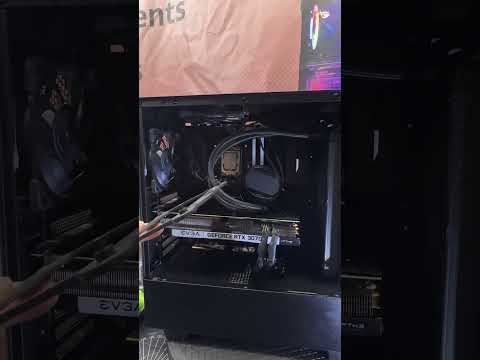
Oh man, you’ve got an i7 10700KF that’s running hotter than a summer day in the desert? Yikes! That’s enough to make anyone sweat, right? Seriously, no one wants their beloved PC to start feeling like a sauna. But don’t freak out! It’s not the end of the world.
Computers can get a bit moody sometimes. They’re like pets, you know? Give ’em too much heat and they start to pant—figuratively speaking. Anyway, we’re gonna figure this out together and cool things down.
Ever feel like your computer’s working harder than ever before? Maybe it sounds more like a jet engine taking off? Yeah, that’s usually a clue something’s up with the temps inside.
Grab your favorite snack or drink—I mean who doesn’t love munching while learning some tech tricks—and let’s dig into what might be causing the overheating drama and look at how we can put things back on chill mode.
i7 10700KF Temperature Range
Hey, so you’re wondering about the temperature range for that i7 10700KF, eh? Totally understandable—knowing this can save you from some headaches down the road. We’re talking about a pretty powerful processor here, and keeping it cool is no small task.
Normal Operating Temperatures:
This processor usually idles around 30-40°C when you’re not doing much. Perhaps just surfing or checking emails. Now, during more demanding activities like gaming or rendering videos, hitting up to 70-80°C isn’t unusual. Got your fans spinning too? That helps big time!
High Temperatures:
Yeah… if you’re seeing those numbers creeping into the 90s under load, well that’s getting kind of high! It could mean your cooling system needs a check-up or maybe some thermal paste reapplication on the CPU cooler.
Causes of Overheating:
- Poor Ventilation: If your PC case is packed like sardines with cables and dust bunnies—not good news for airflow!
- Inefficient Cooling System: Well, if you’re using stock coolers while heavily gaming or editing videos… they might not cut it.
- An Overclock Gone Wrong: You know what they say about too much of a good thing? If you’ve tweaked settings without beefing up cooling—it could lead to trouble.
Simpler Fixes You Can Try:
- Cable Management and Dust Cleaning: Clear out any obstructions inside that case of yours for better airflow.
- Cooling Upgrades: Maybe it’s time to introduce liquid cooling systems—or even larger air coolers if possible!
- Tweaking Settings Back Down:Style=”error-message”] Reduce clock speeds in BIOS just slightly—sometimes less performance doesn’t hurt as much as burnt hardware would.>
- Sudden Slowdowns: Your multitasking dreams take a hit when everything starts dragging.
- Random Restarts: When your PC thinks rebooting is fun at random times.
- Crashes and Freezes: Like when you see that dreaded blue screen of death.
- Check Fan Speeds: Run software that monitors RPMs to see if they’re struggling.
- AIO Coolers: If you’re using one of these bad boys make sure it’s not got air bubbles trapped!
Anyway folks–watch those temps closely; after all nobody likes fires where their precious tech lives!
i7 Overheating Symptoms
If you’ve ever found yourself with a computer that starts acting like it’s in the Sahara Desert, you’re definitely not alone. Overheating symptoms on processors, like the i7 10700KF, can be quite a nuisance. So let’s break this down together.
Imagine your PC just suddenly slowing down or maybe deciding to play freeze tag with you—those are classic signs! Other times, it might even restart on its own or crash. You know how that can make you feel? Frustrated and helpless. But don’t worry; you’re not going through this without knowing what’s up.
One thing that happens inside is the processor throttling down—basically taking mini-breaks—to prevent damage from overheating. It’s similar to you slowing down if it gets too hot outside during exercise; just doing what it takes to survive!
Noisy Fans: If those fans sound like they’re trying out for a jet-engine competition, there’s something cooking… literally! They’re working overtime trying their best to cool things down.
Sometimes these issues are tied back as far as improper thermal paste application between heat sink and CPU or simply because dust bunnies decided they love living rent-free in there!
And while every setup might differ slightly (like someone’s super tidy desk versus another’s chaotic one), ensuring there’s good airflow by dusting off components regularly helps tons!
So yeah—from sluggishness straight through chaotic behavior—these symptoms shout potential overheating woes loud ‘n’ clear! Just remember: keeping calm ’n’ cleaning up goes long way toward smoother computing days ahead.
Causes of CPU Overheating
Oh boy, dealing with a hot CPU can be as tricky as untangling headphones. You know the drill; everything’s running fine, then boom! Your computer starts acting like a sauna. So, let’s chat about what might be causing your i7 10700KF to overheat.
Thermal Paste Woes
You wouldn’t think it matters, but that little bit of goo between your CPU and cooler is crucial. When it’s old or improperly applied, heat transfer gets inefficient fast. Yep, time to pop open the case!
Dust and Blockage
It’s like finding bread crumbs in your keyboard after months of snacking at your desk! Dust clogs up fans and heat sinks just like that. It limits airflow and creates heat pockets, so get those tiny torx screwdrivers ready.
Cooling System Glitches
Sometimes the fans don’t spin right or are just wimpy when you need strength! Fans could be malfunctioning or you could have an underpowered cooling setup entirely—not all coolers are made equal for CPUs with grunt like ours.
Poor Cable Management
Ever trip over a mess of cords? Internal cabling can block airflow too in there—something nobody thinks first off but makes sense once you notice: those wires actlike barriers inside tiniest ways possible sometimes.
Overclocking Adventures Gone Wild!
Surely tempting tweaking settings push performance peak max levels—spicy deals draw power equals more raw temp outputs result- balance game right adjustments is key safely margins this kinda thrill ride.
Kindly keep an eye on this stuff regularly by checking temps through software tools built for purpose while tidying up insides making sure case remains clean no obstructions existing including cables brushing carefully around delicate parts themselves critical having optimal environment ensuring things run smooth sailing continuously sorta effortless awesomeness expected every boot-up press-onwards… You savvy?
Remember though excessive heating isn’t just nuisance—it shortens lifespan components long-term potentially!
Oh, the adventures of dealing with an overheating CPU! Anyone who’s ever had their i7 10700KF running hot knows it can feel like your computer’s just transformed into a little space heater. I mean, it’s great in winter if your room’s chilly, but for your system’s performance? Not so much.
I remember this one time when I was gaming real hard—like totally engrossed—and suddenly my game started to stutter. It was a bit like trying to watch a movie with the internet buffering every five seconds. Talk about a mood killer! Eventually, I checked temperatures and whoa, my CPU was hotter than toast right off the grill.
The first thing you usually want to do is check if you’re using a decent cooler. The stock coolers that come with some CPUs aren’t always enough when you push your system hard. If you’ve got an aftermarket cooler installed, make sure it’s seated right—it might’ve wobbled loose over time. Also clean those fans; dust is silent yet crafty! It loves creeping in and choking up airflow more than you’d think.
And here’s something worth noting: good thermal paste really makes a difference. That little tube might seem insignificant but it has magic powers to transfer heat away from the CPU efficiently.
Then there’s case ventilation which often gets overlooked—you know how air needs space to move around freely? Well imagine trapping all that hot air inside because vents are blocked or fans aren’t blowing out properly!
Oh yeah—and let’s not forget about BIOS settings or any overclocking you’ve done too aggressively without enough cooling backup plans!
Sometimes just setting things back to default temporarily solves mysterious spikes while giving you clues on what could be going wrong at higher speed settings—or maybe even faulty sensors triggering false alarms?