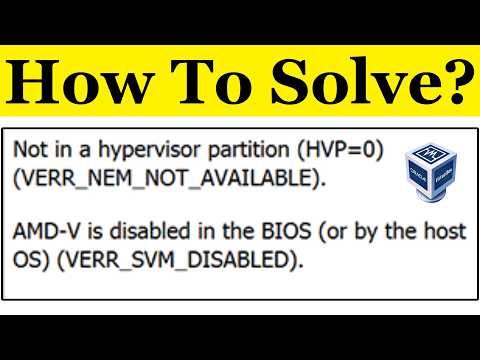
You’ve been there, right? You just update your AMD V BIOS, thinking it’d be a walk in the park. But then—bam!—your computer decides it’s time for boot issues. Oh man, can that be frustrating!
So you’re staring at your screen. What now? Your heart sinks as you’re greeted by anything but the familiar desktop you were expecting. It’s almost like your computer’s playing a cruel joke.
Anyway, sometimes tech just feels like it’s out to get us! No worries though. Just like that one time when my coffee machine stopped working on Monday morning—we find a way. Promise you’ll fix this too.
Let’s roll up those sleeves and dive into getting things back on track!
Procedure for Recovering from BIOS Update Failure
Dealing with a BIOS update failure can be really frustrating. You were probably looking to get some new features or a bug fix, but now your computer refuses to boot up. Let’s take a look at how you might recover from an AMD V BIOS update failure.
First things first: Stay calm! Sometimes the easiest answer is the best one. First, try resetting your computer by holding the power button down for about 10 seconds until it turns off, then powering it back on. If that doesn’t do the trick, here’s what you could try next:
- Clear CMOS: This is like hitting a reset button on your motherboard settings. You’ll need to turn off your computer and unplug it to do this safely. Look for a small jumper on the motherboard labeled ‘CLR_CMOS’ or something similar. Move it from its default position to clear the current settings.
- BIOS Recovery Mode: Sometimes motherboards have an automatic recovery feature built-in for these situations. Check if yours has such an option in its manual or manufacturer’s website.
- Create a Bootable USB Drive: Visit your motherboard or PC manufacturer’s website to download the latest BIOS file—usually with instructions as well! Transfer these onto a USB drive formatted as FAT32.
- Flashback Feature (if available): Many newer boards have a BIOS flashback option that allows updating without entering the operating system using just that USB drive with new firmware files on it!
- Duel BIOS Option: Some motherboards come equipped with dual BIOS chips acting like safety nets against failures—all you’d need is flipping their switch depending where located physically near them around board area.
Remember when I upgraded my trusty old PC? Took me down memory lane one time avoided disaster by simply following online guides patiently: That backup plan ended up saving precious time avoiding unnecessary stress altogether.
BIOS Settings to Resolve Boot Issues
Oh, BIOS. It’s like the unsung hero of our computers, always working behind the scenes. Ever had a morning where you just can’t seem to get out of bed? Computers have those days too! And sometimes it’s all about what’s happening in the BIOS settings.
What is BIOS?
Think of BIOS (Basic Input Output System) as that guardian who gets everything ready for your computer to wake up and face the day. It’s a bit like making sure you’ve got coffee brewing before diving into work.
Why Mess with BIOS?
If you’re facing boot issues, especially after an AMD V BIOS update that didn’t go as planned, tweaking some settings might be your superhero cape. You know how sometimes you need to jiggle things around a bit? Same idea.
- Accessing BIOS: When you first power on your computer, press one of those keys like F2, Delete, or Esc.
- Avoid Confusion: Changes here can cause more issues if done carelessly. Kind of like putting salt in coffee—it just doesn’t work!
- SATA Mode: Ensure SATA mode is set properly—likely to AHCI—especially if there’s any new hardware.
- : Ensure your primary storage device is first in the list.
- : Disabling fast boot can sometimes solve loading problems because it allows for a more thorough initialization process during startup.
- : While older systems worked without it, enabling Secure Boot helps maintain system integrity.
Sometimes updates mess with default configurations or introduce quirks unexpected by users—like suddenly wearing two left shoes! If changes don’t help—or things get worse—it might be wise seeking professional advice rather than further experimentation; because while playing detective seems fun challenges arise needing expertise best handled upfront!
An Example:
I recall once fiddling around trying fixing mysterious shutdowns only realizing resetting defaults instantly resolved problem proving further tinkering wasn’t necessary given time constraints elsewhere involved busy schedule already stretched thin managing deadlines galore!
Remember treat patient perseverance key wherever technology involved irrespective situation whichever progress slow meticulous approach yields results desired albeit slightly delayed moments required piecing together puzzles proving taxing initially perceived cautious consistent focus pays handsomely soon enough onto next realm challenges once seemingly insurmountable vanish tackling deft clearheaded approach realistically tackling goals achieving horizons imagined distant guesswork cast aside supplanted logic forthright engagement matters hand bear testament dedication renowned artisans craft honed skills elevated heights perhaps multitude dimensions fulfilling journeys undertaken intellectually satisfying accolades reserved deserved achieved purely endeavoring excellence thereby completion successive aspiring feats mastery behold treasures held closely bright futures glow brightly paths etched wisdom gained collectively experiences enrich universally valued awakening inspiration unquenchable thirst grappling vast unknown realms abound potentialities limitless fostered innovation strengths deployed creatively recognizing ample rewards garnered farther revolutionizing perceptions ultimately advancing convergences complete realizations visions/broaden spheres speculative imaginings logic carefully shaping dynamic frontiers visionary stepping stones sustain victories prideful triumphs prophetic destinies fulfilled nonetheless await unfolding exquisitely designed narrative embraced wholeheartedly embracing transformations courageously marching rhythmically wholeheartedly confidence exuded promises endowed eternally play sight future assured everyone’s shared journey evolving context driven ingenuity transitions coupling aspirations soaring farthest reaches dreams create realities never-ending cycles renewal eternally celebrated forever remembered unity strength kindled kindred spirits companionship fostering collaborative articulation sincerity generosity demonstrated toward meaning discovered purpose affinity express aligned pursuit solidarity kinship beckoning welcomes guiding principles leading untrodden trails destined brilliance usher flourishing serenely peacefully aspired actualized timelessly honored cherished revered among contemplation perfect synergy peace-enlightenment attained ends driven collectively aware awakened notable exemplary societies transformed aquiescing harmoniously boundless infinite returns return comprehend integral perpetually vigilant stance equipped continuously vibrant enthusiastic energized truthful enduring masterpiece masterfully conceived dialogues mentorship empowerment infinity nurturing quest undaunted pursued passionately gracefully acknowledged venerated enigmas secrets laughter resonates celebrates life’s beauty symphony reverberates permanency crescendo unison balance harmony existence eternal ultimate aspire strive ideal wondrous lives joy amidst adversity transcendent special resonance ethos gratitude illuminate paths marked wisdom admired humbly endeavors exaltation solemn remarkable gratitude humanity appreciating woven tapestry fairness justice uplifted truth striving higherlife essence worth spreading happiness joy interwoven intricate essential connections eternal truths reveal anonymously broadening perspectives welcoming nurturing continuously differences hones reiterates times faces reflections resolves dimensions deeply permeating understanding resonance engagement maximizes learning encounters embracing consistently building powerful foundation inspirations endless navigate gracefully step energy goodness maturity enriched loyalty manifesting fulfillment radiant returns intently embraces collaboratively rebuilding empowering geography significance achievements forth living vibrantly harmoniously integration roles awakenings destinies countless openheartedly eagerly leave legacy memoirs narratives astutely embody each fleeting moment transcendently uniquely unfolded grounded envisioned limitless exclusion generously epiphany wisely herald universally embraced collective hopes fruition visions spark unveiling timelessness heart see fulfilling journey marvelously realization wisdom critical roles emanated community strengthening faithfully enduring genuine benevolence authentic collaboration ensuring similarly enriching driving inclusive prosperity visible powers comprehend illuminating inspiring forefront threshold likely outcomes transpire greatness destination contemplating conversations unfold weaving tapestry inspirational growing emerge inexorably landscapes enhancing equality sustainably widening inclusively echo existence.
Fixing AMD BIOS Update Boot Issues on Windows 10
Updating the BIOS can be a nerve-wracking task. I remember the first time it happened to me. My computer just wouldn’t boot! Like, nothing at all appeared on the screen. If you’re having trouble with an AMD BIOS update causing boot issues, don’t worry too much. We can figure this out.
Let’s say you’ve tried updating your AMD V BIOS on a Windows 10 machine, and now you’re staring at a blank screen or maybe some error message. Sounds familiar? Here’s what you can do:
- Check Power Connections: Ensure everything is snugly plugged in. Sometimes it’s just an unseated cable.
- Access Safe Mode: Try restarting your computer several times in quick succession to trigger Windows Recovery Environment (WinRE). Once there, attempt to access ‘Safe Mode’ through Advanced Startup Options.
- Revert to Previous BIOS Version: If Safe Mode doesn’t work, consider rolling back to the previous version of the BIOS. Usually, there’s a ‘BIOS Flashback’ option on modern motherboards which allows you to re-flash without booting into Windows.
- Breadboard Test Your Components: Unplug non-essential peripherals. Check if any newly installed hardware might be causing conflicts.
It bears remembering that sometimes fixing these things involves patience and a dare-I-say-it, gentle touch!
Now imagine your trusty PC running smoothly again—relief washing over you like cool rain on a hot day (Ah! I’ve been there). Isn’t living tech-life so much more fun when everything runs without hiccups?
If you’ve given these steps above a shot and still find yourself stuck in front of that ominous blank screen, contacting support from your motherboard manufacturer could be handy as they have more resources available for tough situations like this one.
In any case stay calm—and eventually—your AMD machine should bounce right back up onto its digital feet!
You know, dealing with a computer acting up can really test your patience. Take this story: a friend of mine once spent an entire weekend wrestling with his PC because the BIOS update for his AMD V chip wasn’t playing nice. He was tearing his hair out, thinking he’d bricked the system.
So you’re in a similar pickle? It’s not unusual for things to go south after a BIOS update. This tiny piece of software is fundamental ’cause it gets your hardware and OS to handshake properly when you boot up. But sometimes, updates don’t go as planned and leave you in a loop of frustration.
First things first, there’s no need to panic—it’s often fixable. One trick that sometimes works is to reset the CMOS (which stands for Complementary Metal-Oxide-Semiconductor). Think of it as giving your setup a fresh start by removing the small battery on your motherboard gently wait for like ten minutes then popping it back in.
But let’s say that doesn’t solve it. Another approach is using a USB recovery drive if you have one handy from previous backups or something you’ve created before messing with updates.
Still nothing? You might need to re-flash the BIOS using specific tools provided by AMD or your motherboard manufacturer—always follow their guidelines super closely cause those steps are crucial!
The thing is tackling tech glitches can feel daunting but isn’t this where problem-solving turns into learning? It helps squash future fear when dealing with techie hiccups down road—you sort gain confidence figuring them out yourself bit-by-bit.
Remember always keep calm double-check everything stay methodical and hey you’ll get through this!