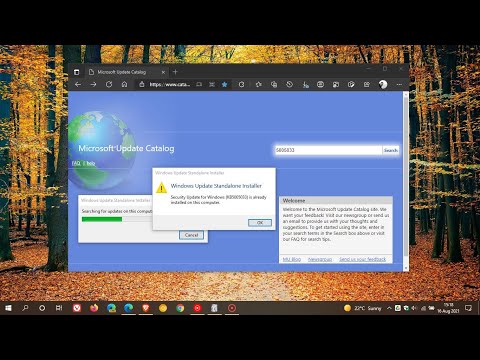
Oh, Windows 7. It was that old friend we had when flip phones were still cool, right? But, sometimes it feels like it’s stuck in the past, just like those jeans you swore you’d never wear again.
Now, if you’ve ever tried updating this trusty system, there’s a good chance you’ve stumbled upon Microsoft’s Update Catalog. Sounds simple enough—until it isn’t! You click around a bit and…bam!, hit a wall of confusion.
There’s something about fixing broken downloads or finding that one elusive update that makes me feel like I’m on a treasure hunt. It’s kinda thrilling—except when it’s not. You get what I mean?
So, let’s dig into why playing hide-and-seek with updates on the Microsoft website can drive anyone up the wall. And maybe share a chuckle about the tangles we find ourselves in!
Windows 7 Update Catalog Compatibility Issues
Have you ever found yourself scratching your head over ? Yeah, I get it. It can be tricky!
Why These Issues Happen:
Sometimes, when trying to grab updates for Windows 7 from the Microsoft Update Catalog, things don’t go as planned. This can happen because of browser compatibility hiccups or even settings that need a little tweak.
How to Handle Compatibility Problems:
- Use Internet Explorer: Well, it might sound crazy because many of us have moved on to different browsers, but the Microsoft Update Catalog plays best with Internet Explorer. Other browsers sometimes might not show all the buttons and options properly.
- Turn Off Enhanced Security Configuration: If you’re working with a server version like Windows Server 2008 or similar, this setting can block websites from running scripts properly. Deactivating this can sometimes solve access issues.
You Might Want to Check:
- BITS Service: The Background Intelligent Transfer Service (BITS) should be running smoothly. If it’s stopped or malfunctioning, updates might not download correctly.
- Date and Time Settings: If your system’s date and time are off by too much, update servers might refuse the connection.
A Little Tip You Didn’t Ask For But Need: Using a virtual machine is educational fun if you’re unsure about playing around with these settings directly on your main computer! It’s like having a sandbox where any mistakes won’t mess up your actual setup.
Looking back at one time when I was wrestling with these updates on an older PC for a friend—I remember feeling like I was trying to fit a square peg in a round hole until I went back to trusty ol’ Internet Explorer!
Keep in mind that while needing updates is important—computers do have their personalities—and some tweaks require patience more than anything else. Hang in there!
Windows 7 64-bit Update Catalog
Ah, Windows 7! It brings back fond memories of times when computers were a bit… different, shall we say? Even if you’re still using it today, I bet it’s because it’s like an old friend. But let’s face it—keeping such vintage systems updated can sometimes feel like hunting for a needle in a haystack.
To begin with, updates on Windows 7 64-bit are necessary to keep your machine secure and running as smoothly as possible. This can be tricky thanks to Microsoft’s update catalog website. The thing is, some folks run into issues when they try to get the latest patches or updates for this older operating system.
Why use the Update Catalog?
- Standalone Updates: You get the benefit of downloading individual updates separately if automatic updates are acting finicky.
- No Internet Connection Required: Once you’ve downloaded them, you can transfer them to any other computer without needing another connection!
But accessing these treasures from the catalog isn’t always straightforward. Have you noticed issues when trying to navigate or download? You’re not alone!
Troubleshooting Common Problems:
- Browser Compatibility: The site tends to work best with Internet Explorer—not exactly everyone’s first choice nowadays! If you’re having trouble in modern browsers like Chrome or Firefox, give IE11 a shot.
- .cab Files Confusion: Sometimes the download comes in .cab files instead of regular executable ones. It’s confusing… I know! You’ll need tools like “dism” command-line tool or third-party extractors which makes handling those archives easier.
You won’t believe how many hours I once spent trying different browsers just because something didn’t want me grabbing my security fix! Anyway…
One gotcha people run into is misidentifying their system type—whether it’s indeed 64-bit—and then downloading incompatible versions by mistake.
It’s easy: Click on ‘Start,’ right-click ‘Computer,’ and choose ‘Properties.’ Look under “System type.”
If none of these steps do anything useful at all (it happens!), double-check your internet settings too—for example any proxy setups blocking access inadvertently.
Windows 7 32-Bit Update Catalog Compatibility
If you’re delving into the world of Windows 7, you might have stumbled upon a quirky little roadblock known as the . Think of it like this: you’re excited to get your system all updated and snazzy, but then the Microsoft Update Catalog website seems to have other plans.
- The first thing to know is that compatibility issues often arise when trying to download updates for Windows 7 32-bit systems through Microsoft’s site. It’s like being at a buffet and realizing they’ve run out of your favorite dish. Frustrating, right?
- Why does this happen? Well, sometimes it’s because older browsers can struggle with certain features on modern websites. Imagine visiting a super high-tech theme park with last year’s ticket—awkward! Updating or changing your browser can be a lifesaver here.
- You see, if Internet Explorer (yes, it’s still hanging around) is your current go-to browser for accessing the catalog, you might hit some snags due to its age-old quirks. Switching over to something like Chrome or Firefox often does wonders!
- Security settings: Another sneaky culprit could be those pesky security settings or filter programs intended to protect your computer. They sometimes act overprotective—like a worried parent—and accidentally block legitimate Windows updates.
- An added tip is checking if the required add-ons are enabled in your browser. The Microsoft Update Catalog requires specific controls to be active—and just like needing glasses while reading fine print, they make things clearer and smoother.
Remember that having up-to-date software keeps your system running smoothly—you don’t want any unexpected surprises keeping you from work or play.
Oh! And speaking from personal experience: once managed an old Windows 7 setup myself at home for nostalgia’s sake… but those updates sure love their drama!
By understanding and playing nice with these quirks and tweaks around compatibility issues—you’re not only giving life support to older tech but also ensuring everything ticks along without hiccups.
You know, dealing with Windows 7 can feel a bit like trying to teach an old dog new tricks. I mean, it’s been around for ages, and we all have some affection for it, but when you run into issues with updates through Microsoft’s website, it’s kind of like talking to your stubborn grandpa who just won’t hear about new technologies.
I remember once, I was helping out a friend — let’s call her Sarah. She had this trusty old laptop that she simply didn’t want to part ways with. It was practically glued to Windows 7. Then came the day we tried getting those updates from the Microsoft Update Catalog. You’d think it’d be straightforward, right? But nope! Navigating that website was like going through a maze without a map.
For starters, there were issues just finding what she needed. The search function felt clunky and confusing—not exactly user-friendly for someone who isn’t a tech whiz. And Sarah isn’t exactly patient when things don’t work right away; she gets this little wrinkle in her brow—it’s kinda cute—but also signals she’s about to lose it.
Once we managed past finding the update files (let me tell you—felt like winning first prize at some carnival!), we then faced download interruptions. Imagine having sweet victory snatched away as your connection hiccups and bam—the download fails halfway through! And don’t get me started on how those files often had unassuming names—nothing that’d make sense unless you were an IT genius or something.
In moments like these you start thinking of alternatives: looking up unofficial sources or keeping fingers crossed without updates at all… risky business! There’s always concern surrounding security vulnerabilities or missing features if neglected too long though—and no one wants their machines becoming easy prey for problems they could’ve avoided outrightly.