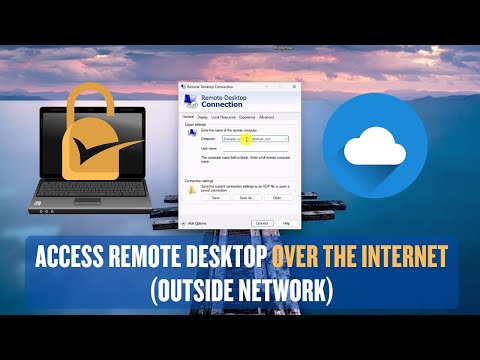
Alright, so here’s the deal. Imagine you’re chilling on your couch, and boom—suddenly you need to access your work computer. Do you have to get up? Nope! With Windows 10’s Remote Desktop, you’re covered.
Setting it up over the internet is like having a magic ticket to your desktop from wherever you are. You can be in pajamas or a coffee shop—your computer doesn’t mind.
Kinda cool, right? It’s like teleporting but for computers! Let’s untangle how this remote wizardry works and get that setup rolling smoothly. Trust me, once it’s up and running, you’ll wonder how you ever did without it. Ready to dive in?
Configuring Windows 10 Remote Desktop for Internet Access
Sure thing! Setting up Windows 10 Remote Desktop over the internet might sound like a big deal, but it’s actually pretty simple once you get the hang of it. You know, it’s like setting up your TV remote so you can change channels from across the room—except we’re connecting to a computer instead.
First things first, you’ll need to make sure that Remote Desktop is enabled on the PC you’re going to connect to. Here’s how:
- Open your settings by clicking on the *Start* menu and selecting Settings.
- Head over to System, and then pick Remote Desktop.
- Switch on Enable Remote Desktop. Don’t worry if there’s a warning; just read through it.
Okay, now that we’ve got that out of the way, let’s ensure your computer can be accessed even when you’re not home. For this, we’ll need a static IP or dynamic DNS service. It’s like giving your friend directions to your house—you want them reliable if they’re visiting often!
A quick tip: If your ISP offers static IPs, that’s perfect! Otherwise, services like *No-IP* or *DynDNS* can help by mapping an easy-to-remember name to your ever-changing home IP address.
Next bit is setting up port forwarding on your router. This is crucial because it allows connections from outside into your local network:
- Visit your router’s web interface by typing its IP address in a browser (usually something like *192.168.x.x*).
- You’ll need those trusty login details here.
- Look for sections marked as “NAT” or “Port Forwarding”.
- Add a new forwarding entry with these settings:
- Service Name: Anything descriptive like “RemoteDesktop”.
- Port Number: Typically 3389 for RDP.
- Your PC’s Internal IP:The local address assigned by the router.
Finally—and this may seem obvious but is super important—make sure you’ve got strong passwords and updates installed! Security’s key since opening any doors onto the internet introduces risks.
Once everything above checks out nicely then voila—you’re pretty much set! Just fire up Microsoft’s built-in Remote Desktop app or use another compliant client from wherever life takes ya’, punch in those connection details from earlier (your shiny new DDNS domain name perhaps), press connect…and away ya’ go!
If anything feels wonky still after all these steps…don’t panic yet—give another whirl through these instructions because sometimes little hiccups happen along way anyway.
Connecting Remote Desktop with an IP Address in Windows 10
Oh, getting remote desktop setup can sound tricky, right? Don’t worry! Connecting to a Remote Desktop with an IP address on Windows 10 is actually pretty straightforward once you get the hang of it. Let me walk you through it step-by-step.
First things first, before you dive into connecting, make sure your Windows 10 machine supports Remote Desktop. You might think every version does, but only Pro and Enterprise versions have this feature. If you’re good on that front, you’re ready to roll.
Here’s what you need to do:
- Enable Remote Desktop: Head over to your Settings, then click on System. Find the Remote Desktop section. Flip that toggle to turn it ‘On’. You might feel a little tech-savvy already!
- Find Your IP Address: Open the command prompt (just type `cmd` in the search bar). Type `ipconfig` and hit enter. Look for something called “IPv4 Address”. That’s your ticket—your IP address.
- Create Port Forwarding Rule: This one’s a bit technical—it involves tweaking some router settings. Log into your router (type your default gateway from `ipconfig` into a browser). Look for port forwarding settings under sections like ‘Advanced’ or ‘Network’. You’ll set rule for port 3389 because that’s what’s used by default.
- Add Any Necessary Exceptions: Sometimes Windows Firewall blocks stuff unintentionally, like remote connections. To stop that, go back into settings and search for ‘Firewall & Network Protection’. Click ‘Allow an app through firewall’, then make sure Remote Desktop is checked.
- Password Security: It’s pretty important to have strong password security here—it keeps unwanted folks out of your system.
Next up? The fun part—connecting remotely!
- The Connection Shortcut: This’ll make life easy next time! Hit up the search bar again and type ‘Remote Desktop Connection’. When it pops up, type in your IP address we found earlier from Command Prompt.
-
Thorough testing helps solidify all those steps worked smoothly together; try tweaking individual pieces if anything feels off!
Sometimes…things don’t go perfectly according plan so here are few handy-dandy *troubleshooting* tips:
Though there may appear hiccups connecting—usually boils down either incorrect credential entry careless typo along way!! Double-check everything AND relax tackle small concerns piece-by-piece!
Lastly-imagining successfully entering familiar desktop away-from-comfort home sigh relief perfect motivation-after day’s work completed remotely effectively feeling capable tackling tech challenges without breaking sweat tough task-flawless execution relaxing couch ;)!
Setting Up Remote Desktop on Windows 10
Ah, setting up Remote Desktop on Windows 10, huh? It’s actually pretty handy if you need to control your computer from somewhere else. Picture this: you’re at a coffee shop sipping your latte and realize you forgot an important file on your home computer. No worries! With Remote Desktop, you can access it as if you were sitting right there in your own living room.
Step 1: Enable Remote Desktop
First things first, we gotta enable that feature. Go to the Start menu and search for “Settings.” Once you’re there, click “System” and look for the “Remote Desktop” option on the left-hand side.Step 2: Allow Connections
In the Remote Desktop settings, flip the switch to ‘On’ where it says “Enable Remote Desktop.” A confirmation pop-up might appear—click ‘Confirm.’Step 3: Choose Users
You guessed it! Now we need to pick which users can access this PC remotely. Click on “Select users that can remotely access this PC.” You probably want to add yourself; just hit ‘Add’ and enter your username.Step 4: Set Up Your Router (Optional but recommended)
If you’re planning on accessing your machine from outside your local network (like from a friend’s house), you’ll need to configure port forwarding on your router. This involves logging into your router’s settings and forwarding port 3389, which is used for Remote Desktop Protocol (RDP).- Find out how to access your router’s interface by checking its manual or manufacturer’s website.
- Create a new port forward entry using port number 3389.
Step 5: Find Your Public IP
To connect remotely over the internet, you’ll need the public IP address of the computer you’re accessing. Type “What is my IP” into a search engine while using that computer or check through sites like WhatIsMyIP.com.Remember sharing this publicly with caution! You don’t want strangers poking around in there.
Testing It Out!
Alright, time for the exciting part—testing out all of this hard work! On another Windows machine type “Remote Desktop Connection” in its start menu search bar.
Enter either local IP address if within network boundaries
or inputting public one gathered earlier followed by clicking connect!And hey don’t panic if something doesn’t work instantly—it happens sometimes due firewall settings either local or ISP provided getting way so calm troubleshooting usually sorts issues here!
With these steps finely tuned now enabling easier remote reaching beloved files screen recreation reigns grasped fingertips anywhere simply login voila accessing desired data device away home responds slightest beckoning command issued across electronic waves distant lands feel magical offering sense great connectivity bliss spare unnecessary heartache distances unable conquer evermore thanks our friend tech advancements alike wondrous waltz universe weaving endless possibilities anew forge paths limitless potential unfathomable discovery bounded neither space nor time itself except perhaps wireless connection minuteness radiation transmission marvelously efficient afterthought lifetimes lived prior imagining likely fantasy whole wide open internet glory truth rediscover waiting adventurers willing brave digital frontier forefront forging realms beyond merely virtual ethereal reality adventure unparalleled pursuits underneath stars witness joyous spectacle unfolding radiance tenacity ingenuity humanity shall rise innovate reach tomorrow together today same journey different destinations shared uniformity spirit yearns explore expand transcendence then sounds exciting indeed embrace invite experience share talk stories nurture ignite flames wisdom unsurpassed ridges horizon unexplored call beckons answer..
Setting up Windows 10 Remote Desktop over the Internet can feel like you’re opening a new chapter in how you connect with your work or personal computer. Imagine this: You’ve just remembered an important document on your home PC while sipping coffee at a cozy café miles away. It’s moments like these when having remote access becomes a lifesaver.
First things first, there’s a certain joy when you discover that your computer isn’t limited by its physical location anymore. You start by ensuring that Remote Desktop is enabled on your Windows 10 system. It’s tucked away under System Properties, so it might take some clicking around to find it. Enabling it feels like flicking on a light switch – suddenly, there’s more you can do with just a good ol’ internet connection.
Now, the Internet connection part can be tricky. You gotta have the right IP address of your home network and set up port forwarding on your router to make sure connections from the outside world reach their destination safely inside. It might sound all techy and intimidating, but it’s actually just about telling your devices where to go!
You know what’s funny? A friend of mine – not exactly a tech whiz – once tried setting this up but got stuck for hours simply because their ISP didn’t assign them a static IP address for their home network, which made everything go kind of wobbly.
Then there are credentials—you want them strong enough to keep digital mischief-makers at bay but easy enough for you to remember without scribbling them down someplace risky.
And voilà! Once it’s working, every time you connect remotely is like magic; accessing files or managing tasks as if you’re sitting right there at home. This setup gives flexibility all seasoned workers crave—whether you’re squatting in an airport lounge or lounging in bed on those lazy Sunday mornings.
It’s transformational how much freedom technology offers today without needing teleportation or other sci-fi marvels! Sure makes life easier—and sometimes downright exciting—to think distant PCs are within virtual handshake range whenever needed!