Oh boy, dealing with tech issues, right? We’ve all been there. You just got this shiny new computer or, you know, finally upgraded to Windows 11. Everything’s supposed to be smooth sailing. But then—bam! Your Intel Iris Xe graphics driver starts causing trouble.
I remember last weekend, I was all set for a gaming marathon. Snacks ready and everything! Then my display started acting up out of nowhere. Annoying? Just a bit!
Anyway, if your screen’s flickering like a disco ball or video playback’s not as crisp as it should be, you’re not alone. We’ll get through this together and figure it out! Sounds like a plan?
Intel Graphics Driver Known Issues Fixes
Oh, Intel graphics drivers, huh? They can be a bit tricky sometimes, especially when you’re dealing with things like the new Iris Xe on Windows 11. If you’ve been pulling your hair out trying to fix these issues, you’re definitely not alone. Let’s dig into what usually goes wrong and how you can get things running smoothly again.
Common Issues: You might notice that apps crash or your display flickers. Or maybe games don’t run as smoothly as you’d like. Sometimes it’s even problems with video playback! These are symptoms that many people come across.
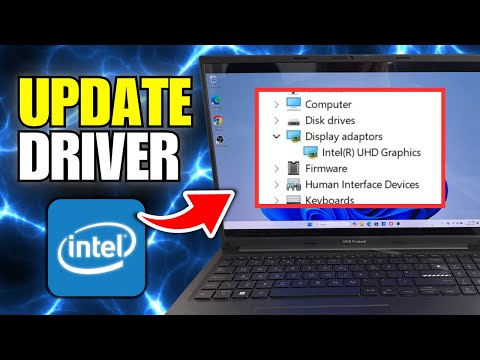
Updating Your Driver: Start with checking if there’s an update for your driver. It’s one of those “have you tried turning it off and on again” moments but for drivers. Head over to Intel’s official website or use their Driver & Support Assistant tool to snag the latest version.
- Steps: Open Device Manager by right-clicking the Start button.
- Expand the “Display adapters” section.
- Right-click on your Intel Iris Xe graphics card and select “Update driver.”
Troubleshooting Tips: If updates don’t help, maybe try rolling back to a previous driver version that was stable for you before. Drivers can be finicky—newer isn’t always better!
- Roll Back: Again in Device Manager, right-click your graphics adapter.
- Select “Properties,” then go to the “Driver” tab.
- You’ll see an option that says “Roll Back Driver.”
Tweak Your Graphics Settings: Another thing you could do is mess around with some settings in Windows itself or in any gaming applications causing issues.
- In-Game Settings: Set them lower initially to see if it stabilizes the performance before fine-tuning.
- Windows Display Settings: Adjust resolution or refresh rate under Display properties.
And of course—it’s always nice to restart after significant adjustments; computers sometimes need a breather too! I remember this one time my buddy couldn’t get his game running at all… turned out he hadn’t rebooted after updating his drivers! So simple yet so effective sometimes.
Following these steps could help resolve most of those pesky problems you’re facing with Intel Iris Xe graphics on Windows 11. And hey—once everything’s working well again, it’ll be worth all this effort! Good luck!
Optimizing Intel Iris Xe Graphics Performance
When it comes to optimizing Intel Iris Xe Graphics performance, tweaking a few settings can make a world of difference. While Intel’s integrated graphics are pretty nifty for lightweight tasks like web browsing or streaming videos, they can sometimes face hiccups when upgrading to Windows 11.
- Update Drivers Regularly: Well, the first thing you wanna do is check for updates. Intel often releases driver updates to improve performance and compatibility with various apps and games. Head to their official site or use the Intel Driver & Support Assistant for the latest versions.
- Adjust Graphics Settings: Sometimes, default settings aren’t ideal. Open your Intel Graphics Command Center—it’s kind of like your graphics control HQ. From there, you can tweak gaming profiles or adjust image quality settings according to your needs.
- Use Balanced Mode: If you’re running on a laptop, ensure that you’re using ‘Balanced’ mode in your power plan settings. It strikes a good compromise between performance and battery life, which is important if you’re working away from an outlet.
- Monitor Background Applications: Close unnecessary programs hogging system resources. Wanna know what’s running? Press Ctrl + Shift + Esc and peek at the Task Manager. You might be surprised!
Sometimes people report glitches or stutters while playing games after updating Windows 11 with these graphics. The thing is—new OS features can affect existing drivers temporarily till they’re patched up by developers.
If things get too tricky post-update—and they might—you could try rolling back to an older driver version temporarily (but only if necessary). In rare cases when even this doesn’t help out much… maybe reaching out on community forums where others share insights could prove handy—they’re basically digital campfires where everyone pitches ideas!
Hopefully tweaking these settings helps boost those Iris Xe graphics!
Intel Iris Xe Compatibility with Windows 11
If you’re thinking about Intel Iris Xe Graphics and Windows 11, it’s kinda like making sure two good friends really get along. You ever had a friend who didn’t like a certain type of food but then loved it with the right sauce? That’s sorta what’s happening here. Let’s break it down in a friendly way.
First things first, Intel Iris Xe Graphics is becoming quite popular in laptops, especially those that need some extra graphical punch without having a separate chunk of hardware for graphics, you see? Now, when we’re trying to get these laptops to run smoothly on Windows 11, there’s a bit of dance involved. Most times things work seamlessly – you just turn it on and boom! Everything’s great. But then life happens, and sometimes there will be hiccups.
Here are some of the key things you gotta know:
- Driver Compatibility: For Intel Iris Xe to play nice with Windows 11, make sure you’ve got the latest drivers straight from Intel or your computer manufacturer’s website. It’s like ensuring your bicycle chain is nicely oiled—makes everything smoother!
- DirectX Support: Windows 11 uses DirectX for games and graphic stuff. Intel Iris Xe supports DirectX 12 which means many games will look pretty nice! If you’re finding glitches or funny business in games or apps—checking for updates is a good first step.
- Check System Updates: Keep an eye out for updates from both Microsoft and the manufacturer that tweaks how everything works together over time! Kinda like adding new spices to your favorite dish—it can make a difference.
- Troubleshooting Performance Issues: Sometimes after installing Windows 11 or updates you’ll notice things run slower than before. Check if your system is using the integrated GPU properly through task manager—it should show as working when doing graphical tasks.
Now if something goes wrong (happens more than we’d like), here’s what I’ve learned: patience is your best buddy here. Rebooting often fixes weird temporary issues—you know how gadgets just magically behave after being restarted?
You know, dealing with tech issues can be like trying to untangle a set of earbuds that you swore you put away neatly. This time, we’re chatting about Intel Iris Xe driver issues on Windows 11. Interestingly enough, it’s something that many folks have been scratching their heads over.
So, picture this: you’ve just upgraded to the sleek new Windows 11. You’re all excited to try out some cool features or maybe play your favorite game. But then, bam! Your screen starts acting like it’s had one cup too many of coffee—flickering and stuttering.
The Intel Iris Xe graphics driver might be the little rascal causing this turmoil. And it’s a bit annoying really! Drivers act as the middlemen between your operating system and hardware. When they hiccup or don’t play nice with an update, everything can go a bit haywire.
On more than one occasion, I’ve found myself diving into forums and spending what feels like endless hours reading other people’s stories; it helps knowing others are in the same boat—or at least similar vessels on this shaky tech sea. Some users have said reinstalling older drivers or checking for updates directly from Intel’s website helps smooth things out. It’s mainly trial and error though!
Remember when something technical goes awry—there’s always someone who’s had a similar experience looking for solutions too! Sometimes reaching out in online communities can reveal some quirky fixes that actually work wonders.
Anyway – hang in there if you’re facing these driver woes; think of them as temporary road bumps in your otherwise smooth digital highway journey on Windows 11!