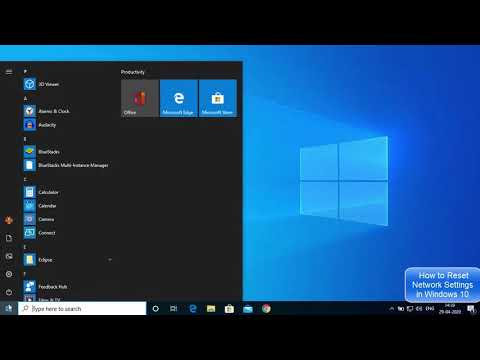
Ever had one of those days where your Wi-Fi seems to have a mind of its own? Like, one moment you’re streaming your favorite show, and the next, everything’s buffering? Oh boy, we’ve all been there! It’s super annoying when you’re in the middle of something important and your network just goes poof!
Now, before you start pulling your hair out in frustration or tossing your laptop out the window (please don’t do that!), there’s a pretty nifty trick that might save the day. Yup, resetting your network settings on Windows 10 could be just what you need. Sounds like magic? Well… kinda is.
Imagine hitting a ‘refresh’ button for all those tangled up settings. It’s like giving them a fresh start. And honestly, sometimes that’s all it takes to sort things out. Let me guide you through it—trust me, it’s easier than you’d think!
Network Settings Reset Safety on PCs
Resetting your network settings on a Windows 10 PC can be kind of like hitting the reset button on a messy situation. It clears out all the gunk that might have piled up over time, like misconfigured settings or software conflicts. But hey, should you just go ahead and do it? Let’s see.
What happens when you reset network settings?
So, imagine you’ve decided to give your network a little makeover. Here’s what this process does:
- Clears Old Settings: All custom configurations you did? Poof—gone! Your Wi-Fi passwords will need to be re-entered.
- Resets TCP/IP stack: These are the rules for how data should travel—resetting them can fix lots of nagging connection issues.
- Loses known networks: Remember that coffee shop Wi-Fi? You’ll need to search and connect again from scratch.
The silver lining? Many such cheeky hiccups get resolved. It’s like giving your connection a fresh breath without going into advanced tech-geek stuff.
But when should you consider doing this?
Have patience before diving in. There’re situations where resetting is worth the shot:
- No internet access: Everything seems fine, but no internet? Might help!
- After uninstalling VPNs: Sometimes these buddies tweak network settings too much.
- Error messages: Encountering configuration-related error codes could mean it’s time.
Remember once I was at John’s house trying (unsuccessfully) to connect his shiny new PC to his Wi-Fi. Only solution after scratching our heads for half an hour was a network reset!
Anyway if you’re ready take these steps:
1. Open Settings by pressing Win + I.
2. Go down to Network & Internet.
3. On the left pane find Status section.
4. Scroll and click on “Status” then “Network Reset.”
5. You’ll see a warning message telling about resetting makes changes irreversible—don’t panic—it kinda repeats what we said earlier about things cleared out!
6 Finally hit “Reset Now”.
Your computer restarts saving everyone from unnecessary trouble pursuing unknown errors!
Isn’t technology something?! All these intertwined wires connecting devices across rooms without cables physically present—a sweet science tangled beautifully making troubleshooting as necessary occasionally: life’s unpredictable mystery never fails delivering surprises!
Reset Network Settings via Command Line in Windows 10
Hey, have you ever been in a situation where your internet just won’t cooperate? Pretty frustrating, right? Oh, I hear you. Sometimes it feels like your computer’s gone rogue and simply doesn’t want to connect. One neat trick that’s often a lifesaver is resetting the network settings via command line in Windows 10. This might sound techy, but trust me, it’s easier than it sounds.
Why Reset Network Settings?
Imagine if everything on your network configuration—the IP addresses and DNS settings—got a fresh start. This is basically what resetting does: clearing old settings or cached data that might be causing trouble.
Now, let’s jump into the steps, shall we?
- Open Command Prompt: First off, you’ll want to open the Command Prompt with admin privileges. You could do this by typing “cmd” in the search bar at the bottom left of your screen. Then right-click and select “Run as administrator.” It’s like giving it special permissions.
- Type Some Magic Words:
netsh int ip reset: This command resets all TCP/IP configurations to default settings.netsh winsock reset: Use this to reset Winsock Catalog back to its default setting; kind of like hitting refresh.
- Restart Your Computer: After running these commands, restart your computer for those changes to kick in properly. It’s sort of like giving it a little nap before coming back refreshed.
A Little Tip: If you’re more comfortable with PowerShell (the blue version of Command Prompt), you can do similar things there too.
This method isn’t always foolproof but I’d say… nine times outta ten? It works wonders! It’s saved me from tearing my hair out more times than I can count when dealing with networking woes.
So next time internet issues plague you remember these simple tricks—and here’s hoping they save you some hassle!
How to Reset Network Settings in Windows 11
If you’ve been having trouble connecting to the internet or your network devices, sometimes hitting the reset button can work wonders! Resetting your network settings on Windows 11 can seem a bit daunting, but it’s a lot like flipping the breaker when your lights won’t turn on. It doesn’t take much time and can solve a bunch of connectivity issues.
First things first, before you do anything, keep in mind that this will erase all your saved Wi-Fi networks and passwords. So yeah… remember to have those Wi-Fi details close by!
Here’s how you can go about it:
- Open Settings: Click on the Start menu (that little Windows icon), then click on “Settings.” It’s like opening up the magic box where all system goodies are kept.
- Choose Network & Internet: From here, you’ll want to click on “Network & Internet.” You know this section is where all things related to connectivity live!
- Select Status: On the left side pane, hit “Status.” This page gives you a quick glance at what’s going too good or not with our connections.
- Find Network Reset: Scroll down a smidge till you see “Advanced network settings” and give that a tap. Here we find an option called “Network Reset”. Clicking it will open up possibilities!
- Click Reset Now: Within this section, you’ll catch sight of “Network reset”. When you click “Reset now”, Windows may ask if you’re sure – double-check those doubts and confirm.
After hitting that button Windows is gonna restart itself. Don’t worry – it’s just getting ready for fresh starts! Once back online re-enter those WiFi passwords again.
To share an anecdote… A buddy of mine was struggling with his PC repeatedly losing connectivity every few hours. He tried everything under sun dusk ‘til dawn! Eventually convinced him: he did this simple procedure; now both they’re untroubled surfing willingly once more!
Honestly folks—network hiccups?
You ever had one of those days where your computer just seems to have a mind of its own? I remember this one time, my internet connection was glitchy and it was driving me up the wall. I tried everything I could think of, like restarting the router and even giving the old modem a little tap for good measure. But nothing seemed to work.
You know what finally did the trick? Resetting the network settings on my Windows 10 machine. It’s like giving your computer a fresh start in terms of network connections, wiping out all those little gremlins causing trouble.
The process sounded intimidating at first, but it’s really quite straightforward. You head over to ‘Settings’, then ‘Network & Internet’. There’s an option for ‘Network reset’ which is kind of hidden away if you don’t know where to look.
When you do this reset thingy, what happens is: all your network adapters are removed and reinstalled. Any saved Wi-Fi networks or VPNs get wiped too. Now that might sound scary—losing saved networks and passwords—but trust me, better than dealing with endless connection issues!
It’s important, though that before diving in headfirst into resetting things left and right, you make sure you’ve got any necessary details like Wi-Fi passwords written down somewhere safe! Once done with all that resetting action you’ll need them later when reconnecting everything back together again.
So why does it seem so mysterious until someone tells you? Because tech often sounds more complicated than it needs be unless broken down simply enough anyone—not just über-geeks—can handle confidently themselves at home without calling support lines every five minutes!
Have patience while doing resets; wait till everything’s finished then go through step-by-step reconnecting stuff manually if needed afterwards proving once again “If first succeed—or fail—try try try…reset!?”.