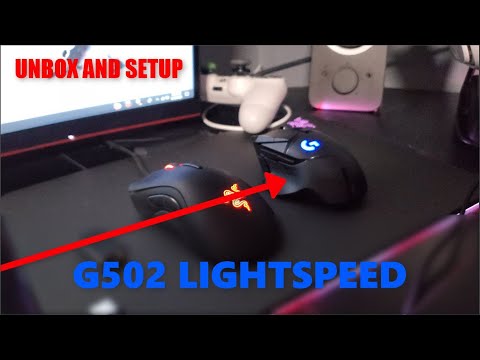
Oh man, mice can be such a hassle sometimes, am I right? Especially when you’re all set for some intense gaming or need to finish a work project. Then bam! Your Logitech G502 Plus decides it doesn’t want to connect to Windows 10.
And you wonder, “What is even happening?” It feels like tech just knows when we need things to run smoothly, doesn’t it? Well, I’ve been there too. You sit there clicking away hoping it’ll just magically fix itself. But no luck.
So there you are reconnecting cables. Restarting the computer like three times… It’s like talking to a wall sometimes! But hey! Don’t worry. We’ll sort this thing out together. Just hang in there and grab that cup of coffee because we’re gonna dive into this mouse madness and get you back up and running!
G502 Plus Mouse Connectivity Issues on Windows 10
Ah, the frustration of dealing with connectivity issues! If you’ve got a G502 Plus mouse and it’s acting up on Windows 10, you’re definitely not alone. It’s like when you’re trying to share a heartfelt story with a friend and they keep losing signal. Let’s dig into the details of what’s going on and how you can make peace with your mouse again.
Drivers are Critical
One big reason you might be facing connectivity problems is outdated or missing drivers. Imagine trying to use an old map in a new city – it won’t get you very far!
- First step: Check for driver updates.
- Go to Device Manager by typing “Device Manager in the Windows search bar.
- Find “Mice and other pointing devices , right-click your G502 Plus.
- Select “Update driver and choose “Search automatically for updated driver software .
USB Port Problems
Sometimes, it’s just that simple: the USB port itself might be causing trouble. You know, like tripping over a loose carpet edge?
- Change Ports: Try plugging your mouse into another USB port.
- If connected to a USB hub, connect directly to the computer instead.
The Power of Restarting
Remember when as kids we’d just blow on our gaming cartridges? Sometimes basic things work wonders.
- Restart: Unplug your mouse, restart your computer, then plug it back in.
- This small action sometimes shakes off any temporary glitches.
Check for Interference
With wireless tech especially, interference might be at play. Other devices can jam signals like too many voices in one room.
- ”
- Create some space: Keep other wireless devices away from your mouse’s receiver – even desk phones can interfere!
”
If possible try switching off Bluetooth on nearby gadgets temporarily.”
The Logitech Software Can Help“
”
Logitech offers Gaming Software which isn’t just blingy tool; it provides advanced settings.”
”
“Straight from Logitech’s website download their software set-up package – everything tailored for optimal performance.”
“
‘Hope running through these solutions dials down madness! At least gives sneaky pain mice may cause break time—don’t let tiny tools boss round biggest tasks!
Logitech G502 Plus Mouse Windows 10 Connectivity Check
Oh, the joys of technology! When your Logitech G502 Plus mouse doesn’t quite connect with Windows 10, it’s like a spider losing its web. Most times, a few simple tweaks can get everything spinning again.
First off, ensure your little buddy is plugged in properly. Yeah, I know it sounds too simple to be true—like when you misplace your keys and they’re right there in the door! Check that the USB connector is snug as sometimes it can be just a bit loose or not fully inserted.
- USB Ports: Try plugging your mouse into a different USB port. Sometimes some ports decide to go on vacation.
- Cables & Connections: Inspect the cable for any noticeable damage or kinks—could be something fishy going on there.
Next up: Drivers! They’re kind of like translators between your devices and your computer. Your mouse needs them to speak Windows 10 fluently. To check this:
- Device Manager: Open Device Manager (just type it in the search bar) and look under “Mice and other pointing devices.” You’ll see if there’s any yellow triangle; that could mean trouble!
- Update Drivers: Right-click on your Logitech G502 Plus entry, select “Update Driver,” then choose “Search automatically for updated driver software.”
Now double-check if Windows 10 recognizes it’s not having an off day itself:
- Windows Updates: Sometimes those updates do wonders or mess everything up! Go to Settings > Update & Security and make sure everything’s up-to-date.
It’s also good practice to check Logitech’s software:
- Logitech G HUB Software: This application controls all things fancy about your device—download from their official site if you haven’t yet.
- Tinker Time: Once installed, run through settings making sure no odd profiles mess around with connectivity options!
And when technology just won’t cooperate? Restarting both computer and device might give them another shot at playing nice together!
Finally if these steps didn’t work out (frustrating right?), contacting Logitech customer service would probably be wise as they’ve got additional tricks up their sleeves based on specific scenarios.
There ya have it—a whirlwind tour into fixing connectivity issues with our friendly neighborhood Logitech G502 Plus Mouse under Windows 10!
USB Connection Issues with Logitech G502
Oh, the trusty Logitech G502! It’s a fantastic mouse, right? But sometimes, no matter how reliable it is, you might face connection hiccups. If you’re using Windows 10 and your G502 decides to take an unexpected break from connecting, let’s figure this out together.
First things first: Check the USB port. You’d be surprised how often this little oversight causes issues. I remember once spending hours fiddling with settings only to realize my USB port was a tad dusty! Here’s what you can do:
- Try plugging the mouse into another USB port. If it works there, great! The original port might be faulty.
- Gently clean the USB connector on both your computer and the mouse cable with a soft cloth.
Next up: Driver updates. I get it—drivers don’t usually scream excitement. But they can make or break connectivity. Check if your drivers are up-to-date:
- Open Device Manager by searching for it in the start menu.
- Find “Mice and other pointing devices” and locate your Logitech G502.
- Right-click on it and select “Update driver.” Follow any on-screen instructions.
If updating doesn’t help, consider reinstalling them; sometimes starting fresh does wonders!
Then there’s always that potential villain: Power management settings. Imagine this—your computer tries saving energy by “sleeping” certain devices like your mouse.
- Go back to Device Manager, find your mouse under “Universal Serial Bus controllers.”
- Select “Properties,” go to “Power Management,” and uncheck “Allow the computer to turn off this device to save power.”
And hey—did you check for any software conflicts? If you’ve installed new software or updates recently, that might interfere with connectivity.
Lastly: Are you using any extensions or hubs? These could cause weak signals between devices too! Direct connections help eliminate middlemen interference so if possible plug directly into one of those trusty old ports again (even temporarily).
You see computers often feel like mysterious creatures but knowing where stumble points exist helps manage them better every day—even frustrating ones like these!
Ah, the joys of modern technology, right? It’s amazing how these gadgets have become a part of our lives. Take the G502 Plus mouse for instance. Talk about sleek design and precision! But then, sometimes it just decides to throw a tantrum. Like when you’re all set for some gaming or productive work and bam – connectivity issues on Windows 10.
I remember this one time, I was in the middle of an intense match. My team was counting on me, fingers were flying—then suddenly nothing! My mouse wouldn’t respond. I felt like a deer in headlights.
So what’s usually happening here? With wireless gadgets like these, it’s often something small that throws everything outta whack.
One thing you might check is your drivers. Imagine them as translators between your mouse and computer. If they’re outdated or corrupted (yikes!), the conversation between devices can get all messed up.
Another sneaky culprit could be interference from other wireless devices around you. It’s almost like your WiFi fighting for attention at a party of signals! If you’ve got a crowded space with devices left and right, try moving things around or even changing USB ports—it can make stuff work again!
And don’t forget about power: replacing batteries or recharging might just give it that boost back to life.
Sometimes going old school with plugging in via cable (if possible) helps tell whether it’s truly connectivity drama—or something hardware-related inside Mr.Mouse himself.
It’s weirdly comforting knowing others face such gremlins too—and sharing solutions feels oddly satisfying…like being part of some secret club where everyone battles their own tech quirks daily!
So next time your G502 Plus acts up on Windows 10—with fingers crossed—just breathe deep: both machine AND human need patience now & then!