Oh man, technology can be a real piece of work sometimes, right? Like, you’re all set to get some stuff done and boom! Your Magic Mouse 3 just won’t connect. It’s so frustrating it makes you wanna scream.
Honestly, it’s like one minute everything’s working fine. Then the next? Nada. Bluetooth issues can be mysterious little devils, can’t they? But hey, we’ve all been there. Sometimes it feels like these gadgets have a mind of their own!
But no need to panic! Together we’ll figure this out and get that mouse back in action—like it’s supposed to be. You’re not alone in this tech jungle. We’ve got each other’s backs!
Magic Mouse 3 Connection Issues on macOS
Oh, the Magic Mouse 3! It’s such a sleek gadget, isn’t it? But you know how sometimes it just decides to act like you’ve asked it to solve world peace instead of just connecting to your macOS device? Well, let’s try and sort out this little hiccup.
Make Sure It’s Charged Up
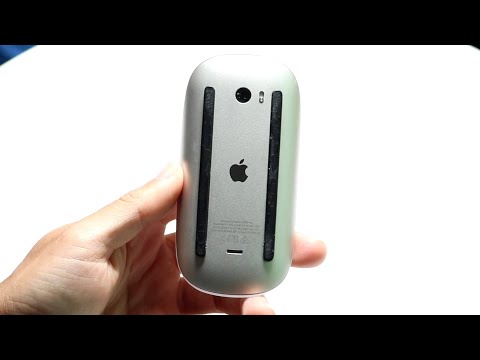
First things first. You might wanna check if the Magic Mouse has enough juice. I know it sounds obvious, but hey, we’ve all had those “aha!” moments when we realized the device wasn’t charged. Flip it over and make sure that battery level is looking nice and healthy.
Bluetooth: Friend or Foe?
Here comes another thing: Bluetooth can be such a drama queen. Head over to your Mac’s System Preferences and find the Bluetooth section. Just give a quick look-see if Bluetooth’s turned on. Sometimes it’s as simple as that!
- Turn It Off and On Again: If things seem stubborn, switch off Bluetooth for a few seconds before turning it back on.
- *Magic Mouse in Pairing Mode*: Don’t forget you need that little green light on your mouse rapidly blinking for pairing mode.
- *Remove Old Profiles*: If needed, remove any previous profiles of your mouse from the list.
No Interference Allowed!
Oh yeah, don’t forget about interference! Not only can Wi-Fi signals get in the way sometimes but also other bulky electronic devices nearby. Just try moving away from these little disruptors when you’re having a connection meltdown.
Your macOS Update Ally
Is your macOS up-to-date? Updates aren’t just there for fun; they include fixes for connectivity issues too! Check Apple’s website or use ‘Software Update’, accessible through ‘System Preferences’, to ensure everything is spick-and-span software-wise.
In cases where nothing seems successful—well—you might have to reset certain settings using ‘Bluetooth Reset Utilities’. It could be some deeper glitchy wizardry going down with specific configurations requiring more attention than usual.
Anyway hope these ideas help make peace between Mr./Ms./Mx Magic Mouse & adorable yet quirky macOS once again!
Magic Mouse 3 Connection Issues After macOS Reset
Oh, the frustration when your trusty Magic Mouse 3 just won’t connect to your Mac after a macOS reset. I get it. It’s like trying to open a door with the wrong key—no matter how many times you try, it just doesn’t work. But hey, don’t worry! Let’s go through some steps that might just solve this little hiccup.
First off, let’s make sure your mouse is charged. I know it sounds obvious, but we’ve all overlooked the simple things at some point, right? Ensure it’s got enough juice before diving deeper into troubleshooting.
Here’s what you can do next:
- Check Bluetooth: Go to “System Settings” and make sure Bluetooth is turned on. Sometimes after a reset, things might not be as they were.
- Forget and Reconnect: In the “Bluetooth” settings, you might see your Magic Mouse listed there already. Click on it and select “Forget.” Then try reconnecting like it’s brand new.
- Update macOS: Make sure your system’s software is up-to-date by heading to “Software Update” under “System Settings.” Updates often fix these connection issues.
Picture this – my friend Linda called me one evening completely baffled because her mouse wouldn’t pair with her MacBook anymore after updating her macOS. She was convinced the mouse had given up on life itself! After going through these steps together over the phone (and some laughter about how tech can sometimes feel like sorcery), she finally got back in business.
Back to business: If you’re still having trouble—even after all that—you might wanna consider resetting the SMC (System Management Controller) or NVRAM/PRAM on your Mac. These are big ‘reset buttons’ for underlying hardware configurations which can influence Bluetooth workings too.
Here’s how:
NVRAM/PRAM Reset (for Intel-based Macs):
- Shut down your Mac.
- Turn it back on then promptly press and hold Command + Option + P + R keys.
- Keep holding until you hear two startup chimes or watch apple logo appear twice if volume muted first time round!
The SMC Reset:
1.Most Macs: Shut down computer fully.
2.Plugged-in Laptops: While holding Shift+Control+Option thing-a-ma-bob(s) together hit power button soon after then release ’em all.
Finally remember each case different—so take a breather if initial tries fail—it happens! Maybe give Apple Support quick ring—or visit their official support page—for peace mind should-none-above work some odd reason anyway good luck keeping fingers crossed sorted meantime happy mousing once more!!!
Apple Mouse Light Not Functioning
Oh, no! Your Apple Mouse’s light isn’t working? I know how frustrating that can be—especially if you’re all set to get some work done or just, you know, browsin’ around.
Check the Battery:
First things first: make sure your mouse has enough juice. If it’s a rechargeable one like the Magic Mouse 3, make sure it’s properly charged. If not, plug it in for a while. For battery-operated ones, swap them out with new batteries and see if the light kicks back on.
Toggle The Power Switch:
Sometimes it’s as simple as the on/off switch being stuck halfway. Flip it off and on a couple of times to wake up any sleepy electronics inside.
Give It A Little Reset:
Did you know your mouse can sometimes get confused? Yeah. Turn off your mouse completely for a few seconds and then turn it back on. Think of it as giving your mouse its morning coffee!
Bluetooth Connection Issues:
Alright, if it’s still being stubborn—let’s give Bluetooth a check-up:
- Go to System Preferences on your Mac.
- Select Bluetooth.
- Check if your Magic Mouse is listed there.
If not showing up? Make sure Bluetooth’s turned on at all! Sometimes all those updates lead to settings getting forgotten.
Update macOS:
Believe it or not (oh irony!), sometimes updates fix little bugs with peripherals like mice.
- Click on System Preferences again.
- Select Software Update.
Make sure everything shiny and new is in place software-wise.
Check For Hardware Problems:
If none of these do the trick… Maybe there’s something going wrong internally with that clicker device itself *or* settings are outta whack somewhere else entirely…
Now take a deep breath—perhaps call tech support (groans) for more help or head over directly into genius folks nearby an Apple store nearby who knows exactly where things might go haywire often times without us even knowing ’bout them beforehand firsthand kinda deal…
Whew! Anyway hope these tips help ya out fast enough before getting hair yanked trying figure stuff alone again next time…
Magic Mouse 3 not connecting to your macOS? Ugh, that can really throw a wrench in your day, right? Anyway, don’t worry too much. Sometimes the simplest things can act up – like when my trusty old coffee maker decided to spill more coffee outside the cup than into it. Such is life!
Alright, let’s figure this out together. First off, check if Bluetooth’s even on. Feels silly, but you’d be surprised how often it’s off when you need it most! Just pop open System Preferences and look for Bluetooth. If it’s blue and lively, we’re good.
Next, check for any interference. The truth is other devices might be having a little party on the same frequency. Move them away or turn them off temporarily.
Now let’s see if there’s a connection limbo where your Mac knows of your mouse but just isn’t inviting it to connect properly – like an unrequited friendship from high school. In Bluetooth settings, see if it’s listed but not paired correctly. You might need to forget the device and reconnect.
Charging’s another thing people overlook! Make sure that battery’s not low; the Magic Mouse gets lazy when it needs juice.
And hey, on occasion software updates sneak in without saying hello – can’t ignore those fellas! Check if macOS has anything waiting in line under System Preferences > Software Update.
Lastly (cross fingers this works), reboot both devices: Mac and Magic Mouse 3. Works wonders more often than you’d think!
Tech hiccups are annoying but tackling them feels good once things start rolling again! Hope one of these helps you get back on track with all your swiping and clicking glory!