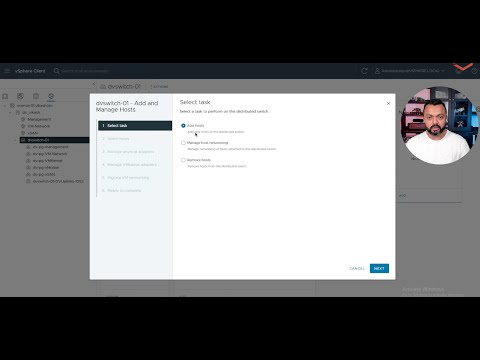
Man, you know that feeling when you’re knee-deep into something on your computer, and bam! Something goes wrong? Yeah, we’ve all been there. The other day, I was helping a buddy with his VMware setup—he was pulling his hair out over a vSwitch misconfiguration.
What’s a vSwitch, you ask? Well, think of it as the traffic cop for data in a virtual environment. It keeps things moving smoothly between virtual machines and networks. When it’s messed up? Total chaos.
Anyway, turns out there are some sneaky little causes for these mess-ups that can really trip you up. You have to dig deep sometimes to figure them out!
But hey, here’s the good news: usually there’s a way to sort things. Solutions come in all shapes and sizes—kind of like trying different keys until you find the one that fits!
Understanding vSwitch in VMware
You ever hear of something called a “vSwitch” in VMware? Kind of sounds like some fancy tech jargon, right? But it’s actually pretty simple when you break it down. A virtual switch, or vSwitch, is like the traffic cop in your virtual environment. It manages network connections between your virtual machines (VMs) and the physical network.
Imagine you’re at a party with tons of people. Everyone’s trying to chat, share stories, and exchange news. Without someone or something organizing it all, chaos reigns! That’s where the vSwitch steps in—it makes sure everything gets to where it’s supposed to be.
So why’s this important? Well, think about it: virtualization lets you run multiple “mini-computers” (just another word for VMs) on one physical machine. Each of these VMs might need access to different networks or resources. The vSwitch handles all that so everything runs smoothly and your data doesn’t end up lost who-knows-where!
vSwitch Misconfiguration: Causes & Solutions
So what happens when things aren’t set up right? A common problem with VMware deployments is vSwitch misconfiguration. When there are hiccups here, your VMs might start acting like rebellious teens—not following rules and causing a lot of trouble!
Here are some causes to watch out for:
- Incorrect VLAN Tagging: Virtual LANs group devices into domains based on functionality or roles—putting them in the wrong one can mess things up.
- Mismatched MTU Settings: Maximum Transmission Unit size tells data packets how big they can be—if they’re too big or small for what’s expected… drama ensues.
- Poor Load Balancing Configuration: This ensures traffic’s evenly spread across resources; if not done well causes bottlenecks.
But worry not! Here are ways you can flip those troubles back around:
- Double-check VLAN Assignments: Make sure everything’s labeled correctly; consult with team members if needed—two heads better than one!
- Tune MTU Sizes Just Right: Get consensus among network devices so everyone agrees on packet sizes being sent/received.
- Simplified Load Balancing Setup: Consult networking guides specific depending upon which version’es being used within workspace environment settings themselves…
Let’s dive deeper into an example—you’ve got an office setting where VMs handle email servers grouped under VLAN10 while others deal exclusively stock inventory management duties separated under VLAN20 instead now suppose suddenly without warning crafted incorrectly meshed together now nothing seems work planned intended kinda hybrid disaster staring bored into oblivion endless troubleshooting hours possible fixes seemingly require divine intervention patience test limits kept sanity intact every moment given reminder eventual outcome worth chaotic seemingly hopeless beginning heavy sigh relief takeaways valuable lessons learned next adventure awaits…
vSwitch Promiscuous Mode Policy Check
Ah, misconfigurations in VMware can be quite a headache! They remind me of the time my computer started acting up just before a big presentation. I was racing against time, and, boy, was it stressful! Anyway, let’s dive into .
Understanding this policy is important if you’re using VMware. You see, vSwitches are virtual switches that connect virtual machines (VMs) to each other or to the physical network. A key part of their configuration is something called the Promiscuous Mode.
- Promiscuous Mode Explained: This mode allows a network device to intercept and read each network packet that arrives in its entirety.
- This is useful for monitoring purposes but can also create security vulnerabilities if not managed properly.
You might wonder why you’d need it. Sometimes it’s used for monitoring tools like Wireshark or when running intrusion detection systems within VMs. But here’s where the trouble arises: if it’s enabled on the wrong port group or without proper oversight? You could end up with unauthorized access to sensitive data.
- Checking the Configuration: It’s crucial to know how your vSwitches are set up.
- You can check this within VMware by navigating to your specific switch settings and reviewing each port group’s configuration.
If you find anything off—or if someone accidentally changed a setting (it happens!)—you should tweak it immediately. Set Promiscuous Mode only where necessary.
A Practical Example:
Imagine you’re managing several VMs for different departments in your company. Finance has its own set with critical financial data. Now, if Promiscuous Mode is mistakenly active on those VMs’ switch? Yikes! Someone from another department could potentially access sensitive information they shouldn’t see!
It’s all about ensuring that every part of your virtual environment is as secure as possible while still functioning efficiently for everyone involved.
Keeping an eye on such configurations saves headaches down the road—you learn from others’ stories (or your past misadventures)!
This topic certainly requires attentiveness because a small mistake might open doors you didn’t intend—be careful when toggling these settings around!
Removing a vSwitch from ESXi Host
Alright, let’s chat a bit about removing a vSwitch from an ESXi host. It can feel like an intimidating task at first, but with a little guidance, you’ll get through it just fine. Just picture yourself fixing a jigsaw puzzle—finding which piece fits where, and in no time, you’ve got the whole picture sorted.
Understanding vSwitch Misconfiguration
Before jumping into the removal process, it’s really helpful to understand why you’d want to remove or reconfigure a vSwitch in the first place. Misconfigurations often occur when settings aren’t optimal for your network’s needs or when they’re left at defaults that don’t suit your environment. This can lead to performance issues or network glitches.
Important Steps To Consider:
- Check Active Connections: Before removing any vSwitch, ensure there are no active connections that rely on it. Disconnect these first.
- Migrate Virtual Machines: Any virtual machines (VMs) connected to the vSwitch should be migrated to another switch so they don’t lose connectivity.
- Backup Configurations: Always have a backup of your ESXi host configurations—just like having an umbrella before it rains!
The Steps for Removal
Here’s how you can remove that pesky vSwitch:
1. **Access your ESXi host via the VMware vSphere Client**: You’ll start by logging into your ESXi host using this management interface.
2. **Navigate to Networking**: Once there, click on the ‘Networking’ option found under ‘Home.’ This is where all magic happens.
3. **Select the Correct vSwitch**: You’ll see all available switches listed here; select the one you plan on removing.
4. **Review Port Groups and VMs**: If there are still port groups or virtual machines associated with this switch, you’ll need swoop in and migrate them elsewhere.
5. **Remove Connected NICs**: Remove any NICs (Network Interface Cards) associated with the switch before moving forward.
6. **Delete The Switch**: There should be an option labeled ‘Remove’ or similar once everything above is cleared up.
A Little Tip: Always have logs enabled so if anything unexpected occurs—you’re not completely flying blind!
Learning from Experience
A while ago I remember tinkering with my own home lab setup—much less sophisticated than what you’re dealing with—but hey! It taught me how careful planning saves time down line when glitches arise unexpectedly.
Remember going methodically ensures fewer hiccups along road ahead! Happy configuring—or de-configuring rather?
Isn’t tech just fascinatingly complex sometimes?
Oh, vSwitch misconfiguration in VMware—now that’s a topic that might just give a few folks out there some sleepless nights! I mean, imagine everything running smoothly, and then suddenly, nothing’s working the way it should. Been there? Let me share a little story of my own.
A while back, I was helping a buddy who had just set up his dream virtual environment. Everything looked spotless on paper, but for some reason, the network traffic was acting all weird. You could see the frustration building up—like when you’re trying to bake a cake and suddenly realize you’ve mixed salt instead of sugar!
You see, in VMware’s world of virtual switches (or vSwitches as they’re cleverly named), it’s all about directing traffic smoothly between your VMs. But if these vSwitches are not configured properly? Oh boy! You’re bound to hit some snags. Common causes? Simple things like overlooking VLAN tagging or mismatched settings between physical and virtual environments.
Now let’s try untangling this mess. First thing I’d recommend is double-checking those VLAN configurations. It’s amazing how often tiny typos slip through unnoticed and scramble everything—have you ever written ’23’ when you meant ’32’? It’s like that!
Then there’s ensuring your NICs (network interface cards) are correctly assigned to vSwitches. Imagine sending someone down the wrong road because you’ve switched street signs—same idea here! Checking each setting can be lifesaving.
And hey—a little monitoring goes a long way too. Tools like VMware’s own management tools can help spotlight where traffic jams occur so you know where exactly to focus your effort on adjustments.
So next time something’s amiss with your network setup in VMware? Take deep breaths, go step-by-step through configs again—you got this!, Mistakes happen even among seasoned pros; learning from them makes us better every time we tackle these tech puzzles head-on!