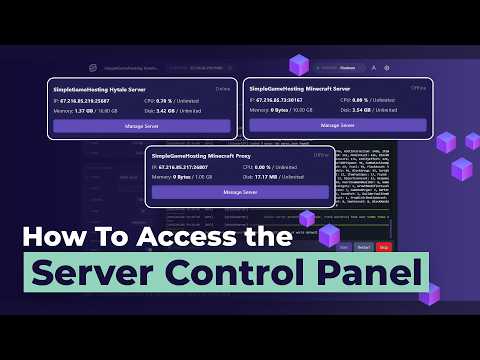
You ever tried getting into a server control panel? It’s like finding the secret entrance to a superhero’s lair. You know it’s there, but sometimes it feels like you need a magic password or something.
I remember the first time I tried. I was staring at my screen, feeling more detective than tech enthusiast. My brain was juggling unfamiliar terms like “SSH” and “FTP,” and I couldn’t help but laugh at how high-tech it all sounded.
But hey, it’s not rocket science! Once you get the hang of it, accessing your server’s control panel can be as chill as scrolling through your favorite app. Once you’re in, you’ll feel that rush of satisfaction—like nailing the perfect selfie on the first try.
So whether you’re on this adventure out of necessity or curiosity, know that you’re in for an exciting ride!
Accessing the Control Panel
, especially when you’re dealing with a server, can honestly feel like you’re trying to open a secret vault for the first time. You’re there staring at your screen thinking, “Do I click this or that?” But once you get the hang of it, it’s not such a big deal anymore.
Why Access The Server Control Panel?
Understanding why you’d want to access this panel is like getting why you must pick up your kid’s Legos before vacuuming. You just have to do it if you’re managing settings or performing maintenance tasks on your server.
Here’s how you can do it:
Access Through Common Web Interfaces
Many servers have friendly web interfaces, making life simpler. You know those clickable icons and menus? They’re there to make things less intimidating.
- cPanel: A popular choice and kind of the golden child among server admins! Just pop in something like `https://yourdomain.com:2083` into your browser.
- Plesk: Used often by people who want more control over their setup. Try `https://yourdomain.com:8443`.
- DirectAdmin: If you’ve heard of this one, you’re probably knee-deep in admin duties! It’s accessed with: `http://yourdomain.com:2222`.
Remember those back in the day when TV had only five channels? Well, command lines are kind of like that—simple but old-school. If you’re comfortable using SSH (Secure Shell), you can access various backend settings through it too.
The Importance Of Credentials
Think about locking doors before leaving home—it’s second nature. Likewise, always ensure that username-password combos are safe and sound. Really!
Troubleshooting Access Issues
Let’s face it; things don’t always go smoothly, right? Maybe you’ve typed the address incorrectly or forgotten about firewalls blocking ports. Double-check these if something’s amiss.
So yeah that’s pretty much what accessing a control panel involves!
Accessing the Minecraft Server Control Panel
Hey, have you ever tried to set up your own Minecraft server? It’s really cool! You can have complete control and create your own little online world. But, accessing the server control panel might seem a bit tricky at first.
First things first, you need to know where the control panel even is, right? Depending on who’s hosting your server, the process can be a little different. But don’t worry; I’ll walk you through some general steps that should help.
- Find Your Host: Are you using a service like Apex Hosting or Shockbyte? Each host usually sends you an email with all the login info you need when you sign up. Keep an eye out for that!
- Access Your Panel: Check your email for a link to your hosting provider’s site. This link is where you’ll go when you’re ready to log in.
- Log In: Use the username and password provided by your host. Sometimes they make it easy with single-click access from that welcome email.
You know what’s funny? The first time I did this, I lost my login details and had to frantically search my inbox while all my friends were waiting. Lesson learned: always save those emails somewhere safe!
Navigating The Panel:
- Status Check: Once inside, look for an overview of server status – it’ll tell you if everything’s running smoothly or if there’s something up.
- Configuration Settings: Explore options like changing game modes or adjusting difficulty levels – super useful if you’re tailoring gameplay for specific experiences.
- Backup Options: Trust me, always backup your world! You’ll usually find these options under ‘Manage Backups’ or something similar.
A quick tip: If things look complex, don’t panic—most hosts provide tutorials and FAQs that are absolute lifesavers!
This whole process gets easier each time. And before long, you’ll be navigating like a pro! Got any questions while setting up? Feel free to ask; it’s what makes this whole experience unique and engaging.
P.S., remember: Always keep another copy of important data outside just in case anything gets weird with your login info!
Accessing the Minecraft Server Control Panel
Alright, picture this: You’re all excited to jump into a Minecraft adventure with friends. But there’s this crucial part where you need to access the Minecraft Server Control Panel. It’s your magical gateway to managing your world, you know? Let’s walk through it.
First off, accessing this control panel is like finding the key to your digital kingdom. It’s where you control all the fun stuff, from game settings to user permissions. But where do you start?
- Locate Your Host’s Website: The majority of Minecraft servers are hosted by third-party services. You’ll want to head over to their website and log in using your credentials.
- Find Your Instance: Once logged in, look for something like “My Servers” or “Server Management.” This is usually where all of your server instances are listed.
- Access the Panel: Click on the server instance you’re looking to manage. You’ll get options for different tasks such as configurations and backups.
- Dive Into Settings: This panel lets you tweak settings—such as adjusting player limits or changing game modes—like survival or creative!
The thing is, each hosting service might have a slightly different layout or naming convention for these sections. So don’t panic if things aren’t exactly where I said they would be! A little exploring goes a long way.
Now let me tell ya, once upon a time I was fiddling with my own server settings and accidentally turned off player versus environment damage… Oops! My friends were invincible! Just gives us another reason why mastering that control panel is handy!
And hey — patience is key here. Technology can sometimes throw curveballs at ya but keep clicking around; you’ll find it!
Finally remember: always save changes before exiting any page on your control panel otherwise those updates won’t stick around when next logging back in again… Classic mistake we’ve all made at least once right?
Ah, accessing a server control panel… It reminds me of the first time I ever had to do it. You know that feeling when you’re about to embark on something new and a bit intimidating? My heart was racing just like when you try a mysterious dish at a restaurant for the first time! I remember staring at my screen, hoping not to accidentally press the wrong button and cause some digital chaos.
So here’s the deal with server control panels. Basically, they’re like the cockpit of an airplane but for your website or application. This is where you can manage all sorts of things: databases, email accounts, file management—kind of like having all your tools in one big toolbox. When folks talk about cPanel or Plesk, they’re mentioning providers that make these panels available to users.
Now imagine this: you’ve got all these options in front of you—file manager, security settings, domain management and more. At first glance, it might look confusing but each section is actually there to help keep everything running smoothly. Sometimes it’s just about knowing what not to mess with if you’re not sure what it does!
The key part though? It’s having control over your own space on the internet without needing someone else every step of the way. And once you’re familiar with it (trust me!), you’ll feel empowered—like owning a workshop where every tool is in its rightful place and ready for action whenever needed.
For anyone venturing into server control territory for their site or project: don’t panic! It’s okay if things feel overwhelming initially—they often do—but understanding comes with exploration… Just like opening that peculiar-looking menu item at dinner only to find out you absolutely love what arrives on your plate!