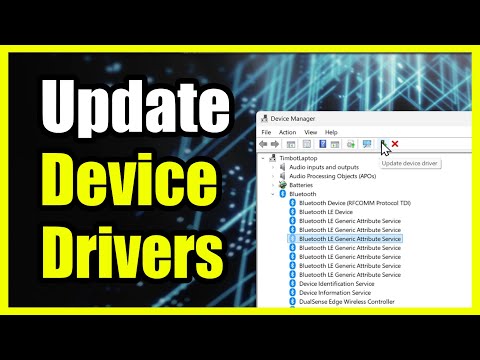
Hey, you ever had that moment when your Bluetooth just won’t work? Like, you’re trying to connect your new headphones, but nada. It’s super frustrating, right?
Well, lemme tell you a little secret: sometimes the culprit is those sneaky Bluetooth drivers. They need a little love and care—or just an update.
Updating them can feel like magic. Suddenly everything works again! It’s kind of like giving your computer a tiny makeover, and who doesn’t love a good makeover?
Don’t worry if this sounds techy; it’s really not that scary. Stick with me! We’ll walk through it together, step by step. You’ll have your devices talking to each other in no time!
Manually Updating Bluetooth Driver on Windows 10
Alright, let’s talk about manually updating Bluetooth drivers on Windows 10. It’s one of those things you might not do often, but when you need it, boy does it make a difference! I remember once trying to connect my wireless headphones and, lo and behold, they just wouldn’t pair up. Turned out the driver needed a little nudge. Here’s what you’ll need to do:
- First things first, open the Device Manager. You can get there by right-clicking on the Start button (that Windows icon in the bottom-left corner) and selecting “Device Manager” from the list.
- In Device Manager, look for something that says “Bluetooth“. You’ll probably have to click a little arrow next to it to see all related devices. This is where you’ll find your Bluetooth adapter.
- Once you’ve located your Bluetooth device—it’s usually called something like “Intel Wireless Bluetooth” or “Realtek Bluetooth Adapter”—you’re going to want to give it a right-click and select “Update driver“.
- Now you’ll be presented with two options: choose “Browse my computer for drivers“. This option lets you manually install an update you’ve already downloaded or lets Windows search your computer for updated software.
- If you’ve already got drivers ready from the manufacturer’s website—or wherever—you’ll use this moment to point your PC towards them. Otherwise, let Windows try its magic by searching automatically within your machine.
- Tip: If you don’t find new ones on your device manager or PC while browsing locally, it’s worthwhile visiting your manufacturer’s website first. Download any updates before heading back into Device Manager!
And hey—once that’s done—my bet is those headphones (or whatever gadget you’re using) should connect just fine! Give them another whirl.
Remember: having up-to-date drivers often prevents many compatibility hiccups with new devices popping up now and then out there…
So there ya go!, hope this helps make tech life just a smidge easier for ya!
Checking Installed Bluetooth Driver on Windows 10
Oh, Bluetooth! One of those little miracles of technology that makes our lives so much easier, right? Until it doesn’t. Sometimes things just don’t sync up as we want them to. Checking if your Bluetooth driver is correctly installed on Windows 10 can tell you a lot about what might be going wrong.
Why Check Your Bluetooth Driver?
Imagine trying to connect your wireless headphones and finding out there’s no sound. That’s frustrating! One big reason could be a missing or outdated Bluetooth driver. This tiny software piece helps Windows interact with your Bluetooth hardware, like a translator between the two.
Steps to Check Your Installed Bluetooth Driver:
Here’s what you need to do:
- Open Device Manager: Press the Windows key, type “Device Manager” into the search bar, and hit Enter. Think of this place as an index for all hardware-related stuff on your computer.
- Locate Bluetooth Section: In Device Manager, you’re gonna see a list. Find “Bluetooth” and give it a click to expand it.
- Select Your Device: Under the expanded list, check for your specific device name—like something you’ve connected before. It’ll usually say something like “Intel Wireless Bluetooth” or “Qualcomm Atheros.”
- A Quick Right-Click:A right-click on your device brings up options; here choose “Properties“. That’s where you’ll find detailed info about what’s currently installed.
- Your Driver Details:Tapping on the “Driver” tab shows specific details about the driver version you’re running.If it’s older than dirt or seems incorrect, consider updating it.
If You Can’t Find Your Device:This could mean there’s an issue with installation. Or maybe it’s updated incorrectly in Windows Updates? Don’t freak out though—sometimes even computers need a restart or another look at settings.
The Tale of My Cousin Ben and His Headphones: I once had my cousin Ben call me about his headphones not connecting due to unknown reasons (or so he thought!). Turns out his driver got zapped during an update without him knowing! After reinstalling everything worked beautifully again!This kind of thing happens more often than we’d think!
By checking these details wisely you’ll have less hassle connecting gadgets via good ol’ wireless tech!
Updating Bluetooth Drivers on Windows 10
Updating Bluetooth drivers on Windows 10 can feel like a small puzzle—kind of like matching all those socks that seem to go missing in the laundry. But don’t worry, it’s not as tricky as it seems! Let’s walk through it and see how this is done, step by step.
First things first: why update? Well, outdated drivers can lead to connectivity issues. So if your Bluetooth mouse or headphones have suddenly decided to take a break from working, updating might bring them back to life.
Check Your Current Driver Version
Before jumping into updates, you should know what’s currently installed. It’s a bit like checking your pantry before heading to the store.
- Press the Windows key and type “Device Manager”.
- Select it from the list.
- In Device Manager, find and expand the “Bluetooth” section.
- Right-click on your Bluetooth adapter (the one that says “Bluetooth” in its name).
- Select “Properties”, then go to the “Driver” tab.
Jot down that version number just in case!
Download Updates From Manufacturer’s Website
Maybe you’re not sure which exact brand your Bluetooth adapter is? It happens! Your laptop manual or manufacturer website should offer clues.
- If you know your manufacturer (like Dell or Lenovo), visit their official support page.
- “Search” (usually there’s a search bar) for “Bluetooth drivers” using your computer’s model number.
Downloading directly from there ensures you’re getting certified stuff—not some random files off the web!
The Installation Journey
Once downloaded:
- You may find an “installer”. Just double-click on it and follow prompts—it’s pretty straightforward.
- If it’s a zip file, unzip its contents first:
Or:
-
• You might need third-party software (e.g., WinRAR) but usually Windows handles zips fine.
-
• Return to “Properties”, then hit “update driver”.
• Choose “Browse my computer…” > Navigate folder paths until identifying our newly unzipped content.
• Finish selecting desired file (.inf), click ‘Next’, & voilà!
• Inside you’ll see files ending with “.inf”. Those are what we want!
Oh, tackling Bluetooth drivers, huh? It might sound a bit techy, but hang with me. Updating them on Windows 10 isn’t as daunting as it seems. Seriously, once you get the hang of it, it’s like riding a bike.
Ever had one of those moments? You’re all set to play your favorite tunes through your wireless headphones—maybe you’re even doing that little happy dance—and bam! Your Bluetooth decides to act up. It’s like the universe has a weird sense of humor sometimes.
Getting those drivers updated is pretty straightforward. The first step—you guessed it—is opening the Device Manager. It’s like this magical toolbox hidden in your computer that lets you see everything connected to it.
When you’re there, find the Bluetooth section and give it a little nudge by clicking on the small arrow next to it. The list will show you all your Bluetooth devices. Right-click on each one to update them individually; it’s basically giving them a digital smoothie: fresh and healthy!
Now and then, Windows might surprise you and do these updates automatically—without telling anyone! But if any device still acts cranky after an update attempt, trying again or visiting the manufacturer’s site can work wonders.
While dealing with this stuff might seem dull at first glance, remember the joy when everything connects smoothly again—and how awesome is that?
Once you’ve navigated through updates and reestablished that magical connection between devices, things feel right again in your digital world… until they don’t—but that’s life!