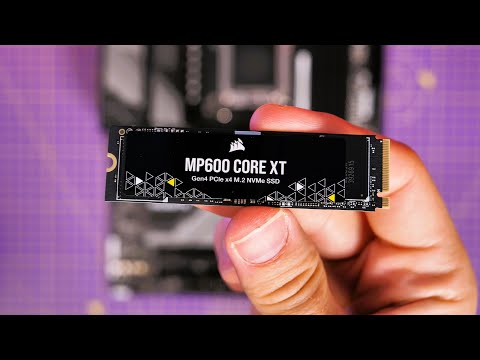
Hey there! You ever been excited about setting up a new SSD, only to hit a wall with compatibility issues? Ugh, right? Totally frustrating.
I remember the time I installed my Corsair MP600 Core SSD. I was eagerly waiting for lightning-fast speeds, only to face one hiccup after another. Felt like trying to fit a square peg in a round hole!
Anyway, you’re not alone if you’re scratching your head about it right now. Loads of folks hit this bump on the road. Let’s see what’s going on and how you can get that bad boy up and running smoothly.
Grab a cup of coffee or tea, and let’s chat!
MP600 Backward Compatibility Status
Sure thing! Let’s have a chat about the . You know, it’s interesting how technology keeps moving forward, but it’s crucial to ensure that new gadgets still play nice with older systems. So, here’s the scoop.
Understanding MP600 Backward Compatibility
The Corsair MP600 is a solid option if you’re looking at NVMe SSDs. It’s designed to work with the booming PCIe 4.0 interface, which offers faster data transfer speeds over its predecessor, PCIe 3.0.
Hey but what if you have an older motherboard? This is where backward compatibility comes into play. The MP600, while optimized for PCIe 4.0, is also backward compatible with PCIe 3.0 slots.
Key Points on Compatibility:
- Performance Impact: Using an MP600 in a PCIe 3.0 slot means you’ll get slower speeds than if it was in a PCIe 4.0 slot.
- No Hardware Modifications Needed: You can fit an MP600 right into a PCIe 3.0 slot without any special tweaks or tools.
- Bios Updates: Some motherboards might need a BIOS update for optimal compatibility and performance.
Anecdote Time!
I had this buddy who couldn’t wait to try out his new shiny toy—an MP600 SSD—but he only had an old rig with a PCIe 3.0 motherboard lying around from when dinosaurs roamed—or maybe slightly more recent than that! Though he didn’t get those lightning-fast speed claims Corsair made for PCIe 4.0 setups he got some nifty improvements over his old SATA drive anyway!
So see? It perfectly fits in situations like this one—a temporary solution until you upgrade your system later!
Troubleshooting Tips:
Once installed usually things go smoothly—but hey nothing’s perfect right? If stuff doesn’t seem quite right there are some quick checks you could make:
- Bios Settings: Head into BIOS and make sure your storage configuration matches the setup of your SSD.
- Cables and Slots: Check connections are snug-fit—accidentally moving components during installation happens!
- Error Messages or Weird Behavior?:Sometimes downloading latest chipset drivers fixes these little annoyances…
- Corsair SSD Toolbox: The most straightforward tool to start with is the Corsair SSD Toolbox. It’s tailored for their drives and gives you info about temperature, used space, or if there are any errors lurking around. Open it up after downloading from their site—it’s got a simple interface for you to navigate.
- CrystalDiskInfo: Another tool that’s quite popular is CrystalDiskInfo. This one’s more generic but does a great job across different brands. Install it and run an analysis on your connected drives. It’ll give figures such as ‘health status’ and let you peek into any issues.
- S.M.A.R.T Data: A cool feature in modern drives is S.M.A.R.T., or Self-Monitoring Analysis and Reporting Technology (sounds fancy!). It provides basic parameters on things like read/write errors or bad sectors. Both tools mentioned above will typically show this information.
- Firmware Update: It’s always wise to check if there’s a new firmware version that addresses compatibility glitches—or enhances performance.
- BIOS Settings: Sometimes changing something in BIOS can do wonders. Just enable AHCI mode (if it’s not already!) because it’s well-suited for these sleek drives compared with older IDE ones.
- Cable Check: Look at your cables! Occasionally swapping them out when there’s weird behavior brings miracles—even swapping ports helps sometimes!
- Performance: Now, if you’re after speed—like blazing-fast speeds—the MP600 Pro is your go-to choice. It’s built on PCIe 4.0 technology with higher sequential read and write capabilities compared to the Core version. Imagine highways: while both get you where you’re going, this one lets you zoom like a racing car.
- Memory Type: Here’s where things start getting geeky—and useful! The MP600 Core uses QLC NAND cells while the Pro opts for TLC NAND cells. In simple terms? QLC is cost-efficient but not as quick with frequent use or heavy workloads as TLC.
- Durability: If longevity is a top priority for ya’, then it’s worth noting that those TLC cells generally offer better endurance over time compared to QLC ones.
Look things may shift as hardware evolves yet being able stick mix-and-match components across different tech eras remains pretty darn neat don’t ya think?
Remember ultimately even though newer hardware brings amazing enhancements getting creative compatibility-wise does allow us keep digging impactful use our gear till end line(s)…
Checking Corsair SSD Health
Alright! Let’s take a look at checking the health of your Corsair SSD, specifically the MP600 Core model. Maintaining SSD health is pretty crucial for performance and reliability, you know? And if you’re having any compatibility hiccups with it, knowing its health might just help pinpoint the trouble.
Checking Your Corsair SSD Health:
First off, getting a sense of how your SSD is doing can often highlight potential areas of concern. With Corsair’s products like the MP600 Core, this can be done using software utilities.
Troubleshooting Compatibility Issues:
Compatibility problems? These sometimes happen due to firmware needing an update or settings tweaking a bit—nothing too scary!
Here’s hoping this helps keep things running smoothly! If anyone told me they’d ever get nostalgic about old troubleshooting days… I’m not sure I’d believe them—but here we are! Follow these steps and fingers crossed everything stays top-notch!
Corsair MP600 Core vs Pro Differences
If you’re scratching your head wondering about the differences between the Corsair MP600 Core and the MP600 Pro, you’re in good company. Many people dive into SSD options only to find themselves lost in specs and features. Let’s break it down for you in a friendly way.
First, let’s start by saying both are part of Corsair’s NVMe SSD lineup, but they cater to slightly different needs and wallets. They share similar naming, but they aren’t exactly twins!
So imagine our friend Joe always saving huge video files—every day! For folks like him bustling through data frequently across multiple setups throughout their projects? Having something as robust yet efficient such as an MP600 Pro could make life much easier.
But wait! Cost-conscious shoppers listen up: The Core remains solid value too without skimping too much especially if daily usage doesn’t involve extreme heavy-lifting tasks!
One last thing before we wrap this up—compatibility issues sometimes crop up especially since newer tech means older systems might struggle catching up properly (think of mismatched puzzle pieces). Checking motherboard support beforehand can save headaches later.
In short (or maybe not!), do weigh out potential trade-offs between performance speed versus overall cost depending largely upon user-specific demands & preferences; otherwise happy upgrading out there!
Alright, dealing with tech issues can be a real bummer, right? Especially when you’re all stoked about your new Corsair MP600 Core SSD. Let me tell you a little story that might sound familiar. I remember when I decided to level up my gaming rig. I’d done my research, and everyone was raving about this particular SSD’s blazing-fast speeds and reliability.
But here’s the catch – after installing it, my system refused to recognize the drive! Oh boy, I felt like tossing my computer out the window. Anyway, before getting too dramatic let’s unpack what could go wrong and how you might tackle it.
First things first: do you have the right connection? The MP600 Core uses a PCIe 4.0 interface which is fantastic for speed but requires compatibility with your motherboard. Check if your motherboard supports PCIe 4.0 or if it’s limited to an older version like PCIe 3.0—if it does support the newer standard but isn’t set up for it yet, a BIOS update might fix things.
Then there’s the issue of physical installation. Sometimes those little M.2 slots can be tricky—make sure it’s properly seated in its slot! The number of times I’ve thought something was connected when it really wasn’t…trust me.
Oh! And don’t forget drivers…sometimes an outdated or missing driver could be the culprit here as well; downloading the latest one from Corsair’s website could save your day.
And lastly, check your operating system settings—sometimes all you need is to initialize or format the drive in Disk Management if using Windows…it sounds silly but easy mistakes happen!
So yeah—I eventually figured out what was going on with mine after some nail-biting moments and lots of Google searches (and maybe some tears). Once everything clicked into place though? Man oh man, did that speed boost feel rewarding!