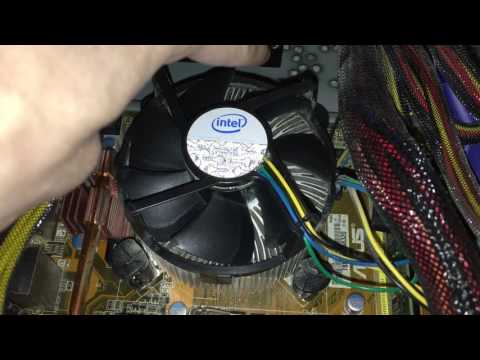
Hey, you ever felt like your computer’s working harder than a bodybuilder on leg day? Yup, that’s probably what’s happening with the Intel Core 2 Quad Q6600 when it’s overheating. Seriously, it can make your PC feel like it’s having a mini meltdown right there on your desk!
Remember that time you left ice cream out in the sun? Yeah, that’s your CPU when its temp gauge goes off the charts. It ain’t pretty. It’s all about keeping things cool to keep ’em running smooth.
Feeling lost about where to even start fixing it? Don’t worry! Tons of folks have been there, scratching their heads. It might seem daunting at first, but with the right tweaks and some patience, you can tackle this beast and get it chillin’ again.
So grab that screwdriver and that thermal paste—or just a cup of coffee if you’re still waking up—and let’s see what’s what with those overheating woes.
Max Safe Temperature for Core 2 Quad Q6600
Hey, dealing with a hot Intel Core 2 Quad Q6600 can be quite the challenge, right? You’re using your PC and then suddenly things start to heat up, and not in a good way! Let’s dive into what you should know about keeping it cool.
What’s the safe temperature range?
For the Intel Core 2 Quad Q6600, it’s generally agreed that under full load, you want to keep things below 71°C. Anything above this could cause some issues. Think of it like making sure your soup doesn’t boil over. Lower temperatures are always better because they prolong your processor’s life and keep everything running smoothly.
Why all the fuss about overheating?
Overheating isn’t just uncomfortable; it can lead to performance drops or even damage over time. It’s like when you’re out in the sun for too long without sunscreen—things don’t end well!
- Thermal Paste: Applying high-quality thermal paste between your CPU and cooler can significantly improve heat transfer.
- Adequate Cooling: Consider using a good aftermarket cooler if you’re stuck with stock cooling solutions. These often offer better efficiency at managing temperatures.
- Case Ventilation: Ensures proper airflow in your case by managing cables and adding more fans if necessary.
A little story: I remember upgrading my cooling system after experiencing unexpected shutdowns during intense gaming sessions on my old Q6600 rig. Turns out I was overheating big time! A new cooler transformed my experience completely—no more sudden shutdowns or fearing for my hardware’s safety!
In short, keeping an eye on those temps is crucial for maintaining performance and longevity of your beloved processor. By ensuring proper cooling measures are in place you’re basically giving your system some extra love and care.
Got questions or stories about keeping things chill? Feel free to share! You’re definitely not alone in this heated adventure (pun intended)! Keep cool out there!
Core 2 Quad Temperature Range Limits
Here’s an easy-to-read discussion about the Intel Core 2 Quad Q6600 and its temperature range limits. I’ll make sure it’s relatable and clear.
—
Understanding Temperature Limits
The Intel Core 2 Quad Q6600 is a bit of a classic, right? It’s the kind of CPU that’s been a workhorse for many people who’ve been around computers for a while. Keeping it cool is important to maintain performance and longevity.
Normal Operating Temperatures
Typically, you’d want your Q6600 to stay within 50-70°C (Celsius) during regular use. Now, I know what you’re thinking—isn’t that quite warm? Well, CPUs do tend to generate a bit of heat, especially when they’re doing tasks like running heavy applications or rendering graphics.
- Idle Temperature: When your computer isn’t doing much—say you’re just browsing the web—it should ideally hover between 35-45°C. That’s like when you’re just chilling on the couch.
- Load Temperature: When it’s working hard—like processing videos or running games—you might see temperatures rise up to 60-70°C. That’s when your CPU is hitting the gym!
- TJunction Max: This is crucial: the maximum temperature for Core 2 Quad processors is usually around 100°C, but pushing anywhere near this can lead to thermal throttling or damage over time.
Avoiding Overheating Issues
You don’t want overheating issues messing up your day, right? There are some ways you can keep things cool:
- Dust Bunnies Beware: Dust accumulation inside your PC can clog airflow paths. Make sure you open up your computer case (carefully!) every few months and clean out any dust with compressed air.
- Pasting Matters: Thermal paste—it’s that gooey stuff between your processor and cooler—sometimes needs reapplying if temperatures get too high. Consider replacing it every couple of years.
- Breathe Easy: Good airflow inside your case makes all the difference. Keep those fans running smoothly and check they’re moving air efficiently through vents.
And there’s nothing worse than sitting down at my desk one hot summer afternoon only for my old buddy—the trusty Q6600—to start acting out because it’s overheating! A little maintenance goes a long way in preventing stressful situations like that.
Caution Signs And Solutions
If temperatures suddenly spike, pay attention—you might hear louder fan noise or feel extra heat from vents.
- Noisy Fan Alert:If fans are louder than usual even at idle states—it might indicate something’s wrong; maybe dust-clogged blades trying harder than they should?
- Sneaky Slowdowns:If apps start slowing unexpectedly without an obvious cause—it could be throttling! Check those temps with utilities such as HWMonitor (handy little app).
Hope this helps keep things comfortably cool on planet PC-land! Stay chill!
Resolving Intel Core 2 Quad Q6600 Overheating Issues
When computers start to heat up, it feels a bit like when an old car engine starts to overheat—you know something’s not right! The Intel Core 2 Quad Q6600 is known for being pretty powerful, but if it starts running too hot, well, that can cause some real problems. Let’s dive into how you might tackle these overheating issues.
First things first, make sure the computer is in a place where it can “breathe.” Proper ventilation is crucial. If it’s crammed into a small desk compartment with little airflow or surrounded by clutter, it’s gonna get hot fast.
Key things you might want to check:
- Dust Buildup: Dust can be sneaky and settle inside your computer case without you even noticing. A little cleaning with compressed air can work wonders.
- Thermal Paste: Over time, the thermal paste between your CPU and its cooler can dry out or become less effective. Reapplying some fresh thermal paste may help lower those temperatures.
- Cable Management: Believe it or not—messy cables inside your case block airflow! Tidy them up so air can circulate freely.
- Heatsink and Fans: Make sure the heatsink is securely attached to the CPU. Also see if all fans (including case fans) are working as they should.
- BIOS Settings: Check if there are any settings related to fan speed control that could be improved for better cooling efficiency.
Moving on from hardware checks… Sometimes software settings contribute to overheating too. You might want to limit background processes running unnecessarily as they add extra load on your CPU.
And hey—don’t forget about external solutions! Investing in additional cooling options like case fans or even an aftermarket cooler goes a long way in managing temperature effectively.
There was once this time my friend’s rig started shutting down unexpectedly during intense gaming sessions; turns out dust had built up over months unnoticed—it just needed a good cleaning session combined with some proper management inside his PC tower!
See? With patience plus small steps here and there—it really does come together nicely making big difference—not only extending life of device but ensuring it runs smoothly without unnecessary power cuts due overheating situations which aren’t always fun dealing with especially mid-task or game when least expected isn’t easy handle either!
Oh, the good old days of the Intel Core 2 Quad Q6600. That was a processor many of us geeky folks have fond memories of. I remember when I first swapped out my old CPU for this little powerhouse—it felt like an upgrade straight from another universe! You could suddenly do so much more with it, juggling work projects, a bunch of browser tabs, and probably sneaking in some gaming sessions too.
But oh boy, one common hiccup many people faced with it was overheating. It happened to me once during a summer heatwave. There I was, in the middle of a game—my computer started acting funny, then “poof,” it just shut down! Talk about a buzzkill.
The thing is, there are always ways to tweak your setup for better cooling if your system’s getting too hot under the collar. First things first: check out your computer’s insides and see if dust bunnies have taken up residence in there. Dust loves to cozy up on fans and heatsinks—sort that out and you’ll feel like you’ve given your machine a breath of fresh air.
Then there’s thermal paste. This stuff sits between your CPU and its cooler; it’s super important for efficient heat transfer. If you’ve had your Q6600 for years without updating this paste… maybe it’s time? Just be careful when applying or removing it — too much can be just as bad as too little!
Now let’s talk airflow inside the case itself—which you might not think about often! By rearranging cables or adding extra case fans (as long as they’re compatible), you ensure that enough cool air flows across those critical components without hitting turbulence from tangled wires.
Lastly—and this one’s kind of dear to my heart—a robust aftermarket cooler can work wonders compared with whatever came bundled originally! When I upgraded mine way back then? Not only did temperatures drop significantly under load conditions; noise levels decreased drastically – music (literally) amidst intense sessions at midnight!
So yeah—the Intel Core 2 Quad Q6600 isn’t immune from heating issues now & again—but using these tips helped keep mine running smoothly through thick ‘n thin moments alike!