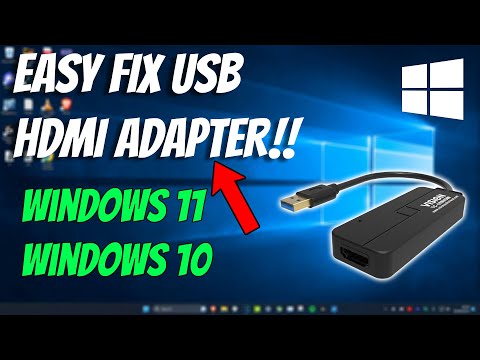
So, you’ve decided to connect your gadget using a Micro USB and HDMI combo, huh? Happens to the best of us! You’d think it’d be as easy as pie, right? Just plug in here, connect over there, and voilà! But nah, sometimes things have other plans.
My friend Leslie tried this the other day. She was all set for movie night on the big screen. But then—nada. Just a blank screen staring back at her. Frustrating!
Now you might be wondering why these things have to be so tricky. I mean, it’s just a couple of cables and whatnot. It should just work! But sometimes they act up for all sorts of odd reasons.
We’re gonna go through those little hiccups that pop up when connecting Micro USB to HDMI. And don’t worry—I’ve got some nifty fixes to help smooth out those techy troubles. Let’s get this show on the road!
Micro USB to HDMI Compatibility
Connecting your mobile device to a larger screen can be super handy, right? Watching videos, sharing photos with friends, or even gaming—it’s all better on a bigger display. But if you’re trying to connect a device using Micro USB to HDMI, there might be some hiccups along the way. Let’s take a look at what you need to consider.
- Cable Type: Not just any cable will do. You need one that’s specifically labeled as an MHL (Mobile High-Definition Link) cable or adapter. This is because it has special magic circuitry inside that converts the signal from your phone to something your TV or monitor understands.
- Device Compatibility: Oh boy, here’s the thing—it’s not enough just having the right cable. Your phone or tablet also needs to support MHL. Manufacturers usually mention this in the specifications, but if you’re unsure you can usually find out online with a quick search.
- Check TV Input: Make sure your TV has an HDMI input; most modern TVs do. You’d then select the appropriate HDMI channel via remote after plugging in.
- Power Supply: Some setups might require additional power—you may notice it has a separate connection for plugging into a USB power source while also connecting through HDMI.
- Troubleshooting Images & Sound: If you see no image or hear no sound—don’t panic! Check connections are secure and devices are compatible first. Then try restarting both devices—it’s like giving them both coffee when they’re sleepy!
A friend once tried setting this up and only saw blank screens for hours until realizing that his old tablet didn’t support MHL! Yep—that’s how crucial compatibility is.
Remember folks: patience and checking those little details can save tons of frustration down line! If doubts remain hopping over tech forums or manufacturer sites often gives tailored advice beyond generic guides.
Navigating technology isn’t always straightforward but hope this paints clearer picture than before about connecting Micro USB devices over HDMI outputs—happy viewing!
HDMI Cable Compatibility Issues
Let’s chat about HDMI cable compatibility issues. You know, it’s one of those things that seems simple but can get a bit tricky—kind of like trying to untangle your earphones.
Understanding HDMI and Micro USB Connections
First things first, HDMI (High-Definition Multimedia Interface) is the fancy name for a connection that lets you send video and audio from one device to another. Now, here’s where it gets interesting: sometimes we want to connect devices with different ports, like micro USB to HDMI. Hmmm… it’s not always straightforward.
Connecting a micro USB device (like your phone or tablet) to an HDMI input (like on your TV) requires some special equipment because they don’t naturally speak the same language. The key player here? An **MHL adapter**, which stands for Mobile High-Definition Link.
Common Compatibility Issues
- MHL Support: Not every phone or tablet supports MHL technology. Check if yours does before investing in an adapter.
- Cable Type: Ensure you have the right type of cable or adapter for connection— it needs to be compatible with both ends.
- Power Supply: MHL often requires external power through the micro USB port itself.
Let me tell you a quick story about my friend John—he tried connecting his old Android phone to his brand new TV. After fidgeting around with cables and adapters all afternoon, he realized he needed an MHL-supported device… which he didn’t have!
Solutions to Try
- Check Device Compatibility: Do some online research—or check your device’s manual—to see if it supports MHL.
- Picking the Right Adapter: Look for adapters labeled specifically for your model’s compatibility; this will make life easier!
- Add External Power: Remember how we mentioned that extra juice? Plug in power when using older models needing support during transmission!
It isn’t just plug-n-play—the thing involves gadgets really working together! When everything aligns perfectly though—a world of amazing sound/video experiences wait inside those screens!
In short: know what gear matches best before diving headfirst into this digital dance! It’ll save headaches while making sure tech magic happens without hitches along way.
Micro USB to HDMI Connection Issues with Samsung TV
Connecting your phone to your Samsung TV using a micro USB to HDMI adapter can be quite handy. You know, watching videos or sharing photos on a larger screen is just cool. But sometimes, hurdles come up. Let’s chat about what might go wrong and how you can tackle it.
First thing, make sure your cable or adapter is in good condition. Damaged cables won’t work properly—seems obvious but it’s often overlooked! A friend of mine once went through four cables before he realized his favorite had a tiny kink causing all the chaos.
- Check Compatibility: Not every Samsung phone supports what’s called MHL or Mobile High-Definition Link—a fancy term for letting video output run from your phone through an adapter to the TV.
- Power Supply: Some adapters need separate power via USB. If you’re not seeing anything, try connecting the adapter’s extra USB cord into a power source.
- Settings Check: Double-check if your TV source is set to the correct HDMI input where you’ve plugged in the cable.
Another common issue is missing software updates. Keeping both devices updated ensures compatibility with new tech standards that change surprisingly fast these days! I remember updating my mom’s old Samsung device—it finally worked perfectly after months of issues when her TV got an update.
Troubleshooting Tip: Restarting both devices sometimes fixes stubborn issues like these; it’s simple yet effective in clearing glitches that pile up over time without us noticing.
To wrap things up, if none of this works and frustration levels hit peak points (boy do I know how that feels!), reaching out for technical support might just save sanity and spare time faffing around with settings forever…
Alright, let’s dive into the world of connecting Micro USB to HDMI. Honestly, this seemingly simple task can be a bit tricky sometimes. We’ve all been there, trying to get our phone’s screen mirrored onto a larger display, eager to show off some cool photos or maybe stream a movie for friends. That’s when you notice things might not go as smoothly as planned.
First off, let’s chat about the cable itself. A lot of people assume any old cable will do the trick, but nope! You need a special adapter known as MHL (Mobile High-Definition Link) that acts like a translator between your phone and the TV. Without it, your connection might just remain wishful thinking.
Now imagine this: you’ve got everything set up and you’re ready to hit play on that movie night with friends. You plug in this magic adapter… and then—nothing happens! So frustrating! This could be because not every device supports MHL or HDMI Alt Mode; it’s one of those “check your specifications” situations.
Then there’s power supply. Sometimes these adapters are little power-hungry beasts and need their own source of juice via an extra USB connection for powering them up properly before they perform any miracles on screen.
Oh! And never forget software settings—something easily overlooked when excitement takes over our brains during tech setup moments like these ones (been guilty myself)! Some devices may ask nicely—for instance through notifications—to switch their output mode manually from USB data transfers mode over onto video/audio transmission instead.
In short: getting micro-USB-to-HDMI working isn’t rocket science but does require attention toward choosing correct gear plus making sure both hardware & software aspects align beautifully together forming seamless connections thereby bringing joy while watching content expanded beyond compact displays right through those glorious larger screens at home parties or casual gatherings alike where everyone enjoys what’s being shared practically effortlessly after resolving initial hurdles step-by-step along journey toward successful connections forged using knowledge gained herein shared lovingly henceforth frequently easing future endeavors potentially met head-on in tackling relatable issues ever again!