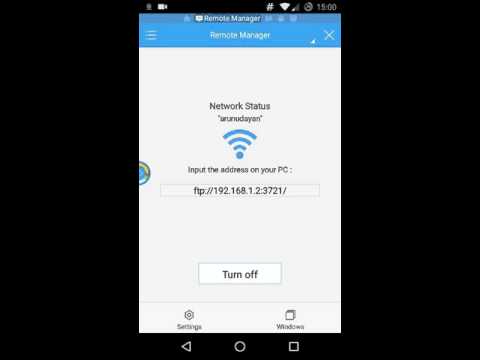
Alright, so let’s say you’ve got an Android device and you wanna set up FTP on it. Maybe you’re like me and want a faster way to share files between your phone and computer without all the cable drama. You know how it is, right?
There you are, thinking about the tons of pictures, music tracks, or whatever else you’ve stored. Getting them transferred can feel like pulling teeth sometimes. Well guess what? FTP might just be your new best friend.
Now, I get it—FTP sounds like one of those techy things just computer nerds do. But trust me (and coming from someone who stumbled through this once), it’s easier than trying to untangle a headphone cord. We’ve all been there!
So grab your phone, maybe a cup of coffee (or tea?), and let’s figure this out together! It’ll be fun—I promise!
FTP Compatibility on Android Devices
Imagine you’re trying to access files on your Android device from your computer. You don’t want to mess with cables every time, right? That’s where FTP (File Transfer Protocol) comes into play. It’s like setting up a bridge between your phone and computer without the hassle of physical connections.
So, how do you make FTP work on an Android device? You’d need a few things in place first:
- FTP Server App: Download an FTP server app from the Google Play Store. Apps like Ftp Server, or WiFi FTP Server, can do the job just fine.
- Wi-Fi Connection: Both your Android device and the computer should be connected to the same Wi-Fi network. This is crucial for them to communicate effectively.
- FTP Client on PC: On your computer, you’ll need an FTP client—something like FileZilla works great!
Now, once you have everything ready, here’s what usually happens:
1. Open the FTP server app on your Android device.
2. Start the server by pressing a start button within the app.
3. The app will provide you with an IP address and a port number—you’ll use these later.
4. Go back to your computer, open FileZilla or another FTP client.
5. Enter that given IP address into the host field and port number in its respective field.
Aha moment?: If everything is set up correctly, you’ll see your phone’s files appear in FileZilla!
This setup seems straightforward enough but remember: sometimes connections fail because of incorrect IPs or unstable Wi-Fi networks—so always double-check those details if things aren’t working smoothly.
Using FTP this way allows easy access without plugging anything extra into devices—which feels pretty futuristic if you ask me!
Setting Up FTP on Samsung Android Devices
Getting FTP set up on your Samsung Android device is kinda like unlocking a hidden superpower! Not to exaggerate, but it can make transferring files between your device and a computer pretty smooth. If you’ve ever been there, trying to get that huge video file or tons of photos off your phone without a hassle, you’ll know the feeling.
First things first, what’s FTP? It’s short for File Transfer Protocol. It’s basically a way to move files from one place to another over the internet or a network.
To get started on your Samsung Android, you usually need an app from the Play Store. I’ve used “Solid Explorer” before (choose what suits you!), and they’ll often have built-in FTP support.
So here’s how it goes:
- Find and Install an FTP App: Head over to the Play Store and look for file manager apps that support FTP. Solid Explorer’s decent option.
- Set Up Your Server: Once installed, open the app and look for an option like “FTP server” in settings or login menu.
- Create an FTP Connection: This often involves hitting “Add,” followed by choosing “FTP.” You should see fields for username and password—fill these if needed.
- Start the Server: There might be a big button labeled “Start”. Hit that! You’ll see some detail—usually an IP address and port number.
- Connect from Your Computer: Open up any old browser or use dedicated software like FileZilla on your PC. Enter that IP address with port number displayed earlier in address bar like ftp://192.168.x.x:yyy.
And bam! You’re connected—kinda feels magical seeing all those files pop up suddenly!
Remember: when done transferring stuff, stop server on phone through app before heading out next adventure; it’s about security afterall.
So yeah… this method really helped me out once while traveling abroad with limited cable access—you know airports and cafés love their wifi just don’t mention wires!
FTP Support in Android File Managers
Setting up FTP on Android devices can feel a bit like trying to find your way through a maze. But once you get it, it’s super handy for accessing files remotely. FTP, short for File Transfer Protocol, essentially lets you move files between your device and another server over the internet.
Understanding FTP Support in Android
You might be asking yourself, “Can my Android device do this?” The answer is yes! Many file manager apps available for Android come with built-in FTP support.
Getting Started with an Android File Manager
First things first, you’ll need to get yourself a file manager that supports FTP. Some popular options include Solid Explorer and ES File Explorer.
- Solid Explorer: Known for its user-friendly interface and rich features. Besides being an excellent file manager, it has robust FTP capabilities.
- ES File Explorer: Offers reliable and straightforward FTP setup. You can easily connect to your server using simple settings.
Setting Up FTP on Your Device
Let’s walk through setting up an example app:
1. **Open Your Chosen App**: For this walkthrough, let’s use Solid Explorer.
2. **Link the Server**: Find the ‘FTP’ option usually under network settings.
3. **Enter Your Credentials**: You’ll need details like IP address, username, and password of the server you’re connecting to.
4. **Connect**: Tap connect after filling in the necessary info.
Sounds complex? It’s simpler once you try it out!
The Benefits of Using FTP on Android
- Easily Transfer Files: Move files between devices without needing a USB connection or cloud service.
- Manage Remote Content: You can view and manage content stored far away as if it’s right on your phone.
- Saves Time: Especially useful when dealing with larger files or multiple transfers.
Remember when I tried it the first time? I couldn’t believe how easily I accessed my home computer’s files while sipping coffee at a café miles away!
Having these options at your fingertips makes managing digital files across different locations seamless.
Keep exploring until you find what suits you best… And hey—good luck with your file adventures!
I remember the first time I tried setting up FTP on my Android phone. It felt like magic, you know? Suddenly, I could transfer files between my phone and computer without needing those pesky cables. It took me a few tries to get it right though. The process itself isn’t that tricky, but like anything new, it takes a bit of getting used to.
To start with, you need an FTP app from the Play Store. There are several options available, and most of them are quite user-friendly. I picked one with good reviews—always helps to see what others experienced before diving in.
Once you’ve got your app, it’s about connecting your phone’s storage to your home Wi-Fi network so other devices on the network can access it. Sounds techy? Well, it kind of is but think of your Android device as a mini-server hosting files just for you.
Launching the app usually requires setting up an FTP server on your phone with a user name and password—simple ones are fine as long you’re securing them properly… keeps things safe! Then all you have to do is enter these details into your computer’s File Explorer or Finder window.
One day while traveling, I needed some important documents from my laptop that I’d forgotten at home (classic move). Having FTP set up meant accessing what I needed remotely was possible after quickly asking someone to turn everything on back at my place!
Truth be told if you’re into tweaking stuff or regularly sharing files across devices especially wirelessly—it’s worth giving this shot. It’s empowering knowing how something works beneath those shiny interfaces we deal with daily isn’t it?