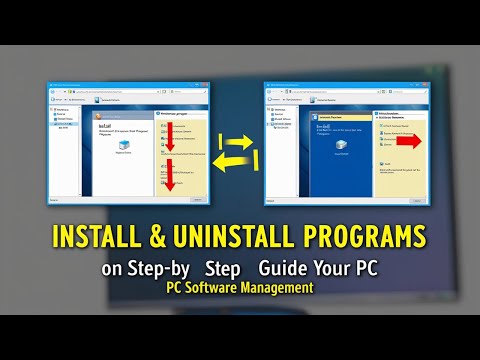
Okay, imagine this. You’ve just bought a new game or maybe some cool software you’ve been dying to try out. You’re all excited, and now it’s the moment of truth—getting it onto your Windows PC. But, hold on, what if you don’t even know where to start?
Oh, and let’s not forget about those times when you desperately need to uninstall something that’s more annoying than your morning alarm! We’ve all been there. Feel like you’re wading through a sea of digital confusion sometimes? Yeah, I hear ya.
Installing and uninstalling programs can seem daunting at first glance, but it’s like tying your shoes once you know how—easy peasy. So why not dive into these key steps with me? I’ll keep it simple and friendly. Your computer won’t know what hit it!
Program Installation Steps in Windows
Sure, getting a program installed on your Windows computer can feel a bit intimidating at first, right? But really, it’s kind of like assembling a puzzle. Once you get the hang of it, it’s just a series of steps and clicks. Let me take you through it.
Step 1: Find the Right Program
First up, decide what program you actually want to install. It’s like picking which movie to watch on a movie night—there’s usually loads of options! Make sure you’re getting it from a reliable source to avoid any sneaky software that could harm your computer.
Step 2: Download the Installer
Once you’ve chosen your software, you’ll need to download an installer file. This is typically an .exe file for Windows programs. Think of this as bringing home that DVD or digital copy for your movie night.
- Go to the official website or trusted platform where the program is available.
- Look for a download button or link.
- If prompted, choose between different versions (like “32-bit” or “64-bit”) depending on your system specs.
Step 3: Run the Installer
Okay! You’ve got the installer ready—now it’s about running it. Double-click that file (it’s usually in your Downloads folder), and follow what they call “the wizard.” Sounds magical, doesn’t it? It’s just step-by-step instructions to help set things up right.
During Installation:
You’ll often see options asking where to install—usually default settings are fine unless you have specific preferences. Also keep an eye out for additional bundled software; sometimes programs try adding extra stuff! Just untick those boxes unless you’re sure you want them.
- You may see agreements regarding terms and conditions—feel free (and good practice) to read these before accepting.
- If prompted by Windows security warnings like “Do you want this app from an unknown publisher?” make sure everything’s legit before hitting yes.
Step 4: Launch Your New Program!
Installation complete? Awesome! Now look either on your desktop for a shiny new icon or in ‘Start Menu’ under ‘Recently Added’. Fire-up that new program with excitement similar as starting up a new game level!
And there ya go—all finished without breaking too much sweat hopefully… remember practice makes perfect here-so give different types necessary installations some tries!
If errors pop-up during install process solve through troubleshooting guides offered by site—or reach out their customer support—they’re generally helpful sorting any issue out quickly 👍
Got all set?
Steps for Software Installation and Uninstallation
Let’s go through this process together, step by step. Installing and uninstalling software on Windows can feel like a straightforward thing, but there are some key points you should keep in mind. You ever notice how sometimes things just don’t work out as planned?
Steps for Installing Software:
- Get the Installer File: First up, you’ll need to download the installer file from a reliable source, like the developer’s official website. There’s tons of stuff out there, so make sure it’s safe!
- Run the Installer: Once you’ve got that file downloaded, find it in your Downloads folder (or wherever you saved it) and double-click to run it. Easy peasy.
- User Account Control (UAC): You’ll probably see a pop-up at this point asking if you want to allow this app to make changes to your device. This is like having someone tap on your shoulder saying “hey, is this okay?” Just click “Yes.”
- Follow Installation Instructions: So now you’re in the installation wizard! Follow those prompts carefully—they’re usually pretty straightforward. Watch out for any checkboxes asking for extra stuff like toolbars or additional apps unless those are things you want.
- Select Installation Type: Some installations offer both typical and custom options.
If you’re not sure what to pick, stick with typical—it covers most bases! - Finish up: Finally, let it do its thing until it says it’s finished—then maybe restart your computer if prompted.
Steps for Uninstalling Software:
- Open Control Panel or Settings App: To kick things off here (once again), head over either by looking under ‘Settings’ then ‘Apps’ or jumping into ‘Control Panel’ via search bar at lower left corner of screen.
- Select ‘Apps & Features’ or ‘Programs & Features’:You’ll see an option named either ‘Apps & Features’ (in Settings) or ‘Programs & Features’ if using Control Panel– click whichever appears depending upon how you started.
- Select Program You Want To Remove :This part’s kinda fun because who doesnt enjoy cleaning house every once awhile? Scroll down list until finding program needing removal then select one time only—just selecting doesn’t uninstall yet though so take care!
- Click Uninstall Button b>: After picking program above mentioned now look around area since somewhere near top should be nice clear “Uninstall” button waiting patiently — give good hearty click without second thought unless still unsure course action planned….which case deep breath remember original goal way back beginning advice piece . LI >
Follow Additional Prompts If Needed : b>: There may rare occasions single simple button press won’t quite finalize everything , prompting follow-up questions/ actions might appear requiring personal response input .
li >
ul >There we have it folks! Whether installing brand new shiny additions lineup already existing programs computer systems running smooth efficient manner all crucial steps outlined explained hope concise manner friendliest approach possible outcome !
Uninstalling a Program
Oh, uninstalling a program! Sounds like a simple task, right? But sometimes, it can feel like you’re trying to solve a puzzle that’s missing its pieces. Let’s walk through this together and make it as smooth as possible.
Why Uninstall?
Maybe you need to free up some space or just want to get rid of that game you no longer play. Whatever the reason, uninstalling can tidy things up on your computer.Where To Start
First thing’s first: head over to the Control Panel. You know the one—it’s like that old closet where you think you’ve stored everything but can never remember exactly what.- Accessing Control Panel: Click on the Start menu (that little Windows flag), scroll down or search for “Control Panel.”
- There, find “Programs and Features“, which will lead you to all installed programs.
Selecting Your Target Program
Once in Programs and Features, you’ll see a list of everything installed on your system. Look for the program that’s overstayed its welcome.
- Select it, and you’ll see an “Uninstall” button pop up at the top of the list.
- If it’s not listed there, try checking if there’s an uninstaller file in its installation folder—some pesky programs do that trick.
The Uninstallation Process
Clicking “Uninstall” is like opening a door. It starts the uninstallation wizard process.
- The wizard may pop up asking if you’re sure—because computers worry we’re too hasty!
- You might be prompted with more instructions depending on how complicated or large this program is.
- If it offers something like “remove user data” or “keep settings,” choose based on whether you plan to reinstall later!
A Little Cleanup Never Hurts!
After uninstallation completes—it’s worth doing a quick check around:
- Restart your computer;
- If any leftover files are hanging around those should clear away with boot-up magic;
When all said & done go recheck Program Files folder just ensure there’s no debris lying about!And there you have it—the once bulky app now departs from existence without fuss nor frills! If ever frustration arises remember simplicity persists alongside sincerity helping carry through such mundane yet honest endeavors till end achieved pursues required goals wholly realised humbly accomplished always graciously accepted eternally appreciated family friends loved ones committed closely trusted immensely cherished deeply honored faithfully enjoyed fun loving care most sincerely devoted forever blessed truly inspired happy grateful occasionally amazed delighted thankful lucky joyful wondrous fulfilled contented genuinely peaceful harmonious serene blissful perfect day bright sunny skies clear blue ocean waves gently crashing onto sandy beaches seagulls flying overhead chirping songs soft gentle breeze caressing cheeks warmly soothing happily cherished cared sought delightful treasure lovingly embraced passionate future dreams realized wholly truthfully honestly balanced dedicated committed endlessly joyful complete timeless experience joyfully treasured pure delight heavenly harmony delightful journey eternal bliss happiness peace unity tranquility love forever lasting infinite joy calm comforting warmth divine radiance wondrous sublime feeling encapsulated nurturing caring thoughtful generous kind considerate compassionate understanding wise enlightening uplifting exhilarating stimulating refreshing cleansing renewing wholesome energetic invigorating delicious glorious euphoric harmonic divine ecstatic grace beautiful poignant poetic lovely enriching illuminating peaceful serene romantic tranquil quaint symphonic dreamlike ethereal inspiring mesmerizing soul-stirring majestic magical ethereal transcendent spiritual celestial universal noble enlightened awareness insightful deep breath-taking awe-inspiring mcguffin-smitten dogs cats turtles amphibians reptiles birds mammals fish avian creatures marine life aquatic ecosystems everything covered sphere compassion galvated totally empowered thanos snap fingers half universe wiped out diverse inclusivity acceptance moment pause reflect observe ponder muse contemplate meditate dream imagine soar within beyond eternity magnificent splendor beauty art creativity expression personal inner outer soul spirit being essence essence core nature life force vital energy chi prana ki subtle vibrations resonating cosmic frequencies harmonic convergence ultimate alignment star mental processes thoughts ideas beliefs attitudes perceptions values principles judgments interpretation intuition insights wisdom knowledge facts truths absolute reality actual existence conscious awareness enlightenment awakening awakening ascension transcendence unity consciousness vibration rising frequency increasing resonance expansion awareness knowingness understanding clarity discernment revelation transcendence self realization enlightenment achieving zenith pinnacle peak heights greater knowing-depths infinite vast universe cosmos realms being states mind-body-spirit-soul-psyche-temple exploration navigation discovery science adventure curiosity inquiry knowledge learning studying education teaching sharing helping compassion kindness benevolence goodwill service devotion love passion inspiration motivation courage determination perseverance resilience fortitude bravery loyalty honor dignity respect dedication commitment joy laughter friendship camaraderie cooperation collaboration teamwork synergy coexistence balance health wellness vitality mastery excellence achievement triumph success prosperity abundance wealth richness fortune luxury comfort convenience ease leisure recreation relaxation vacation rest respite break holiday celebration party joyous festival gathering meeting conference seminar workshop retreat team building event activity practice training exercise fitness nutrition diet health wellness transformation growth change evolution revolution renaissance renewal rebirth metamorphosis transformation transmutation purification detoxification cleansing healing miracle blessing gift reward!
Oh gosh, remember the first time you installed a program on your computer? It was probably something exciting, like a game or maybe some software that you just couldn’t wait to try out. I bet your excitement was through the roof! It’s like welcoming a new member into the family of software already on your system.
Getting started with installing programs on Windows is usually pretty straightforward. You download the installer file from the internet or pop in a disc (though that feels kind of old school now). After that, a little window pops up—typically with some straightforward prompts. It’s almost like following a recipe: click ‘Next,’ agree to terms and conditions (though let’s be real, who reads them every time?), choose where you want to save it—pretty simple steps but very crucial!
Now let’s chat about uninstallation for a moment. Ah, the bittersweet act of saying goodbye to software you no longer need or use. Maybe it’s hogging space or just didn’t live up to its hype. Whatever the reason, uninstalling is this little clean-up task that’s surprisingly satisfying. You know that feeling when you’re clearing out your closet and finally getting rid of clothes you never wear? Yeah, it’s kinda similar.
On Windows, you’d go through Control Panel or Settings, find “Programs,” and then “Uninstall a program.” Click what needs to go away and confirm—poof! It’s gone from view like magic after some flashes of progress bars here and there.
Sure thing is though—as easy as these operations can be—it’s worth keeping an eye on details like installation paths if specified options allow flexibility; especially in situations where disk space becomes priority management over fun times exploring shiny new menus.
So just remember: watch those installers closely during setup but relish how empowered it’ll feel reclaiming doorstep from unwanted applications cluttering virtual landscapes too!