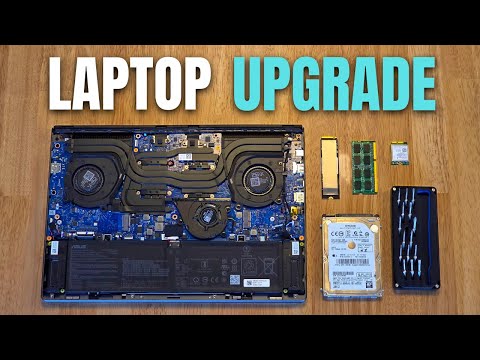
Okay, so you’re thinking about upgrading your laptop’s hard drive to a whopping 1TB? Awesome choice! It feels like moving from a cozy little apartment to a spacious house. You’ll finally have room for all those photos, videos, games, you name it.
I remember when I first upgraded mine. It’s like finding out your tiny backpack can actually fit everything you need for a month-long trip. Such relief!
But hey, before you start dreaming of all that extra space, let’s chat about what this upgrade entails. It’s not rocket science, but it’s good to know the basics.
Trust me; it’ll make the journey smoother and more fun! Ready? Let’s get into it without any fuss.
Evaluating 1TB HDD Suitability for Laptops
So you’re thinking about upgrading your laptop with a 1TB HDD? That’s a decision a lot of people weigh. Let me share some insights to help you figure if it’s the right move for you.
Storage Space and Needs
Hey, let’s face it: laptops are great, but their storage can feel cramped sometimes. A 1TB HDD (that’s one terabyte, or about 1000GB) can solve that problem by offering much more room for your files. It’s particularly handy if you’re into storing lots of photos, videos, or games.
Consider Your Laptop’s Usage
Why would you need all that space—are you wondering? Well, it’s pretty simple. If you’re someone who handles large files regularly—like video editing or playing heavyweight games—a bigger hard drive is worth considering. But if most of what you do involves lightweight tasks like internet browsing and word processing? You might not need that much space.
Performance Factors
One thing people often overlook is performance variation between different types of drives. While an HDD offers ample storage capacity at a lower cost than SSDs (solid-state drives), they’re slower in terms of speed. So if speed and quick BOOT-up times are critical to your laptop use, an SSD might serve better than an HDD upgrade—even with less storage space available overall.
Compatibility Check
Before committing to this upgrade path—you want to make sure everything fits together nicely! Here are few compatibility aspects worth checking:
- SATA Interface: Make sure your laptop supports SATA interface used widely among modern hard drives.
- Sufficient Physical Space:: Check whether there’s enough room within the machine’s casing since newer laptops typically have slimmer designs.
- Caddy Requirement:: Some situations may require additional parts like caddies when installing more traditional-sized disks inside ultrabooks.
The Price Factor
Cost-wise—a standard 1TB HDD won’t break the bank compared next-gen tech options—and usually sees lower price-per-gigabyte ratios given current market conditions…
Anyway—I remember helping my neighbor last month who was struggling whenever they tried running their favorite video game because loading took forever! After adding changed-out for larger-capacity option—they found performances instantly improved not just due size increase but fresh installation alone had benefits too!
To wrap it up: weighing all these factors—ask yourself what matters most regarding speed vs price balance priorities when searching suitable changes own needs/preferences consider maintenance upkeep required part ensuring longevity reliability down road…
Laptop Hard Drive Upgrade Compatibility
Upgrading your laptop’s hard drive is honestly like giving it a new lease on life. Especially when you’re running out of space with all those files, photos, and random apps you keep on there. But here’s the big question: Is your laptop compatible with a 1TB hard drive? Let’s break this down for you.
Check Your Laptop Model:
The very first thing you should do, is look up your laptop’s model. You know, laptops are kind of like people—each one’s unique with its own quirks and capabilities. Not every laptop can handle a 1TB upgrade! Just head to the manufacturer’s website or check out the manual to see what they have to say about compatibility.
Find Out Your Current Drive Type:
Oh boy, this one’s definitely important! Laptops usually come with either SSDs (Solid State Drives) or HDDs (Hard Disk Drives). Each type connects differently—SSDs are faster but usually pricier, while HDDs give you lotsa storage for less cash but aren’t as speedy.
- SSDs: If you’re upgrading from an SSD, you’re going for speed and performance.
- HDDs: Upgrading here might mean a little more storage at a lower cost.
SATA vs NVMe:
Don’t let these names bog you down—they’re just different styles of connecting your drive to the motherboard.
- SATA (Serial ATA): The traditional connector; more common in older models.
- NVMe (Non-Volatile Memory Express): Much faster; found in newer laptops.
Each has its pros and cons, but what really matters? That your motherboard supports whichever one you’re keen on using!
Physical Dimensions Matter:
This sounds funny at first but seriously imagine trying to fit a square peg in a round hole… Roughly speaking most laptops accommodate either 2.5-inch drives or M.2 cards.
Now don’t worry too much about it; just take note of what’s inside right now so that new shiny upgrade will slot right into place without any wrestling matches!
In my own experience—once upgraded my old clunker of Lenovo by double-checking these nitty-gritty details beforehand—and man did things get smoother after popping that fresh hard disk back into place!
USB Compatibility for 1TB Laptop Hard Drive Upgrade
Upgrading your laptop’s hard drive can feel like a big leap, especially when you’re moving up to a 1TB one. Let’s dig into USB compatibility—a crucial part of making the change.
First off, you should know that **USB compatibility** is critical when transferring data to your new drive. Look at it this way: the data on your old drive needs to be copied over safely and quickly, right? That’s where USB comes in.
### Types of USB Connections
Different laptops have different types of USB ports. Here’s a quick rundown:
- USB 2.0: This is pretty common but might be slower for massive data transfers.
- USB 3.0 and USB-C: These are faster—ideal for migrating loads of stuff at once.
If your laptop sports only USB 2.0 ports, don’t sweat it too much—but keep in mind it’ll take more time for the transfer.
### Why Upgrade with an External Enclosure?
Using an external hard drive enclosure can make life much easier during this upgrade process.
- Convenience: They allow you to connect the new drive via USB before swapping it internally.
- Safety: Minimize accidental damage by handling drives carefully while they’re secured inside enclosures.
Enclosures are like little armored boxes that help protect your precious drives during use or movement—kind of like having a bulletproof backpack!
### Preparing Your System
Before diving headfirst into swapping drives:
- Back up important data always!
- If you’re using Windows Back Up & Restore tool—or something similar—it’s good practice first thing.
### Everything Fitting Together
Make sure everything fits together smoothly too; think about what connectors work well with both devices involved here: A SATA-to-USB adapter might come handy if needed due differences between internal sockets/ports compared against those found laptop units themselves.
It’s like having all puzzle pieces fitting nicely so nothing feels outta place!
So there you have it! By taking care how connections flow from one side another ensures successful transfer while rocking fresh setup ready go anytime afterwards!
Upgrading a laptop’s hard drive to 1TB, huh? That’s a significant leap. I remember when I swapped my old sluggish drive for a 1TB monster. It felt like unlocking a hidden room in an already cozy house. But let’s break it down together, shall we?
First off, why consider upgrading to 1TB? Well, there’s the obvious: storage galore! You get more space for your photos, videos, games—everything really. And if you’re anything like me with thousands of photos and tons of music files, you definitely need it.
But it’s not just about more storage; performance gets a boost too. Remember that time when your laptop took forever to boot up? A new hard drive can help with that too. It’s like your computer takes a deep breath and says “Alright! Let’s do this.”
So how do you go about it? Here’s the drill: Back up your stuff first—please don’t skip this step! You’ve got memories on there that you definitely don’t want lost in tech limbo.
Then there’s choosing between SSDs and HDDs. If speed is what gets you going every morning (or evening), then an SSD is your friend here. Although they can be pricier than HDDs, they’re worth every penny for their speed demon qualities.
Of course, you’ll need to roll up your sleeves—or maybe grab a screwdriver—to physically install it into your laptop. It’s kind of fun actually but can look intimidating at first glance. Just take one step at time; nothing beats that satisfying click as everything fits into place perfectly!
Now one thing most folks wonder is whether things will remain smooth sailing after installation or hit some bumps along the road… Honestly speaking? They might! But these hiccups won’t last long if patience is applied generously alongside some good old-fashioned troubleshooting techniques.
In short though—with careful planning coupled with diligence—you’ll find yourself wondering why didn’t do such upgrade sooner which fills me immense satisfaction every single day since I made mine…