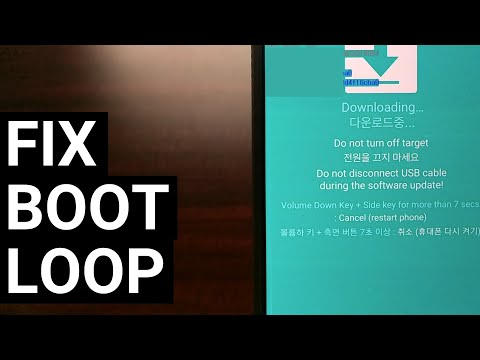
You know that feeling when you’re all set to do something cool on your phone, and bam! It just freezes on you? Ugh, I totally get it. Especially frustrating if you’re trying to update your phone’s firmware. You might be excited to see what new features or fixes it brings, but then the S21 just decides it’s going to hang tight for a bit. Grr.
Oh man, I remember this one time my buddy was freaking out because his S21 was stuck during an update right before he needed his maps for a trip. Yeah, not fun at all. But the thing is, it’s not as hopeless as it feels in the moment.
There’s actually a bunch of reasons why this happens and some neat little tricks you can try to sort things out yourself. Ready to get that phone behaving again? Let’s get into some quick fixes and make sure you’re back on track in no time!
Steps to Unfreeze a Samsung S21
Oh boy, dealing with a frozen Samsung S21 can be such a pain, right? One moment you’re updating the firmware, and bam! The screen’s stuck. Don’t worry, though, I’ve got a few tricks up my sleeve that might get your phone back to life.
First off, let’s try something simple. Force restart your phone. You can do this by pressing and holding the Volume Down button and the Power button at the same time for about 7 to 10 seconds. This little trick can often unfreeze your device without breaking a sweat.
If that doesn’t work, you might need to dive into something a bit more technical: recovery mode. Here’s how you do it:
- Begin by making sure your phone is off. If it’s truly frozen though, this step might seem redundant!
- Press and hold the Volume Up button and the Power button together.
- Once you see the Samsung logo pop up on your screen (oh joy!), let go of all buttons.
- This should bring you into Recovery Mode. The touch screen won’t work here – you’ll have to navigate using the volume buttons.
- Select “Wipe Cache Partition” using the Volume buttons to navigate and press Power to select it. Don’t worry; this won’t erase any of your data.
- Select “Reboot system now.” Fingers crossed this does its magic!
In cases where recovery mode didn’t help either… Well then we’ve gotta consider another approach: Odin Mode. This one’s like dusting off ancient wisdom but stay with me!
- Ensure you’ve got Odin software installed on your computer first (it’s easy enough to find online).
- Shut down your phone if it’s not already deadlocked into submission.
- The tricky part: Press and hold Volume Down + Bixby + Power at once until warning signs appear (literally).
- A new screen pops up asking whether or not continue – hit Volume Up if brave enough!
Here comes momma bear herself: connecting through USB cable while being in download mode means now able sending updated firmware via trusty old PC companion known as Odin software interface…
Another challenge still lurking ahead? Some patience bargaining might just save day yet…
Another tip worth mentioning involves taking utmost care during firmware updates—ensure battery never dips below desperate levels before committing say reckless bravery quite frankly risky business otherwise.
S21 Firmware Update Stuck Resolution
Updating your Samsung Galaxy S21 and suddenly it feels like time stopped? Having your firmware update get stuck can be super frustrating. But don’t worry, I’ve got some advice to help get things moving again.
First up, give it time. It might just be taking longer than expected, especially if the update is a big one. Sometimes you can feel like you’re waiting forever for those bars to budge a pixel—I’ve been there. But before diving into more complex solutions, always ensure you’ve given it enough time.
If patience isn’t working, try restarting the device. Here’s how:
- Press and hold the Power button for about 10 seconds.
- The screen should go black. Wait a few seconds.
- Press the Power button again to turn on your S21.
This might sound basic, but it’s surprising how many times a simple restart gets things back on track.
Next step? Check your Wi-Fi connection. You’d be amazed at how often an unstable internet connection can mess things up! Make sure you’re connected to a strong network—or switch networks if need be.
Caching issues? You could try clearing the cache partition:
- Turn off your phone first.
- Press and hold the Volume Up, then press and hold the Power button until you see the recovery screen.
- Navigate using Volume buttons: highlight “wipe cache partition.” Confirm with Power button.
- Select “Yes” using Volume buttons and confirm with Power again.
It doesn’t erase personal data but could clear out any cobwebs causing software hiccups!
And look—you’ve checked everything basic—like power or storage space being plentiful? Might seem too obvious but needs confirming: running low on either could easily halt operations without shouting its cause from rooftops!
If none of this magic works—and we genuinely hope doesn’t come down lines here—consider seeking help through trusted sources such as Samsung Support directly (finding authorized service providers nearby).
Hopefully by now though? You’re breathing easier having gotten past those pesky moments where updates decide they’ll just hang around longer than truly welcome!
Resolving Stuck S21 Firmware Update
Hey there! So, you’ve got an S21 and the firmware update is stuck? That’s frustrating! But don’t worry—I’m here to help you sort it out. Let’s get you through this in a few easy steps.
Restart Your Phone: This might seem basic, but simply restarting your phone can do wonders. Press and hold the power button until you see the restart option. Let me tell you a funny story: One time, my friend’s phone was acting up, and after trying everything complex under the sun, a simple restart solved it. Go figure!
Check Your Internet Connection: Make sure your Wi-Fi or mobile data is working well. A stable connection is key for updates. You wouldn’t believe how many times updates get stuck because of patchy connections.
Free Up Space: Running low on storage? That could be another hiccup stopping your update. Delete some old photos or apps you don’t use anymore. I once had to part with my collection of cat memes just to free up space for an update—oh, the sacrifices we make!
- Manually Update via Settings: Head over to your phone’s settings.
- Select “Software Update” and then tap “Download and Install.”
- If an update is available, it’ll guide you from there.
Okay so if that didn’t work…
Wipe Cache Partition: Think of this as clearing away all the digital cobwebs in your device’s brain without losing any actual stuff. Here’s how:
- Turn off your phone.
- Press and hold Volume Up + Power buttons until recovery mode appears.
- Select “Wipe Cache Partition” using volume buttons to navigate and power button to confirm.
- Select “Reboot System Now.”
And just like that—it’s cleaner than ever!
Now if things are still stuck…
Smart Switch Application: Time to bring out the big guns. Use Samsung’s Smart Switch app on your computer:
- Download Smart Switch on your computer.
- Connect your S21 via USB cable.
- The app should recognize it; follow on-screen instructions for firmware recovery.
There was this one instance where my colleague; super tech-savvy guy mind you—couldn’t get past an update issue until he tried Smart Switch—as they say sometimes good old switching does wonders!
If none of these methods solve it (which honestly would surprise me), reaching out directly to Samsung Support should be next in line—they’re great at dealing with stubborn devices!
So hang in there—you’ve got this!
Oh, the frustration when your Samsung S21 just won’t cooperate during a firmware update! I’ve been there, trust me. You’re all set for new features, improved performance, and then suddenly—BAM—the update gets stuck. It can feel like you’re in quicksand with no way out.
First off, breathe. It’s not the end of the world. Your phone’s just stubborn today. One time, my phone did this exact thing right before I had to leave for an important meeting. Honestly, I felt like throwing it against a wall! But there’s usually a way to coax it back into action without resorting to dramatics.
Try holding down the power and volume-down buttons at the same time for about 10 seconds—this forces a restart. Kind of like giving your phone a little reset so it can shake off whatever glitch it’s having.
If that doesn’t nudge it forward, consider charging your phone fully before trying again; low battery might be its complaint here. Switching to a different Wi-Fi network might help too since sometimes connectivity can be fickle.
Sometimes what helps is clearing up some space on your device as updates need room to breathe and install properly—like when you try cooking in a cluttered kitchen! Dive into those apps you haven’t used in months or clear out redundant photos.
And remember patience is key; if nothing works right away maybe leave your phone alone for bit then try again later—it’s surprising how many things seem to fix themselves with little breaks!
Hoping this helps de-stress things for you even if just a bit! Hang in there; smoother tech days are ahead!