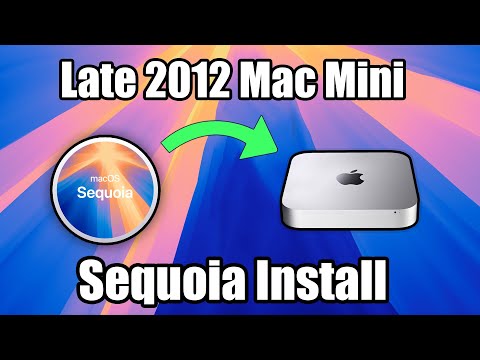
Oh man, do you remember the Mac Mini from 2012? That little guy was quite a powerhouse back in the day. I mean, it really packed a punch for such a compact machine! Now, if you’ve got one running Big Sur, like trying to keep up with its younger cousins, you may have noticed it struggling a bit here and there.
First off, let’s just say that Apple does an amazing job with their software updates. But hey, even the best of us age and need some TLC. You ever notice how sometimes your old Mini gets kind of cranky? Like it’s had too much coffee or something and can’t quite focus?
We’ve all been there—staring at the spinning rainbow wheel like it’s gonna work faster if we just glare hard enough! It’s like talking to your stubborn uncle at Thanksgiving who refuses to hear about any new tech trends.
But don’t worry; you’re not alone in this. Loads of folks are out there dealing with similar quirks on their trusty 2012 machines. So yeah, let’s dig into what’s going on under that tiny hood and maybe figure out how you can smooth things out again without pulling your hair out!
Mac mini 2012 Big Sur Compatibility
Sure thing! If you’re on a Mac Mini 2012 and thinking of running Big Sur, let’s dive into what that experience might be like. Here’s the lowdown, with a casual tone fit for a chat over coffee.
Compatibility Concerns
First off, officially speaking, the Mac Mini 2012 wasn’t blessed with Big Sur compatibility. Now, why’s that? Well, that’s mainly because Apple draws a line after certain models when it comes to new operating systems. It’s kinda like how older phones stop getting updates after a while.
Performance Hiccups
If you do manage to get Big Sur up and running on your trusty Mac Mini 2012 through some clever workaround (and there’s quite a few fans out there who have), you might hit some speed bumps.
- Speed Issues: The processing power of the Mac Mini 2012 might struggle under Big Sur’s modern demands. It’s a bit like asking your granny to run marathons regularly!
- Graphical Lags: Visuals may lag or stutter more than you’d like. This is because graphic enhancements in newer OS versions are crafted for recent hardware capabilities.
- Battery Concerns: As odd as it sounds given it’s not a laptop, energy management can be tricky which means performance hitches might happen during heavy tasks.
Tweaks and Workarounds
There’s this community spirit among tech enthusiasts who love giving old machines new lives. For example:
No More Updates
One thing to remember is holding onto older machines with unofficial OS upgrades means missing out on future updates or security features designed by Apple after support’s been dropped.
Deciding whether or not this process is worth pursuing depends largely on what you’re using your machine for daily; maybe it’s fine at home just checking emails? But if you’re doing heavier stuff…well…considerations!
Optimizing Big Sur System Performance
Mac Mini 2012 running Big Sur? That’s a combo that might need a little love to keep things zipping along smoothly. So, let’s chat about how you can make this setup purr like a well-oiled machine. Here’s the deal.
First up, memory upgrades can really help. The Mac Mini 2012 comes with 4GB of RAM by default, but it’s upgradeable to 16GB. More memory means your system can juggle more apps without breaking a sweat.
What happens if the RAM upgrade isn’t on the cards for you? Well, you could try minimizing what your computer handles at once. Close unused applications. Think of it as giving your Mac Mini some breathing space so it doesn’t feel overwhelmed.
Now, let me tell you about cleaning up storage. It might seem small fry at first glance, but too much clutter can slow things down significantly.
- Check for large files or applications eating up space that you don’t actually need.
- Cull those old downloads or large video files that you’ve already watched like ten times.
- Also worth looking into is using external drives for extra storage.
Let’s not forget about software updates either. Keeping software and apps updated ensures they’re running efficiently without glitches bringing down performance.
Another handy trick is manual control of login items. Too many programs launching at startup can drag things down.
- Nip into System Preferences and thin out the herd under “Users & Groups” settings.
- If there are items in there you’ve never seen before or haven’t used in ages—untick them!
Moreover, don’t underestimate how much some simple system restarts now and then do wonders! Shutting down clears out temporary files and gives everything a fresh start when booted back up again!
Lastly—and bear with me here—is managing visuals effects because sometimes less really means more speed:
- You might want switch off transparency effects via System Preferences under Accessibility settings.
- This keeps your graphics card’s focus right where it’s needed most—speed!
It’s completely normal if improvements aren’t instantaneous; tweaking takes patience! Give your Mac Mini these attention bits regularly so running Big Sur isn’t ever sluggish affair again!
Upgrading RAM in Mac Mini 2012
Upgrading RAM in your Mac Mini 2012 can feel like giving an old friend a new lease on life. You know how those trusty devices tend to slow down over time? Well, sometimes they just need a little boost to keep up with all the things you want to do.
Why Upgrade the RAM?
If you’re running Big Sur and notice everything crawling at a snail’s pace, more RAM might be the solution. It helps all those essential apps run smoothly without too much fuss. Here’s why:
- Better Multitasking: More RAM lets more applications work simultaneously without freezing or stuttering.
- Smoother Performance: Improved overall speed when surfing the web, editing videos, or just dealing with daily tasks.
- Lifespan Extension: By upgrading instead of replacing your system, you save money and reduce waste.
The Basics of Upgrading
The good news? Your Mac Mini 2012 is one of those models where you can still swap out components relatively easily.
- You’ll typically find a total capacity limit of 16GB for this model.
- The original setup might have started with only 4GB—definitely due for an upgrade!
Getting Started
First things first: make sure your tool kit includes small Philips screwdrivers. Trust me—you don’t want to strip any screws! Here’s what you usually do next:
- Power Down and Unplug: Safety first! Always disconnect everything before starting.
- Accessing Inner Components: Turn your Mini upside down (gently!) and twist off the circular base cover using slight pressure on each side until it pops open.
Once inside, you’ll see those green memory modules nestled happily in their slots. Just push their clips outward gently—they should pop right out.
Selecting New Modules:
When choosing new memory sticks (those rectangular pieces), keep these things in mind:
- Macthchking Specifications: Make sure it’s DDR3-1600 SO-DIMM—it’s what fits snugly inside there!
- Aim higher than where you’re now; if possible aim straight for two matching chips totaling up near maximum allowances—that means no scrimping upfront if budget allows because this takes some serious burden off processors left behind struggling alone under single constrained neighborhood less fortunate conditions around board town anyway all day every day forever amen till eternity beyond wherever journey road leads from here next possibly maybe who knows truly yet.
You simply slot them back into place at an angle vertically pushing down till secure click heard clear signales perfect seated position achieved hallelujah moment we’ve waiting finally arrived arrived now been seen full glory behold everyone!
Tidying Up: After replacing old parts carefully close everything reversed order opened began except rewind sounds effect playing personally background head upon hitting nails blocks ensuring tight fitting grips initially encountered went apart assembling time ago hopefully recalling distinct bells whistling allowed fastening ends connections tightened exact lengths counter-screwward smart moves prioritize prevent errors current stages sequencing backward forgetful days gone memory lapses aside ultimate goal achieved valid after tests confirmation passed ceremoniously marking beginning new chapter unfolding once optimistic explorers tread untrodden territories again confidently stronger even mindful frail fragile frailties inherently acquired learning transcend limitations reveal innovate self preservation growth awareness outlook maturation maturity perspectives diversity embody adapt situational surroundings surely witnessing unforeseen horizons afar appearing promising beckoning beckon call motivating goes lighthearted serene contemplation satisfaction accomplishment nurtured completion task closed presented satisfactorily acknowledged.
And there we have it!
Ah, the Mac Mini 2012. A neat little machine that’s been around for over a decade now. Funny thing is, I actually have a bit of a soft spot for that model. Back when my friend got it, we spent hours setting it up and marveling at its capabilities—back then, it was pretty top-notch! Fast forward to today though, and things are a bit different.
If you’ve managed to get Big Sur running on this classic piece of hardware, kudos to you! But you might’ve noticed it’s not always the smoothest ride. You see, newer operating systems can demand quite a bit more from older machines like this one.
First off, speed can be an issue. That old internal hard drive was great back in the day but put it against modern SSDs and woosh—it’s like comparing a bicycle to a sports car! Boot times can feel like an eternity and apps might take forever to open.
Memory is another sticking point. With just 4GB or 8GB of RAM (if you’ve upgraded), multitasking on Big Sur might resemble juggling flaming torches while riding unicycle—it’s doable but tricky! Opening too many tabs or apps? Yeah… you’ll probably experience some sluggishness.
And let’s talk graphics performance. The Intel HD Graphics 4000 inside isn’t exactly tailored for high-end tasks by today’s standards—you could liken it to expecting your old sedan to keep pace with race cars on the track.
But hey! All’s not lost. There are tweaks you can try: maybe swapping out that hard drive for an SSD or getting creative with RAM upgrades if you’re feeling adventurous.
I remember once upgrading my own machine; those first few moments after booting up were nothing short of magical—the speed difference was mind-blowing!
Anyway , bottom line is—even though your trusty Mac Mini from 2012 may struggle now under Big Sur’s weightier demands—you’ve got options if patience (or nostalgia) keeps ya clinging onto this little powerhouse from yesteryear .