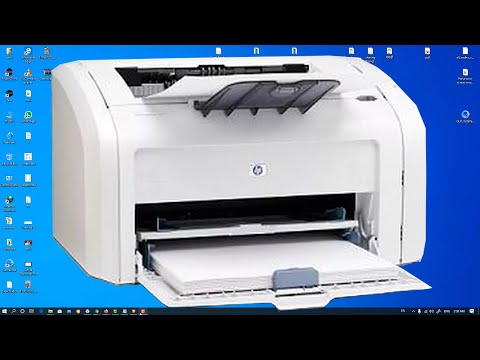
Oh boy, printers, right? They can be a real headache sometimes. Like that time my old one threw a fit right before I had to print my kid’s school project. Urgh! Total chaos at home. Speaking of which, let’s chat about the HP LaserJet 1018 and, like, getting it to play nice with Windows 10.
You might’ve dusted off your trusty old HP LaserJet 1018 and thought it would work like magic. But then you hit a wall when it came to driver stuff. Annoying, huh? Don’t sweat it; so many folks find themselves in the same boat.
It’s weird how tech just refuses to get along sometimes! This printer is a gem for sure – reliable and solid. Let’s see if we can smooth things out so you’re not tearing your hair out trying to make copies on that thing. You ready to dive in with me on this little adventure?
HP LaserJet 1018 Driver Compatibility with Windows 10 64-bit
Hey, let’s chat about the nitty-gritty of getting your HP LaserJet 1018 to play nicely with Windows 10 64-bit. It can be a bit tricky, you know? But don’t worry—it’s definitely doable with some patience and know-how.
So, here’s the deal: The HP LaserJet 1018 is kind of a classic, right? It’s been around for quite some time. Well, because it’s older tech, finding a direct driver for Windows 10 64-bit might make you scratch your head at first.
- Compatibility Mode: You won’t find a driver labeled specifically for Windows 10 directly from HP’s website. But hey, you can use the Windows Vista or Windows 7 drivers in compatibility mode. Sounds fancy? It’s just a setting that tricks your computer into thinking it’s running an older version of Windows.
- Steps to Install: First up, download the driver designed for an earlier version of Windows (like Vista) from HP’s support page. Then right-click on the downloaded file and choose ‘Properties.’ In the properties window, click on the ‘Compatibility’ tab. Here you’ll check ‘Run this program in compatibility mode for’ and select Vista or whatever you’ve downloaded it under.
- Add Printer Manually: Once you’ve installed the driver in compatibility mode but still not seeing any action from your printer? You might need to add it manually via ‘Devices and Printers.’ Look for ‘Add a Printer,’ then choose ‘The printer that I want isn’t listed,’ followed by adding it via a local port—usually USB001 if you’re using an actual USB cable.
- Windows Update Magic: If all else fails—and let’s be real here sometimes it does—try letting Windows work its magic through an update! Sometimes those sneaky little updates auto-resolve missing drivers when you least expect it.
It reminds me when I got my first “grown-up” job and had to set up this dinosaur of a printer they had in the office… Oh man! My coworker Jane spent hours going nuts over missing drivers until she discovered that making tiny tweaks in settings saved her day—same spiel here folks!
Now go ahead give these tips shot; hopefully soon enough those print spools will start whirring away like nothing happened at all!
HP LaserJet 1018 Windows 10 Compatibility
Sure thing, let’s have a little chat about the “.” Sounds like you’re trying to get that classic printer working on your modern system, right?
First off, the HP LaserJet 1018 is one of those printers that’s been around for ages. It’s a true workhorse! But, as with anything a bit seasoned, getting it to function smoothly with newer systems—like Windows 10—can be a bit of a head-scratcher.
So, here’s the lowdown:
- Driver Compatibility: Windows 10 doesn’t automatically recognize the HP LaserJet 1018 without some help. You’ll need to download the correct driver. Check out HP’s support website; they often update drivers for older models.
- Installation Process: After downloading the driver:
- Unplug your printer from the computer if it’s connected.
- Run the downloaded file and follow the prompts. It should guide you through installation like following a recipe.
- Connect your printer when prompted by those instructions.
So far so good?
- Troubleshooting: If you ever run into hiccups,
what can happen is:- Your system might say it doesn’t see any new devices. Don’t panic! Double-check that everything’s securely plugged in and powered on—simple things matter!
- The printer works but prints funny characters. Here’s what usually fixes it: reboot both your computer and printer after installation.
- Add Printer Manually:
Suppose things aren’t working automagically:
You can manually add your printer.
Go to “Printers & Scanners” in settings.
Click “Add a Printer” and pick yours from detected devices.
Anecdote time!: A friend got stuck when his trusty old LaserJet wouldn’t cooperate after his move to Win10. He spent hours tinkering before realizing he just needed fresh drivers straight from HP’s own site! Saved him heaps of trouble.
You got this! It’ll feel awesome having that reliable HW back in action again without spending cash on something new just yet… sorta like finding money you’d forgotten about inside an old coat pocket.
Got any more tech puzzles you’re trying untangle? I’m here; always happy jumping into such topics together!
HP LaserJet 1018 Driver Compatibility with Windows 10
Oh, the HP LaserJet 1018! It’s like that trusty old friend who has seen you through thick and thin. But then Windows 10 comes along and suddenly… things can get a little dicey.
Compatibility Concerns: So here’s the thing. The HP LaserJet 1018 is not officially supported on Windows 10 by HP. Shocking, I know! This might leave you feeling a bit stuck, but there’s a way forward.
Driver Solutions: If you’re wondering whether it’s possible to use this printer with Windows 10, good news—it is! You’ll just need to do a little workaround.
- HP Universal Print Driver (UPD): This can be your hero here. It’s designed to work with many HP printers, including those not officially supported on certain operating systems.
- Built-in Windows Drivers: Sometimes, Windows itself comes equipped with drivers that work as an alternative. You could give these a try.
Getting It Set Up: Let me break it down for you.
- HP UPD Installation: First off, head to the official HP website and search for the Universal Print Driver. Download it and follow the instructions provided carefully.
- Add Printer Using UPD: Once installed, go through your Control Panel in Windows 10. Select ‘Devices and Printers,’ then ‘Add Printer’. Choose your printer from this list and select the UPD option.
- Troubleshooting Tip: If it’s playing hard to get, unplugging everyone’s favorite power cable from both printer and computer before trying again often helps!
The Upshot? You should be able to print again without needing that fancy new model—or seeing any compatibility error messages pop up unexpectedly!
Anyway stay patient during installation processes: They sometimes take their sweet time getting everything sorted out behind-the-scenes wink emoji Time saved using technology today still tends pay back later dramatic pause Hope all goes smoothly; happy printing days ahead!
You know, printers can sometimes be the unsung heroes of our home offices. That is, until they stop working. I remember this one time my aunt called in a panic because her trusty HP LaserJet 1018 was being stubborn after she upgraded to Windows 10. She’s not really tech-savvy and kind of expected everything to be plug-and-play. Unfortunately, things aren’t always that smooth!
The HP LaserJet 1018, bless its heart, has been around for quite a few years and it just loves good old USB connections rather than fancy wireless setups. When my aunt upgraded her system, she found out—much to her dismay—that the printer wasn’t immediately on speaking terms with Windows 10. Compatibility issues can feel like trying to speak two different languages at times.
Here’s where the driver comes into play: it’s that magical piece of software that allows your laptop or desktop to communicate properly with your printer. Unfortunately for older models like the LaserJet 1018, manufacturers don’t always rush out updates for new operating systems.
How did we solve it? We asked Mr. Google and found some steps! You have to manually download a driver from HP’s website that works with newer versions of Windows or find an updated universal driver that plays well with your trusty printer friend.
The relief in hearing that printed page churn out again is something only those who’ve experienced printing woes can truly appreciate! If you’re ever in this boat, take heart—most issues have a friendly fix just around the corner if you know where (or who) to ask!