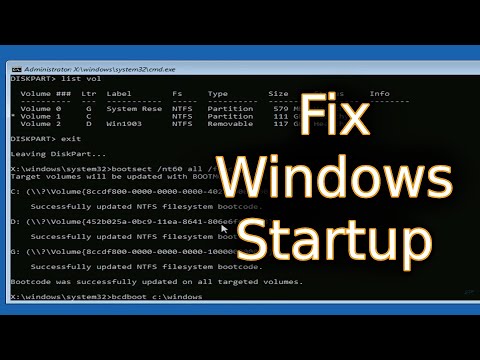
Okay, imagine this: you hit the power button on your computer, grab your coffee, stroll back over and… nothing. Just a black screen staring back at you. Frustrating, right?
We’ve all been there! Windows 10 can sometimes be a bit stubborn on start-up—like it’s got its own Monday blues or something.
But don’t stress! We’re here to help you out with some friendly advice. It’s simpler than you’d think. Stick with me!
Let’s just float through this tech maze together and find that light at the end of the tunnel. Ready to roll up those sleeves?
Windows 10 Startup Repair Tool
Hey there! Struggling with your Windows 10 not booting up? Don’t worry, let’s dig into that pesky issue together. Computers can be a bit moody sometimes, you know?
Picture this: you’ve just made your coffee, and you’re ready to dive into work or play some games. But then—bam!—your PC refuses to start. Annoying, right? That’s where the comes in handy.
What is the ?
It’s like having a first-aid kit for your computer. This tool will help fix issues stopping Windows from starting up properly.
How does it help?
When you see errors or your PC’s stuck on booting, this tool checks the system for problems and tries to repair them automatically. Think of it as a little detective digging around to find why your system’s misbehaving.
Using the Startup Repair Tool
To get started with it, you’ll need to access Advanced Startup Options. Sounds fancy? Don’t fret!
- Restart Your PC: First thing’s first—you gotta restart that stubborn machine.
- The Shift Key Trick: While it’s restarting, hold down Shift. Seriously! It opens the secret menu we need.
- Select Troubleshoot: After rebooting, go for “Troubleshoot,” then hop into “Advanced options.”
- Diving Into Startup Repair: Click on “Startup Repair.” Now let it work its magic!
For instance: Imagine this tool like an auto mechanic who looks after every bump and rattle in your car without even getting dirty hands.
Now sometimes things get really off track with software updates or power cuts; that’s when you’ll be grateful there’s an option called “Recovery Drive”. It’s super helpful having that backup USB ready if something goes totally haywire (trust me).
And remember—it’s always wise keeping important files backed up because technology loves surprises!
Now tackle those nasty startup blues head-on; next time life throws them at ya… You’ve got all bases covered now!
Hope everything boots smoothly for ya… especially when mornings already test patience enough ;).
Happy computing!
Boot Windows 10 in Troubleshoot Mode
Getting your Windows 10 to boot in troubleshoot mode can be a lifesaver, especially when things aren’t quite running as smooth as butter. Remember that time you just wanted to check your emails and your computer decided to throw a fit? Yeah, me too. Let’s walk through those steps so you can get back on track.
First things first: You need access to Windows 10 recovery environment. If Windows is still loading up, you’re in luck! Otherwise, there’s another way.
- If Windows is working (more or less):
- Click the Start menu.
- Select the Power button.
- This part’s important: Hold down the Shift key while you click on Restart. It’s like sending a gentle nudge to your computer saying, “Hey buddy, we need some extra help here.”
- If it’s not starting properly:
- You might have done this without realizing it before! Turn your computer off by pressing the power button.
- Turn it back on and when you see the spinning circle thingy (you know what I mean), hold down the power button till it turns off again. Repeat this two or three times until you get into recovery mode.
Once you’re in, a new screen pops up with options—almost like a safety net catching you! Here’s what you’ll do next:
- Select Troubleshoot:This option looks like a fix-it toolbox for all those pesky problems.
- Beneath Troubleshoot:
This kind of tech stuff can seem pretty daunting at first glance but honestly… we’ve all been there and it’ll feel much easier once you’ve gone through these steps yourself.
Checking for Power Supply Issues
Alright, let’s chat about checking for power supply issues when you’re having trouble booting your computer. You know how frustrating it can be when your computer won’t start, right? I’ve been there many times, and it’s like your machine just decided to take a nap. But don’t worry—sometimes it’s just a simple power supply problem.
First, here’s what you want to keep in mind: the power supply is like the heart of your computer. Without it working properly, nothing else really matters because everything just stays off.
- Check the Outlet and Power Cable: Seems obvious, but you’d be shocked how often this gets overlooked! Make sure the outlet is working by plugging in something else like a lamp. And check if the cable’s plugged in securely both on the wall socket and at the computer end.
- Inspect the Power Button: Sometimes it’s not clicking all the way or feels stuck. Do a quick press to see if you hear or feel that satisfying click.
- Listen for Beeps or Noises: Many computers have little speakers inside that make noises if there’s an issue. If you hear it beeping repeatedly after hitting power, those are like secret messages from your PC saying what’s wrong.
- Look at Any Indicator Lights: Your computer might have some LED lights showing it’s getting power. If they’re dark as midnight, there’s definitely something up with getting electricity through.
- Ejectable Media Drives Lights: Check CDs/DVDs drives; sometimes their activity lights hint whether they’re receiving juice from psu (Power Supply Unit).
Here’s another thing people sometimes forget: surge protectors can fail too! If yours has an orange light instead of green (or no light), try bypassing by connecting directly into wall—just momentarily while testing!
On rare occasions where nothing seems wrong yet still no-go…then we need consider swapping psu itself which might sound daunting at first glance—you know? But hey—it could solve mysteries surrounding sudden shutdowns without apparent cause all because unit was tired out long before realizing symptoms warranted examination!
So yeah…Remember these tips & good luck resolving electric woes haunting very existence startup rituals—you follow me?
Oh, startup issues with Windows 10… Just thinking about it brings back memories of that one morning when I sat down with my coffee, ready to start the day, and bam! My computer refused to boot. The panic that set in was almost comic. Not quite what you’d call a productive start.
Let’s just say we’ve all been there; staring at the screen as if glaring might coax it into cooperation! Now let’s see what’s going on when this happens, right? Booting up your computer should be a seamless experience. But sometimes things go awry.
First things first, check if there’s power. I know it sounds silly—but trust me—sometimes it’s just the cable being loose or not plugged in properly. If that’s not it, maybe a recent update went sideways? Windows updates are supposed to make life easier but occasionally contribute to these hiccups.
Now there’s Safe Mode: it’s like this secret passageway for troubleshooting. You press F8 or Shift + Restart and get access without activating all those drivers and programs that normally load up. It’s your way of saying “let’s deal only with the essentials here!” It’s weirdly satisfying fixing things from there.
If you manage to get into Safe Mode but still face issues after restarting normally, you might want to consider doing a system restore or using Startup Repair from recovery options. Yeah, not always fun steps but often lifesavers!
And then there’s always hardware lurking in the background – RAM sticks that have gone bad can sometimes cause havoc without warning signs upfront… sighs technology can be dramatic!
But hey once you find out what caused trouble — maybe corrupt files got fixed or hardware’s replaced — seeing everything boot smoothly again is such relief; like putting on an old pair of comfy socks after looking everywhere for them!
Remember keeping calm helps tackle technological tantrums more effectively than panicking (even though panicking feels easier at times). And next time when something seems wrong remember – take deep breaths… because eventually things will fall back into place!