Oh man, ever had one of those days when your screen starts flickering like it’s throwing a tiny disco party just for you? If you’ve got a GTX 1060 Strix and you’re running Windows 10, you know exactly what I’m talking about. It’s super annoying, right? You’re in the middle of watching your favorite show or gaming session and boom! Flicker city.
I remember when this happened to me. I was so ready to smash my monitor like it was straight out of an old-school rock concert. But don’t worry, we’ve all been there, really. It’s usually not as bad as it looks. There’s always a little trick up our sleeves to calm that screen of yours.
Seriously though, let’s see if we can help you find some peace with that flickering problem. Because no one has time for that visual chaos in their lives!
Screen Flickering Causes on ASUS ROG Strix
Experiencing screen flickering on your ASUS ROG Strix can be really frustrating. I mean, there you are, all set to dive into your game or finish that project, and suddenly the screen’s acting like it’s at a disco party. It can be a real headache! If you’re facing this issue linked to the GTX 1060 Strix on Windows 10, let’s dive into what might be causing it.
First up, the flickering might come from display driver problems. Graphics drivers act like translators between your graphics card and the rest of the computer. When they’re outdated or corrupted, things can go haywire! You should check if updating your driver helps.
Possible causes of screen flickering:
- Outdated or corrupted drivers: As mentioned before, these bad boys need to be fresh and working right.
- Monitor refresh rate: If set incorrectly, it may cause flickering.
- Faulty connections: Loose cables or ports might lead to signals getting all tangled.
You know how sometimes a simple cable wiggle works wonders? Well, that’s not magic; just misalignments getting aligned again! Make sure everything’s snugly connected.
An important factor can also be software conflicts. Programs fighting for who’s in charge of displaying stuff could also muck things up. If you recently installed new software or updates before noticing flickers – that’s worth checking.
Troubleshooting steps you could try:
- Update drivers: Head over to NVIDIA’s site for the latest GTX 1060 drivers.
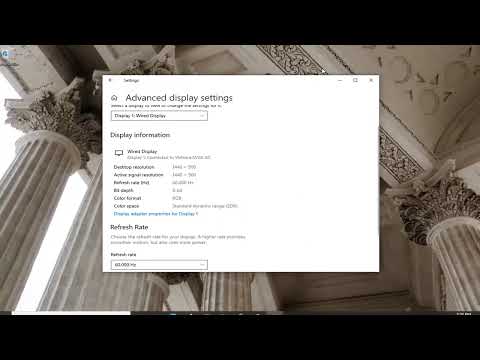
- Adjust refresh rate: Dive into display settings via Control Panel and tweak refresh rate according to monitor specs.
- Tighten connections: Check HDMI/DisplayPort cords; make sure they’re secure both ends.
Imagine this: back when my friend had “the Flicker,” we realized that his cat had nibbled his cable—no joke,! Once he replaced it though? Poof! Problem solved!
Finally – run diagnostics just in case it’s hardware-related too—never hurts double-checking components aren’t overheating/conked out themselves!
Give these fixes a whirl next time those pesky flashes pop up again—you’ve got this covered! Oh boy… nothing beats gaming uninterrupted by tech hiccups after all…right?!
Windows 10 Screen Flickering Causes
Oh no, screen flickering can be super frustrating, right? Let’s talk about what’s going on if you’re seeing this with your GTX 1060 Strix on Windows 10. Sometimes it feels like your display is having a little rave party of its own—without your permission! Here’s the lowdown on what might be causing it.
1. Driver Issues
Believe it or not, sometimes the graphics drivers are the main culprits behind screen flickering.
These little software guys help communicate between Windows and your hardware, and when they’re outdated or corrupted, things can get glitchy.
2. Incompatible Apps
Certain apps may be acting up and causing flickers. How wild is that?
3. Refresh Rate Misconfiguration
Ever tried dancing to the wrong beat? That’s what happens with a mismatched refresh rate. Verify that your display settings match what your monitor supports.
4. Hardware Connections
Loose connections can lead to unstable displays as well!
Troubleshooting Steps:
- Check Task Manager: Open Task Manager by pressing Ctrl + Shift + Esc; if it isn’t flickering but your desktop is, apps have the hiccups!
- Suspend Startup Items: Disable startup programs temporarily to see if one of these mayhem makers is causing disruptions.
- Solve App Conflicts: Use newer app versions or remove those pesky ones known for problems—especially older Norton or IDT Audio software from before 2019.
But don’t let these glitches get you down! With a bit of patience—and probably some coffee—you’ll have everything running smoothly again before you know it!
Screen Flickering on GTX 1060 Strix in Windows 10
Hey there! So, you’re dealing with some screen flickering on your GTX 1060 Strix while running Windows 10, huh? That’s one of those pesky little issues that can really get on your nerves, right? But don’t worry, there are a few things you can try to get it sorted out.
First off, let’s check the cables. Sometimes the simplest solution is just making sure everything’s plugged in nice and snug. HDMI or DisplayPort cables can be sneaky like that. If you have a spare cable lying around, swap it in and see if the flickering goes away.
If cables aren’t the culprit, another thing you should really look into is your graphics drivers. These tiny bits of software tell your GTX 1060 how to communicate with Windows. Outdated or corrupt drivers can cause all sorts of visual headaches.
- Visit NVIDIA’s website: They usually have the latest drivers available for download.
- Use GeForce Experience: This handy tool from NVIDIA helps keep your drivers up-to-date without much hassle.
Now let’s consider monitor refresh rates. Your monitor might be trying to run at a rate it’s not comfy with when paired with your graphics card.
- Right-click on your desktop: Click “Display settings” then “Advanced display settings.”
- Select Properties for Display Adapter: A new window will appear; click “Monitor” and ensure it’s set to the correct refresh rate.
Another thing! Don’t forget about possible interference from other programs like recently installed applications or updates that might’ve messed with settings. Try performing a clean boot to see if something else is causing trouble.
And here’s one last tip: check Windows Update settings. Sometimes an update might address certain hardware compatibility issues… But maybe I’m getting ahead of myself here?
Anyway! Hope this helps clear up that annoying flickering for you! Remember: patience and testing make tech troubles less troublesome—if there’s anything else bugging you feel free ask away! Good luck!
Ah, the GTX 1060 Strix—a trusty graphics card that’s been a companion for many gamers and creatives alike. You know, these cards have helped bring countless digital worlds to life. But then, there’s also this pesky thing some folks have run into: screen flickering on Windows 10. I mean, talk about throwing a wrench in the works when you’re trying to enjoy your favorite game or focus on an all-important project!
There was this one time my buddy, Alex—super into gaming—called me up in total frustration. Alex had just settled in for an evening-long session of his favorite RPG when lo and behold, his screen started flickering like it was trying to send Morse code! Imagine dragons swooping across the screen only to be interrupted by flashes of black; it’s enough to drive anyone up the wall!
So what’s going on here? Flickering can happen due to various reasons—it could be drivers acting up or even display settings that are not quite right. Sometimes it’s just as simple as an incompatible piece of software running in the background without you knowing.
For starters you want to check those drivers. The GTX 1060 Strix relies heavily on them to communicate with Windows smoothly. If they’re outdated or corrupted—Well let’s just say things might not work as expected.
And then there’s a little trick that helped Alex: adjusting the refresh rate settings or making sure apps aren’t conflicting with each other! It’s surprising how sometimes these small tweaks can make everything smooth again.
Screen flickering might seem like a formidable enemy but once you get past it? All’s back to gaming bliss and seamless creativity landings!