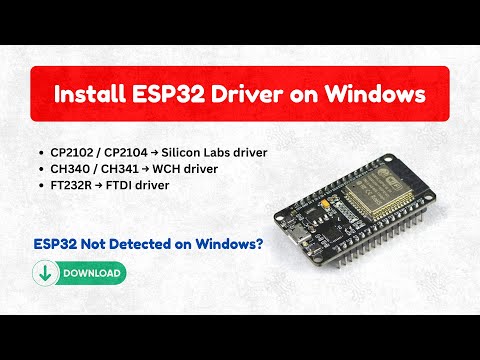
Oh boy, have you ever had one of those days when technology just isn’t playing nice? You’re sitting there, all ready to get your latest project up and running with your ESP32, and bam! The CP2102 driver decides today is not the day.
Seriously, it’s like these little devices have a mind of their own sometimes. I remember this one time—there I was, coffee in hand, excited to try out some new code. But the CP2102 had other plans. It just wouldn’t connect!
It’s frustrating, right? You think everything is set up perfectly. But then some mystery issue pops up with the driver and throws a wrench in your plans.
Well, fear not! You’re definitely not alone here. We’ve all been through it at least once… or maybe a hundred times. Let’s make sense of this mess together!
ESP32 Driver Installation Guide
Oh, the ESP32! It’s like that friend who’s always eager to connect but sometimes, can be a little stubborn until you nudge things in the right direction. So, you’re dealing with CP2102 driver issues when trying to get your ESP32 up and running? Let’s go through this together.
First off, whenever you’re trying to connect your ESP32 to a computer and it’s not responding well, it might be because the CP2102 driver is missing or not set up properly. This driver is crucial as it’s what allows communication between your computer and the ESP32.
Here’s what you gotta do:
- Download the CP2102 Driver: Head over to Silicon Labs’ official website. They’re the folks behind this particular piece of software. Look for something like “CP210x USB to UART Bridge VCP Drivers”. Sounds fancy, huh?
- Choose Your Operating System: Make sure you grab the version of the driver that matches your operating system—whether you’re on Windows, macOS or Linux.
- Installation Time: Once downloaded, run the installer. For Windows users, it’s usually just a matter of clicking “Next” a few times. On macOS or Linux? You might need to navigate through System Preferences or do some command-line magic.
- After Installation Checking: Plug in your ESP32 again after installing. On Windows go into Device Manager; Here pop over ‘Ports (COM & LPT)’ if all’s well you’ll spot something like ‘Silicon Labs CP210x USB’.
Now that everything’s installed correctly let’s see if it’s working as planned:
- If using Arduino IDE:You should now be good-to-go by opening up Arduino IDE then heading straight towards ‘Tools’, selecting ‘Port’ menu where our buddy should show up.A little test sketch upload will confirm everything!
- If errors persist?You might still run into connection snags every now-and-then—you know how tech goes…A simple reboot of either machine (or both!) often does wonders.
So now armed with these tips…you should sail through getting connected ASAP without further hiccuping troubles! It may seem like minor stuff at first glance but trust me when I say sorted drivers make for smoother sailing ahead (and fewer coffee-breaks spent nervously googling).
CP2102 Driver Compatibility with ESP32 on Windows 11
Okay, let’s chat about getting your CP2102 driver working smoothly with an ESP32 on Windows 11. It’s kind of like fitting a puzzle together—you just have to find the right pieces.
You know, when you’re trying to connect your ESP32 board to a Windows 11 machine, you might run into some hiccups with the CP2102 driver. This little guy is essential because it allows your computer to talk to the USB-to-serial converter chip on the ESP32. Think of it as a translator between two buddies who don’t speak the same language.
First things first: Make sure you have the correct driver installed. The Silicon Labs website is where you need to head because they provide official and reliable drivers for the CP2102.
- Download and install: Once you’ve got that driver installer from Silicon Labs, just double-click it and follow those on-screen instructions. You shouldn’t face much trouble there.
- Confirm installation: To check if it’s all good, open Device Manager (just type it into your search bar). Look under “Ports (COM & LPT)”—you should see something like “Silicon Labs CP210x USB to UART Bridge” listed there.
If everything’s in order, yet you’re still facing troubles making things work like-a-charm? Don’t worry, it’s not unusual!
It’s possible that Windows may sometimes assign a weird COM port number that’s just not playing nice with your setup. To tweak this:
- Right-click on the device under “Ports.”
- Select “Properties,” then head over to “Port Settings.”
- You can click on “Advanced…” and change the COM port number here. Try sticking between COM1 and COM4 as these are most commonly hassle-free.
Oh! And if after doing all these tweaks it’s still being stubborn and refuses cooperation? Updating or reinstalling those drivers might do wonders.
A friend once told me they encountered some head-scratching moments when their system wasn’t recognizing any external devices anymore—for them updating did solve everything!
Remember: patience is key here; sometimes machines need time too—much like us humans getting adjusted! Good luck setting up!
CP2102 Driver Compatibility with ESP32 on Windows 10
Connecting your ESP32 with a Windows 10 machine using the CP2102 driver can sometimes get a bit tricky, but don’t worry—you’re not alone. Many people have faced similar hiccups, and there is a solution waiting for you.
- Understanding the CP2102 Driver: This little guy is like an interpreter between your computer and the ESP32. Without it, well, they just refuse to communicate.
- Driver Installation: First things first: make sure you have the CP2102 driver installed on your Windows 10 machine. The manufacturer’s website usually has the latest version available for download. Sometimes outdated or incorrect drivers might cause connection issues.
Once you’ve downloaded it, run through the installation process. You might need to restart your computer afterward—it’s like giving it a nice little nudge to recognize new stuff.
- Checking Device Manager: After installation, head over to Device Manager (just search for it in the Start menu). Check under ‘Ports (COM & LPT)’. If you see ‘Silicon Labs CP210x USB to UART Bridge’, congrats! Otherwise, uh-oh… Something might’ve gone wrong.
Occasionally, Windows has its quirks—it could assign an incorrect driver automatically that doesn’t work with CP2102. In this case:
- Manual Driver Update: Right-click on that device in Device Manager.
- Select ‘Update Driver’, then choose ‘Browse my computer for drivers’. Blindly trusting automatic updates can be iffy here!
- Navigate to where you saved the correct CP2102 driver files earlier; select and hope for success!
Maybe now think about trying once more? Keep an eye out during this step because guess what—Windows should alert when it’s successful.
Now that everything looks good on paper try connecting your ESP32. Open up serial monitor software or your favorite IDE (like Arduino) then see if communication happens smoothly!
If these steps still didn’t quite make things click—as silly as switching ports might seem–changing USB ports sometimes solves hidden gremlins messing around invisibly.
Happened more than once: someone I know had spent hours banging their head against keyboard until realizing problem lay not within drivers themselves but upon certain finicky USB hubs refusing cooperation outright altogether too stubbornly persistent despite appearing generous from outset ostensibly convenient accessibility-wise otherwise putting faith wrong hands unknowingly undertaking fruitless frustrating endeavors unbeknownst initially sadly misunderstood unfortunately inevitable consequences reverberating widely reflecting universally alas no escape ultimately prevailed truth unfolds witnessing endearing moments overcoming adversity persistence perseverance tenacity courage determination resolve grit!
Oh man, dealing with tech hiccups can be a real headache sometimes, right? Especially when you think everything’s set up perfectly and yet… nothing works as it should. It reminds me of the time I was trying to connect my ESP32 board with my computer using a CP2102 USB-to-UART bridge. Everything seemed to be in place, but there was this irritating issue with the driver. The computer just refused to recognize it, and I remember thinking: “Come on, not another roadblock!”
So here’s the deal—if you’re facing issues with your CP2102 driver while connecting your ESP32, don’t panic. It’s pretty common for these drivers to act up now and then. It’s almost like they have a mind of their own! Sometimes it’s due to an outdated or incorrect driver version installed on your system. Just like that one time when my nephew tried building his first robot—it worked after updating its firmware! Kids these days catch on so fast.
Anyway, what you need to do is head over to the Silicon Labs website (they’re the folks behind CP2102) and grab the latest driver update for your specific operating system. Can’t stress enough how this simple step often fixes things right away. And once you have that installed—make sure it covers your OS version too—restart your machine just for good measure.
More often than not, updating does wonders but occasionally you might find yourself needing to manually assign ports or disable conflicting devices in Device Manager (for Windows users) or use Terminal for some tweaks if you’re on macOS or Linux.
Oh, and here’s a little nugget from personal experience: always check those cables! A loose connection can drive anyone nuts before they realize it was something straightforward all along.
In short: stay calm through those tech troubles because patience usually pays off—and learning through those small hiccups makes us all savvy problem-solvers eventually!