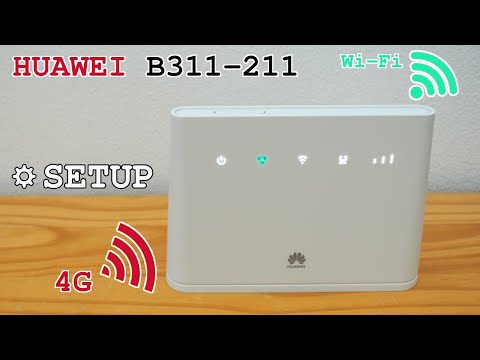
Setting up a Huawei 4G router can feel like trying to untangle a heap of earphones. You know, one of those tasks that seems tricky at first glance but turns out to be pretty straightforward once you get the hang of it. I remember the time I was helping my friend set up his new Huawei router. He was convinced it would be a weekend project, but we wrapped it up in no time over some coffee and laughs. It’s really about finding the right place for it, hooking it all up, and tweaking a few settings to suit your needs. So grab your Huawei 4G router and let’s get started on getting you connected!
How to make your 4G router faster
So you’ve got a Huawei 4G router, huh? Those things can be pretty nifty, but sometimes it feels like the speed isn’t quite keeping up with your needs. Let me tell you a little story about my friend, Carlos. He recently moved to a rural area where the only decent internet option was through a 4G connection. At first, he was thrilled because—yay! Internet! But soon enough, he noticed that buffering circle spinning way too often during his favorite shows.
To tackle this issue and make that 4G connection feel like it’s on turbo mode, there are some tweaks you might consider doing with your Huawei router. First off, check where you’ve positioned it. You know how in real estate they say “location is everything”? Well, it sort of applies here too! Place your router in a central location in your home and away from potential barriers like thick walls or metallic objects that could mess with the signal.
Another trick up your sleeve is adjusting the wireless channel of your router. Sometimes these channels get crowded—kind of like traffic during rush hour—and switching to a less congested lane can make all the difference in speed. Now for this part on Huawei routers, you’ll need to access its settings via a web browser by typing its IP address into the address bar (usually something like 192.168.x.x). Once you’re logged in—the default username and password are typically “admin” unless you’ve changed them—you should explore options around wireless settings to pick another channel.
Oh! And if there’s one thing Carlos learned: always keep that firmware updated! Manufacturers roll out updates not just for security reasons but also performance improvements—so think of it as giving new energy drinks to your device.
If you’ve done all this and things still feel sluggish… well maybe it’s worth checking if there’s any background data hogging stuff happening on connected devices or apps!
Carlos eventually got his setup just right by following these tips—and now he’s back streaming without interruption (well except when squirrels decide to get curious around his antenna outside!).
How to make Huawei Wi-Fi better
So, you’ve got yourself a Huawei 4G router, huh? I remember the first time I set up mine—there was a mix of excitement and, well, a bit of confusion. But don’t worry! Let’s make that Wi-Fi of yours perform even better.
First things first: think about the location. Placing your router in an open space usually helps. It’s like trying to talk to someone through walls—it’s just tricky!
Accessing the settings is next on your list. Open your browser and type in that magic number called an IP address—usually something like 192.168.8.1 for Huawei routers. And there you are at the configuration page!
Now, you’ll want to tweak a few things here:
- Change the SSID and password: You know how it feels when everyone’s connected to your network slowing it down!
- Choose the right channel: Think of this like choosing the best lane on a busy highway—less traffic means smoother sailing.
- Enable WPA3 encryption: Security is key! If your gadget supports it, go for this option.
- Firmware update: Just like giving your favorite game or app an update so it runs better.
Remember too that sometimes repositioning can really make all the difference with signals bouncing around.
Oh! Once I forgot my admin credentials after changing them—you can imagine how frustrating that was for a while till I found my notes again. Lesson? Keep those details handy.
Finally, if all else fails—and speeds just aren’t cutting it—consider reaching out to your provider or adding signal boosters.
It’s those small adjustments that’ll have you streaming or gaming without interruptions before long!
How to configure Huawei 4G router
Ah, configuring a Huawei 4G router can be a bit like setting up a new piece of furniture from one of those flat-pack stores. You’re excited but also a tad overwhelmed. Don’t worry, we’re in this together! Imagine getting everything unpacked and ready to go, only to realize that some pieces look oddly similar. That’s what configuring technology can feel like at times.
First off, let’s make sure your router is plugged in and powered up. It’s like ensuring your coffee machine has water before you brew that essential morning cup. Then, grab your device—laptop or smartphone works—and connect it to the router’s Wi-Fi network. You’ll find the network name and password on the back of the router; it’s right there with other important details you might overlook when you’re eager to get things rolling.
Next step? Open up a browser and type in the default gateway IP address. It’s usually something like 192.168.8.1 or similar—trust me, it’s always numbers for reasons I’ll never fully get but hey, that’s just how routers roll! This brings you to the login page where you’ll enter admin credentials; often ‘admin’ for both username and password if you’ve yet to change them.
Now you’re inside! Feels powerful doesn’t it? Here’s where you might want to tweak settings according to what suits you best: changing Wi-Fi passwords (to keep nosy neighbors out), setting up parental controls (because some content should really stay hidden), or maybe enabling guest networks if you’re feeling generous with your Internet connectivity.
Once you’ve made all necessary adjustments, remember hit save before exiting each section—kind of like clicking that ‘confirm purchase’ button when shopping online—you’d hate having done all that browsing just to lose everything!
If things aren’t working as smooth as you’d hoped after setup don’t panic; sometimes routers need rebooting after changes are made for them take effect properly—it happens even among tech gadgets too sophisticated speak humanly comprehensible sentences! So go ahead give yours quick restart by switching it off wait moment then turning back on again see if issues resolve themselves magically without further fussings around things beyond mortals control…
Bueno there ya have simple guide getting started configured Huawei 4G Router enjoy better seamless web adventures thereafter doing diligent diligence upfront matter first-hand primo experience-solving common quirks gone rogue while attempting mastery newfound digital domain prowess best luck success exploits ever-expanding universe ISP-facilitated communications frontier landscape shaping tomorrow today .
Alright, you’ve reached the home stretch of setting up your Huawei 4G router. You should be getting close to having stable internet in your space! Remember that moment when you first got your hands on a new gadget? There’s always a bit of a mystery and excitement, right? Well, setting up this router might have felt the same way.
First off, give yourself a pat on the back. Understanding tech can be tricky, like trying to solve a riddle with so many settings and configurations. And yet here you are, practically an expert now! So just make sure everything’s plugged in right and connections are lit up—it’s like they’re celebrating with you. Now it’s time to go online and enjoy all that speedy internet goodness.
And hey, if something’s still not quite right or your connection feels wonky at times, remember it’s totally okay to retrace your steps or even look for some help from customer support or forums online. It happens to all of us, trust me! Anyway, congrats on taking charge of your tech life. Happy surfing!