Okay, imagine this. You just got yourself a shiny Huawei router. You’re super pumped, right? It’s finally time to set it up and watch your videos without that annoying buffering circle.
Now, setting up a router can seem like decoding alien tech for some folks. Heck, I’ve been there too—the blinking lights, mysterious passwords—it can be a whole thing.
But we’re here to make this as easy as spreading peanut butter on toast! Seriously. We’ll tweak those settings until they’re just perfect for you.
Feeling ready? Grab your favorite drink and let’s get that internet humming smoothly in no time!
Optimizing Router Settings for Best Performance
Hey, you! So, you’re looking to get the very best out of your Huawei router. That’s awesome because having a smooth and fast internet connection can really make life easier. I remember when I switched my settings around—I suddenly realized how much faster everything loaded! Let’s dive into some easy things you can do to optimize those settings.
Start with the Basics
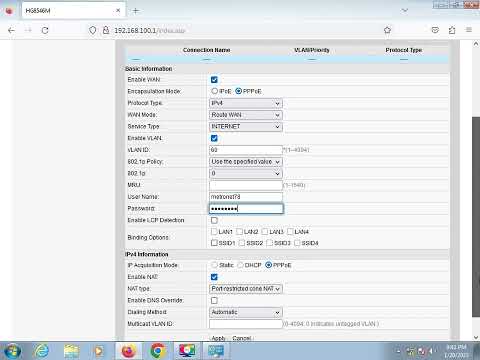
First things first, have you logged into your router’s interface yet? You usually just need to type in something like ‘192.168.3.1’ in the browser’s address bar and then enter your username and password—just like logging onto a website.
Firmware Updates
This might sound fancy, but it’s just like updating an app on your phone. Regularly check for firmware updates because they often fix bugs and improve performance! You’ll find this option somewhere in the admin settings.
Channel Selection
Routers can operate on different channels, which is like choosing between different lanes on a highway—you want the one with fewer cars! If you’re experiencing interference or slowdowns, switch to a less crowded channel.
- Access the Wi-Fi Settings: In your router’s admin panel, look for the Wi-Fi section.
- Select Your Channel: If it’s set to ‘Auto’, try manually selecting another channel.
Password and Security Settings
It’s just good practice—set a strong password if you haven’t already. Believe me, you’ll thank yourself later if this stops some neighbor from slowing down your network!
- Use WPA3 Security: This is more secure than older protocols like WEP.
- Create a Strong Password: Mix of letters, numbers, and symbols should do it!
The Dual-Band Adventure
Most modern routers have both 2.4 GHz and 5 GHz bands available; each has its strengths!
- The 2.4 GHz Band: Has longer range but might be slower due to congestion.
- The 5 GHz Band: Faster speeds but shorter range—perfect for streaming!
Finally, don’t hesitate to explore other options your router offers—it might surprise you! Just make sure whenever you change anything big or small remember what it was initially so that resetting becomes easier if needed later on.
Router Antenna Placement Tips
Sure thing! Let’s chat a bit about getting the best out of your router by playing around with those antennas. It matters more than you think!
First off, here’s a little relatable tale: My friend Sarah once complained about her Wi-Fi. She couldn’t load cat videos without buffering, and frankly, it drove her up the wall. Turns out, fiddling with the router’s antennas actually worked wonders for her.
Anyway, let’s get to some tips on how to place those antenna doohickeys for stellar performance:
- Multiple Antennas? Mix It Up: If you’ve got more than one antenna on your Huawei router (fancy, huh?), try this nifty trick: point one vertically and the other horizontally. This can help spread out signals that travel both ways – up and down, left and right.
- Height Matters: Ever noticed how higher viewpoints give better perspectives? Same goes for your router! Placing it higher up (like on a shelf) can help avoid obstacles that might block signals.
- Avoid Corners and Walls: Sounds obvious but trust me, many people neglect this. Keep your router away from corners or thick walls which can absorb or deflect Wi-Fi signals.
- Centrally Locate Your Router: Imagine if your favorite pizza place was located at edge of town—how would they ever deliver warm pizza to everyone?! Similarly, put your router in a central location so all areas get an even slice of coverage.
- Antenna Angles Aren’t Just For Looks: The angle at which you position an antenna can impact performance. Experimenting with slight tweaks might just resolve those pesky dead zones.
So yeah… small shifts in where—or how—you position things can make a big difference.
Remember Sarah? She says now she streams her shows buffer-free while sipping coffee near every corner of her home!
Give these tips on antenna placements a try yourself; maybe soon enough you’ll wave goodbye too weak connections too!
Optimizing Huawei Router Configuration
Sure thing! Let’s chat a bit about how you can tweak your Huawei router for the best possible performance. It’s like tuning an instrument, everything needs to be just right.
First off, it’s all about placement. This is where things get interesting because the location of your router actually matters. Place your router in a central area of your home. Imagine it like throwing a stone into a calm pond; you want those ripples to reach every corner. Avoid putting it in enclosed spaces or behind thick walls, as that can totally mess with the signal.
Now, dive into the settings. Don’t panic; it’s not as scary as it sounds! You’re going to look for something called the admin panel, which is basically like Mission Control for your router.
- Accessing the Admin Panel: Usually, you type something like 192.168.1.1 or 192.168.0.1 into your browser’s address bar.
- If there’s a password prompt and you’re stumped because you’ve forgotten the login details—hey, we’ve all been there—try ‘admin’ for both username and password first.
Once you’re in, let’s have some fun with those settings!
Wi-Fi Channel: Think of this as choosing a track on an album where less people are listening—fewer disturbances means smoother music.
- Select a Less Crowded Channel: Use apps like WiFi Analyzer (on mobile) to see which channels neighbors are using then pick one that’s less crowded.
Network Name (SSID) and Password: A simple yet often overlooked step but crucial for keeping freeloaders at bay.
- Create a Unique Network Name: Something quirky but identifiable—you don’t want to accidentally connect to “John’s Network” next door by mistake!
- A Strong Password: Mix it up with letters (big and small), numbers, and symbols so others can’t guess it easily.
Next up is updating firmware—the unsung hero behind every smooth-running device.
Stay Updated: Your firmware is kind of like an operating system that keeps everything ticking along nicely.
- Check Regularly for Updates: Head over to Huawei’s site occasionally or enable auto-updates if possible so any security holes get patched up right quick.
Feel lost already? Don’t worry—you’ve got this! And hey: no fiddling after midnight when we’re barely awake—that’s usually when things go wrong!
Finally remember: patience shines brighter than frustration if something goes awry initially… We’ve all been there staring blankly at endless loading bars before troubleshooting kicks back again eventually working out fine lucky us right?!
You know, setting up a Huawei router to perform at its best is a bit like organizing your living room. You want everything to be just right, so your family can relax and enjoy their time without interruptions. I remember this one time when my internet was acting up during a movie night. Can you imagine the kids’ faces when the streaming suddenly stopped? Oh boy, that was quite a night!
First things first, you want to make sure you’ve got the basics covered. You’ve got your router in just the right spot—not hiding it behind something or in a cluttered corner—and checked there aren’t too many electronics around it that could mess with its signal. It’s surprising how much of a difference where you place these things can make.
Now, for the nitty-gritty stuff… You’d want to log into its settings—usually done through a web browser by typing in an address like “192.168.something.something”. Don’t let those numbers scare you! It’s basically like dialing in to have a chat with your router.
A good tip is changing that default username and password–something personal yet unique works best! You wouldn’t believe how many folks leave it as “admin” out of convenience. That’s like leaving your front door wide open, isn’t it?
Next up is making sure you’re on an optimal Wi-Fi channel—I once spent ages figuring out why my connection kept dropping until I realized everyone nearby was using the same one! A simple tweak there and voilà–everything was smooth sailing again.
It’s also valuable keeping firmware updated; think of it as giving your gadget a little health boost every now and then by keeping up with updates they roll out.
Seriously though, getting everything organized with routers takes patience sometimes… But gosh does it feel satisfying when everything’s humming along nicely without hiccups!