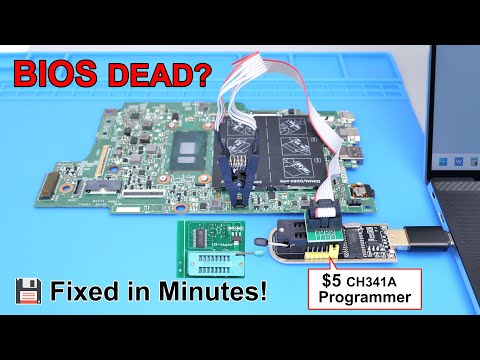
Oh boy, BIOS issues! They can be a real head-scratcher, huh? You know when your computer starts acting all weird and you think it might be the end of the world? Yeah, been there.
Imagine this: You push that power button in the morning, hoping for a smooth start to your day. And then—bam! A black screen of nothingness stares you in the face. Ugh…right?
It usually happens when you’re least expecting it. Maybe you were just about to land that perfect victory in your game or finish up some urgent work. Suddenly you’re stuck with a stubborn machine.
But hey, don’t panic yet! There’s light at the end of this tech tunnel. We’re gonna try and tackle this whole BIOS madness together. Ready? Let’s see what might be going wrong under that hood of yours!
Checking for BIOS Corruption
You know, dealing with computers can sometimes feel like a rollercoaster. One moment everything’s smooth sailing, and the next, you’re facing some mysterious issue. Now, don’t sweat it because today, I’m here to chat about something that might seem a bit tricky: BIOS corruption. But hey, no need to panic! Let’s break it down together.
First things first – what’s BIOS? Look at it like your computer’s brain before Windows or any other operating system takes over. It’s the Basic Input/Output System that starts up when you power on your computer. It checks everything out to make sure all’s good with your hardware before handing over control to the OS.
Why BIOS Corruption Happens?
- Power Surges: Sometimes those pesky power fluctuations can mess things up.
- Failed Updates: If an update goes sideways – yikes! That might cause issues.
- Malware: Yeah, those sneaky little bugs can even get into BIOS!
Now picture this: You’ve switched on your computer but nothing happens. Or maybe weird error messages pop up out of nowhere. These might be signs that something isn’t right with your BIOS.
How Can You Check for BIOS Corruption?
Error Messages: Your computer might just come clean about it! You could see messages like “BIOS Error” or “Checksum Error.”
No Boot Scenario: Try turning on the machine—if it stubbornly refuses to boot into Windows – well there you go!
Bizarre Behaviors: Seeing strange behavior from your hardware? Like maybe fans running at high speed without reason?
Alrighty then! If you’re nodding along thinking “Yep that’s me” here’s what you can do:
1) Tweak Some Hardware Connections: Unplugged cables or loose connections happen more often than we’d think—you know?
2) Clever Resetting: Did you hear ’bout clearing CMOS? It’s simple enough and helps fix some erring settings!
3) Patching Things Up via Update: Sure regular updates sound boring—but they’re super useful—especially if fixing bugs related in firmware versions holds charm for ya’.
4) If none works—darn!, reach tech support folks—they’re wizards after-all right?!
BIOS Corruption Failure Symptoms
Sure thing, let’s delve into the curious world of BIOS and what happens when it starts acting up. This tiny piece of firmware is like the conductor in an orchestra, making sure all your computer parts work in harmony even before the operating system kicks in. But what if something goes awry?
Recognizing Symptoms of BIOS Corruption
You wake up one day, push the power button on your computer, and nothing really happens. Or worse, strange things start flashing on your screen. Yikes! Here are some red flags to watch out for:
- No POST Screen: The Power-On Self-Test (POST) is like a roll call in school for your computer components. If you see no POST screen or hear beeps instead, that could be a sign.
- Continuous Beeping: Computers love their language of beeps. Different sequences can signal different issues—often related to the motherboard or BIOS problems.
- System Crashes or Freezes: Oh dear… You’re mid-way through writing an email and boom! Everything freezes or crashes abruptly.
- Date and Time Resets: Every time you boot up your PC, you might notice it always shows an incorrect date or time—even after setting it right!
Tackling BIOS Corruption
No need to panic if you suspect your BIOS is corrupt! There’re steps you can take to fix things:
- Reset CMOS Battery: It’s that little watch-sized battery on your motherboard which keeps BIOS settings intact. Removing it for a few minutes then putting it back can sometimes do wonders.
- BIOS Recovery Mode: Some computers have built-in recovery modes—like magic buttons—to restore original settings from a separate backup.
- Reflash BIOS: Updating—or “flashing”—the BIOS with its latest version might sound daunting but could resolve these hiccups effectively.
- If it feels too complicated at any point (and hey who hasn’t been there?), consider reaching out to someone who’s done this before!
Remember those days when our gadgets worked tirelessly without issues? They still do most times thanks to systems like this one keeping everything running smoothly together… unless they encounter problems occasionally!
May this little guide help demystify one tiny aspect tech life throws our way now and then!
Factors Leading to BIOS Corruption
Sure, BIOS corruption can be a tricky topic, but let’s dive into it with a friendly chat. Here we go!
- Power Surges or Failures: Imagine you’re in the middle of updating your BIOS—and poof!—the power goes out. That’s one way to end up with a corrupted BIOS. When there’s an unexpected interruption during the update, it might not complete properly.
- Unsuccessful Updates: It’s like when you try installing new software and something just doesn’t click. An incomplete or improper BIOS update can mess things up and leave your system stranded in limbo.
- Malware Attacks: Ah, those pesky malware infections! Like burglars sneaking into a home, they can target your BIOS and corrupt its data, especially if they’re nasty enough to bypass security measures.
- Physical Damage: Who knew hardware could be so fragile? Things like lightning strikes (not kidding!) can cause physical damage to components that hold the BIOS chip on the motherboard.
- User Error: No judgment here—we all make mistakes! Accidentally trying to update with the wrong version of the BIOS or using incorrect settings during an update procedure can lead to corruption.
A Personal Touch:
I remember when my friend Anna was updating her old laptop’s BIOS one evening. Halfway through the process, her cat jumped onto her desk and knocked over her coffee mug right onto the keyboard—bad timing couldn’t have been worse! The laptop never successfully updated after that mishap.
A Friendly Reminder: Backup!
You know how people say “always make a backup”? It’s sound advice here too—backing up important data before messing around with any system updates is super wise.
Yeah, tackling these issues might seem daunting at first glance—but trust me; understanding them makes dealing with them SO much easier!
Alright, let’s dive into the world of BIOS corruption, shall we? Imagine you’re sitting at your desk, all set to finish that important project. You power on your computer and—bang! Nothing happens. Nada. Now that’s a real heart-stopper, isn’t it?
First off, what is BIOS? Think of it like the conductor of an orchestra. It’s this little piece of software that kicks into action when you hit the power button. It’s supposed to stir up all those components inside your PC and get them to work in harmony.
But, every once in a while, things go haywire. Maybe there’s been a power surge or some kind of sneaky virus wormed its way where it shouldn’t be—or maybe it’s just life being unpredictable again. Whatever the reason, if the BIOS gets corrupted, your computer might not boot up properly—or at all!
Alright now: identifying this issue can be tricky. Imagine staring at a black screen when you’re expecting Windows to pop up—that’s one telltale sign! Sometimes you might also hear strange beep sounds (oh yeah… computers communicate in beeps too!). Those can be clues about what’s gone wrong.
Now let me tell ya—a few fixes might help you out here:
- Resetting BIOS settings back to default: It’s like when you just want to hit reset on everything.
- Reflashing or updating the BIOS: This is basically downloading new software for that conductor we talked about—making sure it knows how to lead again!
- Checking hardware connections: Loose wires can cause chaos; double-check those connections.
My uncle had his own encounter with this mess last summer when his trusty old desktop refused booting up right before he was set for video calls with family abroad; he was practically pulling out his hair trying solutions left ‘n’ right—but reflashing saved him just in time.
So there you have it—a peek into understanding and handling BIOS corruption! And hey—we’ve all been there facing technical hiccups but knowing these bits could save some headaches down road later!