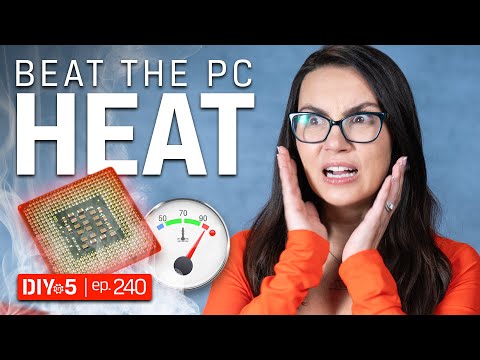
Oh boy, dealing with a computer that gets hotter than a sunny beach day, huh? We’ve all been there with our trusty machines. You know that moment right when you’re in the middle of something important and your PC starts blasting hot air like it’s trying to take off?
Let’s chat about Intel i5 7500. It’s pretty solid, but sometimes it feels like it’s running a fever. I mean, who doesn’t panic when their setup sounds like a jet engine or just plain shuts down? Classic overheating drama!
But hey — you’re not alone in this tech tango. Lots of folks face it too! And guess what? There are fixes! Right here, we’re gonna unravel some common signs that your CPU might be sweating bullets—plus how to cool things down before it gets outta hand. Trust me, it’s easier than you think!
Maximum Temperature for Intel i5-7500
Oh, dealing with temperatures can feel a bit like playing detective sometimes. You’re keeping your ears open for clues—strange noises, odd behavior. If you’ve got an Intel i5-7500 processor and are worried about overheating, let’s untangle this together.
First off, what’s the maximum temperature for this chip? Well, typically the Intel i5-7500 should stay under 100 degrees Celsius. That’s actually what they call Tjunction. It’s like the upper limit where things start to get dicey. You definitely don’t want it creeping up there regularly!
Now, how can you tell if it’s overheating? There are some signs to watch out for:
- Your computer starts freezing or crashing—it’s not just being moody.
- Loud fan noise that sounds like your PC’s ready to take off.
- Performance issues—programs feeling sluggish or taking ages to load.
If these symptoms start cropping up more often than you’d like, it might be time for some troubleshooting.
So how do we cool things down?
Check Your Cooling System: Open up your case and see if there’s dust clogging up fans or vents. I once found so much dust in mine I could’ve knitted a sweater! A simple clean-up might do wonders.
Reapply Thermal Paste: Over time, thermal paste can dry out. Giving it a fresh application between your CPU and cooler might help keep those temps in check.
Upgrade Your Cooling Solution: Sometimes stock coolers aren’t enough if you’re gaming heavily or doing graphic-intensive work. Consider investing in an aftermarket cooler for better heat dissipation.
Checking temperatures is easier than you think! Use tools like HWMonitor or Core Temp—they give real-time data on how hot things are getting inside there.
Keeping an eye on temperatures not only prolongs lifespan but also ensures smooth running day-to-day tasks at home!
Compatible Coolers for Intel Core i5-7500
Ah, overheating—it’s like that feeling when you’re all set to watch your favorite movie, but the popcorn just won’t pop fast enough. It can be quite frustrating for your Intel Core i5-7500 too! To keep things cool and smooth, you’ll want a compatible cooler. Let’s jump into the world of compatible coolers for this processor.
First up, when looking at coolers for the i5-7500, you need something that plays nice with its socket. The i5-7500 uses an LGA 1151 socket. This is like finding the right key for your door; it has to fit perfectly!
- The Cooler Master Hyper 212 Evo is a popular choice. It’s known to be reliable and comes with excellent heat dissipation features.
- If you’re on a budget but need efficiency, consider the Arctic Freezer 7 Pro. It’s super easy to install—something even first-time builders appreciate!
- Not keen on something too bulky? Check out the Noctua NH-L9i. It’s compact yet effective—kind of like that friend who’s always there in a pinch.
- For those who like a touch of flair (or just more cooling power), go with something like the Corsair H60 Liquid CPU Cooler. It’s got water cooling capabilities without having to dive into full setups.
Now, let’s talk about some common symptoms of overheating you might notice. If your computer is shutting down unexpectedly or taking forever on tasks that should be quick—that’s often a sign! I’ve had friends think their PC had just “caught a cold,” only to find it was overheating.
Avoiding Overheating:
Make sure there’s good airflow in your case. Dust can be sneaky little devils—the kind you only remember when things start going wrong. Regular cleaning helps keep them at bay and ensures airflow isn’t blocked.
Tidbits: Sometimes it’s not just about buying more equipment but ensuring what you have works efficiently together with others. Proper thermal paste application can work wonders—think of it as putting icing evenly on cake!
In summary, choosing the right cooler depends on what fits comfortably into your setup while meeting performance needs without breaking banks—or backs during installation! Keeping an eye out for heat-related oddities will help maintain healthiness; because hey—you don’t want any unnecessary drama in life or tech!
Oh, the good old Intel i5 7500! Remember when you first got it? It was shiny, new, and blazing fast. But then one day, you notice your computer is acting sluggish. Fans are spinning like they’re about to take off. It’s a classic tale—your CPU’s overheating.
Overheating symptoms might sneak up on you at first. Your computer might randomly shut down or restart just when you’re deep into a game or finishing up that important project. You might even see some error messages or those dreaded bluescreens appearing more often than you’d like.
It’s not all gloom and doom though; there’s light at the end of this tech-tunnel. A few fixes can breathe life back into that trusty processor. First off, check your cooling system—dust is a sneaky culprit! A little canned air can work wonders in cleaning out any dust bunnies lurking in the fans and heatsinks.
Thermal paste is another essential thing to look at. You know how sometimes after years things just lose their touch? That’s thermal paste for ya—it dries out over time and stops doing its job of keeping things cool between the CPU and its cooler.
Then there’s ventilation: make sure your PC isn’t tucked away in some hot corner where it can’t get any fresh air—it’s like asking someone to run sprints with their nose plugged! Sometimes even rearranging cables for better airflow can do wonders.
If these tricks don’t help much, maybe it’s time to consider an upgrade in cooling solutions—like buying a better fan or even considering liquid cooling if you’re feeling fancy!
Sure, dealing with overheating issues can be frustrating—but hey—that moment when everything runs smoothly again makes it all worth it!