Oh man, we’ve all been there, haven’t we? You’re just cruising along on your computer when WHAM! An error pops up out of nowhere. It’s like, “Hey, surprise!” Not the fun surprises though…
So yeah, you’re thinking, what now? Is my whole system about to crash or is it just Windows playing a little prank on me again? To figure that out, you gotta peek into the mysterious world of Windows 10 error logs. It’s like peering behind the curtain to see what’s really causing the drama.
But don’t worry if it sounds all technical and scary. Turns out diving into those logs can be a real game changer and not as mind-boggling as you’d think. Plus, I promise there’s no need to be a computer wizard for this!
So grab your detective hat—or well maybe just your mouse—and let’s unravel what those messages are trying to tell us. You got this!
Viewing Windows Error History
Sure thing! Let’s dive into checking out those pesky error logs on your Windows 10 system. It’s a task that might sound a tad technical, but no worries, we’re keeping it simple and straightforward. So if your computer has been acting up and you’re curious about what’s going on behind the scenes, you’re in the right place!
Why Look at Error Logs?
Sometimes your computer might start behaving strangely—like glitching or freezing—and you’d be scratching your head trying to figure out why. Checking the error logs can give you some clues. Think of it as peeking behind the curtain to see what might be causing all the drama.
Accessing Windows Error History
Getting to these logs is easier than you might think. Let me guide you through it:
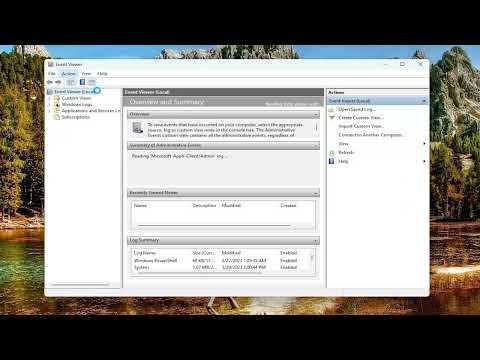
- Open Event Viewer: Type “Event Viewer” in your Start menu search bar and click on it when it pops up.
- Navigating to Logs: In the Event Viewer window, check out the left sidebar. You’ll see sections like “Windows Logs” with subcategories such as “Application”, “Security”, and “System”.
- Select ‘System’ Log: Clicking “System” will show events related specifically to hardware changes, failures, errors, startup messaging—stuff that’s more concerning our topic here!
Interpreting Errors
When you click on an entry under any log category—notably under ‘System’—you’ll get loads of details below about each particular event: timestamps (when did this happen), source (what part of Windows triggered it) etc.
A Few Tips for Reading Errors:
- Error Code Details: Pay attention especially if something shows up frequently with similar wording; maybe highlight or note these codes because they could indicate consistent issues needing troubleshooting.
- Date & Time Stamps Matter:
Well there ya go—it wasn’t terrifying at all right? Reading windows errors/logs takes only few minutes once familiarized with above steps alongside knowing certain key terms/codes being dealt daily basis helps better understand potential root causes without breaking sweat over everyday hiccups!
If techie stuff gives slight panic attacks breathe easy try repeated spacing intervals between difficult data points breaking flow creating clear understanding amidst chaos computer-life can bring when things just don’t go according plan…
Accessing Error Logs
Accessing error logs on Windows 10 can feel a bit like being a detective! These logs can give you clues about what’s going wrong with your computer. Let me walk you through how to find them and why they might be useful.
Why Check Error Logs?
Imagine your computer acting up, slowing down, or doing quirky things. Viewing error logs can help you pinpoint what’s causing the problem. It’s like when your car makes a funny noise, and checking under the hood reveals a loose belt—solving the mystery!
Getting Started
To view error logs in Windows 10, you’ll use an app called Event Viewer. This tool is built right into your system and keeps track of various events that occur in your PC.
Here’s how you open it:
- Press the Windows key + R to open the Run dialog box.
- Type eventvwr.msc, then hit Enter. This will launch Event Viewer.
Navigating the Event Viewer
Once you’re inside, things might look overwhelming with all those entries! But don’t worry—I’ll show you where to look:
- Windows Logs: These contain sections such as Application, Security, Setup, System, etc. Most of what you’ll be interested in will be under System or Application.
- Select one of these categories to see related events pop up in the middle panel.
Diving Deeper into Log Entries
Clicking on specific entries gives more details about each event. Look for items marked as errors or warnings—they might have that “a-ha!” clue you’re seeking! A small red circle with an X often indicates something needs attention.
Here’s where a bit of patience helps: not every entry may make immediate sense unless you’re pretty tech-savvy already. Diagnostic information here could guide further troubleshooting steps or even help when consulting someone more technical.
An Example Entry:
Let’s say you notice an “Application Error” entry stating that “outlook.exe” crashed unexpectedly at 3:00 PM yesterday—yikes! With this tidbit now known (thanks to our detective work), solutions like updating Outlook become clear actions moving forward.
Just remember: while snooping through these logs can enlighten current problems faced around hiccups experienced across devices run daily lives supported electronically within homes/offices globally connected wide networks securely managed expertly designed infrastructures—from software developments hardware implementations integrated operating systems utilized effectively accessing understandable informative reports assisting resolution processes encountered proactively ensuring smoother operability future avoiding problematic scenarios potentially arising otherwise!
Viewing Windows 10 Error Log in Windows 11
Switching from Windows 10 to Windows 11 and trying to navigate through those familiar error logs? It’s a bit like wearing your favorite shoes in a new city—comfort meets the unknown! Let’s get into it.
The error log, or Event Viewer as some might call it, is your best friend when tracking down pesky errors that pop up now and then.
Accessing the Event Viewer:
- Start Menu: First off, click on the Start button – or hit that cute little Windows key on your keyboard.
- Type “Event Viewer”: Seriously, just start typing “Event Viewer” into the search bar. See how easy that was?
- Select it: You’ll see an icon pop up saying “Event Viewer”. Click on it!
Alright, now you’re in!
Navigating Through Logs:
- Pain Points – Application Logs: These are typically app-related issues. Did an app crash? Yep, it would be here.
- The Usual Culprits – System Logs: Dive in here to find logs linked with system components–sometimes you just need a little snooping around.
- Your Computer Spilled Its Secrets – Security Logs: It’s all about security events; logins and whatnot.
An Emotional Tale of an Error Log Discovery: You know, once my buddy James couldn’t figure out why his software kept crashing every time he tried saving his work. He was pulling his hair out until I showed him these exact steps. In no time at all, he found out that another application was causing a conflict. The relief on his face! That’s the power of these logs for you.
Do you spot any red exclamation marks or yellow hazard triangles? Don’t panic—they’re just highlighting trouble spots.
If You Want More Specifics: Select any event and look below for details—think of them as little stories about what happened behind the scenes.
There you go! Now you should feel more familiar with those error messages lurking in the background of your computer life—but now they don’t have to be such a mystery anymore.
Remember: exploring this new terrain equips you with knowledge that stops tech headaches before they start!
Oh my goodness, those error logs! Haven’t they driven all of us a bit nuts from time to time? Seriously, I remember this one time when my computer started acting up. It was doing that thing where it freezes for just a few seconds and it feels like an eternity. And there I was, scratching my head, wondering what on earth was happening.
So when you’re facing something weird with your Windows 10 machine and you’re at a loss about where to even start? That’s where the error log steps in like a trusty sidekick. It’s like peeking under the hood of your car when it’s making that odd noise—except with less grease on your hands.
To get to these logs: type “Event Viewer” in the search bar and hit Enter. You’ll see this window pop up with various logs—Application, Security, System—each telling its little story about what’s been happening behind the scenes in your system.
When you want to find out what happened with an app crash or something similar, you’ll find most of the juicy details under “Windows Logs” and specifically “System” or “Application”. Click on one of those sections, and you’ll see a list of events right smack in front of you.
But hey! These logs can be pretty cryptic sometimes. A bunch of codes and technical talk can make you feel like you’re reading ancient hieroglyphs. But don’t worry too much—it’s perfectly normal not to understand every single line unless you’re knee-deep into tech for fun or work!
In moments when deciphering becomes challenging (or should I say frustrating?), jot down specific codes or errors that pop up frequently. Then do some good old searching online; you’d be amazed by how many folks have faced similar issues—and found solutions!
Sometimes just knowing what’s going wrong without having immediate answers can ease our minds just enough not feel completely helpless over our digital companions!