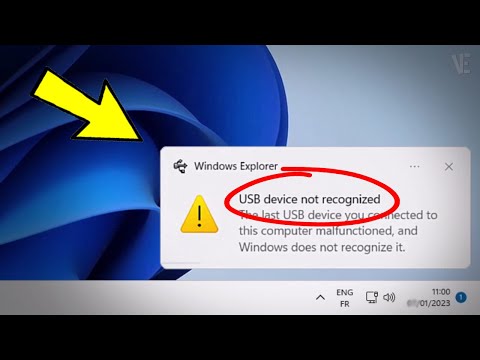
Alright, so here’s the thing. Imagine you’re all set to work on your computer, ready to plug in that USB device. You’ve got this cool gadget you need. Maybe it’s a flash drive with important files or a fancy gaming mouse you’ve been dying to try. Exciting, right?
But wait—nothing happens. Nada. Zilch. Your motherboard just isn’t recognizing it, and you’re starting to feel like it’s mocking your plans.
Doesn’t that stink? You’re not alone though! The H87 chipset motherboard has thrown many for a loop when it comes to USB devices.
But hey, no worries! We can totally look into what might be going on and get things back on track before you start pulling out your hair in frustration!
H87 Chipset USB Recognition Issues on Windows 11
Having some trouble getting your USB devices recognized on a motherboard with an H87 chipset? You’re not alone. This can be a bit frustrating, but don’t worry, I’ve got some helpful info to sort this out.
First things first, it’s good to understand what might be going on. The H87 chipset is pretty solid, but it can sometimes get cranky with USB devices, especially after a fresh Windows 11 update. It’s like when you rearrange your living room and suddenly can’t find the remote. The devices are there; they’re just not being seen.
Let’s get into some practical steps you can take:
- Check Your Connections: Start by making sure your USB device is properly connected to the port. You’d be surprised how often it’s just a loose cable causing the hassle.
- Restart Your Computer: I know it sounds basic, but sometimes all your computer needs is a quick nap to reset its settings.
- Update Chipset Drivers: Head over to the manufacturer’s website and look for any new drivers specifically for your H87 chipset. Outdated drivers can feel like trying to use an old map in a new city—you won’t get where you want.
- Dive Into Device Manager: Open Device Manager on Windows (you can type ‘Device Manager’ in the start search). Look for any yellow exclamation marks under USB controllers—these are little flags indicating something’s off.
- Disable Power Management Settings: In Device Manager, right-click each USB Root Hub entry under ‘Universal Serial Bus controllers,’ then click Properties. Under Power Management tab, uncheck “Allow the computer to turn off this device…”. It prevents Windows from saving power at the expense of losing sight of your devices.
- Bios Update Adventure: Sometimes updating your BIOS can fix deeper compatibility issues. Check on your motherboard manufacturer’s site if there’s an update available. It’s kind of like updating an app—little improvements and bug fixes come along that makes things run smoother.
Should problems persist after all these attempts, it’s worth testing those same USB devices on another computer or try different ports on yours—it helps pin down whether it’s the port or device acting funky.
I remember once struggling when moving my old photographs off an external drive that suddenly vanished from my PC’s view! Updating my drivers did the trick—thank goodness! Hopefully these tips will bring back harmony between your H87 setup and trusty gadgets too!
H87 Motherboard USB Detection Issues on Windows 10
Dealing with USB detection issues on an H87 motherboard running Windows 10 can be a bit of a hassle. But don’t worry—I’ll guide you through this. It’s like dealing with one of those frustrating mornings when your coffee just doesn’t wake you up, you know? Let’s dig into this.
Firstly, Check the USB Ports
Make sure that the USB ports themselves aren’t physically damaged. Lightly plug in a few different devices to see if the problem is consistent across all ports. If nothing worked, consider trying it on another device or another port.
Update Chipset Drivers
Since we’re dealing with the H87 motherboard, it’s crucial to have the latest chipset drivers installed. You can usually download these from the manufacturer’s website. It’s like getting your car tuned up so it runs smoothly.
- Visit the Motherboard Manufacturer’s Site: Look for support or downloads section.
- Search for Your Specific Model (H87): Download any available chipset updates.
- Install Them and Restart Your Computer: Sometimes that’s really all it takes!
Device Manager Check-up
Open up Device Manager on your computer (you can type it into your start menu search). Expand “Universal Serial Bus controllers” and see if there are any exclamation marks next to any devices listed there—that’s usually a bad sign!
- If You See an Exclamation Mark: Right-click and try updating that specific driver.
- No Issues Found? Unplug all USB devices and reboot to see if they come back online after restarting.
Bios Updates?
Now, nobody loves updating BIOS because it feels like touching something ancient and mystical in your PC. However, outdated BIOS could be causing these problems.
- Check The Current BIOS Version: Enter BIOS setup during boot (often by pressing DEL or F2).
- If Outdated: Head over to either Intel or your board manufacturer’s site for updates.
Updating your BIOS is straightforward yet intimidating—it’s crucial not to interrupt power during this procedure! Kind of reminds me of changing a light bulb while standing on a tall ladder—feels shaky but necessary.
Consider Power Supply Issues
Every once in a while, seemingly unrelated issues such as power supply faults cause headaches within USB functionality—especially under high loads when charging phones via USB etc., Try testing these connections using another wall socket just in case there isn’t enough juice flowing through currently used ones!
Remember handling tech stuff isn’t always seamless even when everything seems wired tightly together; sometimes breaking things down into simple blocks systematically helps unravel mysteries hidden behind screens filled lines code configuring everyday items thus giving us peace mind knowing problem thoroughly examined solution found sooner later end day leading happier computing experiences overall right?
Hope things go smoother now!
H87 Chipset USB Recognition Issue
Oh, the agony of facing USB recognition issues with your H87 chipset! It’s like setting up a cozy kitchen for a dinner party, only to find out the oven won’t start. This problem can really mess with your plans and peace of mind.
Understanding the H87 Chipset
First off, let’s get a basic picture of what we’re dealing with. The H87 is like one of those middle-child chipsets in Intel’s family. While it’s not the youngest or the oldest, it still packs quite a punch for mainstream desktops. And yeah, it should handle your peripherals without making a fuss.
Common Problems
When things don’t work as expected, it can be truly frustrating. Why doesn’t your motherboard recognize USB devices? Here are some things that might be going awry:
- Faulty USB port: Sometimes it’s just one port acting up like an old car battery deciding to give up on you.
- BIOS settings: If these are misconfigured, you’ll want to double-check them—similar to making sure you remembered all your grocery list items before launching into meal prep.
- Outdated drivers: Drivers tell your computer how to use its hardware. Old drivers are like using floppy discs when everyone’s gone digital.
Troubleshooting Steps
Don’t worry if this headache leaves you feeling stuck; there’s hope yet! Here are some steps to get back on track:
- Check Physical Connections: Give them all a gentle but firm check. Unplug and plug them back in—sometimes that’s enough for magic!
- Dive Into BIOS Settings: Restart and press that key combo (usually Delete or F2) right when booting begins; it’s kind of like jumping into conversations mid-sentence!
- “Legacy USB support” should be enabled;
- If there’s an option for “XHCI Mode”, ensure it’s properly set (usually “Enabled”).
- Update Chipset Drivers: Head over either straight through Device Manager on Windows or from Intel’s official website—wherever makes updating easiest!.. updated since last month… afterall.pending other upcoming projects).
Oh, technology. Sometimes it feels like that unpredictable best friend who can be super fun but also throws a wrench into our plans when we’re not expecting it. You know the feeling when you plug in a USB device, and nothing happens? It’s like inviting someone to your party only for them to just stand outside, wondering if they should knock.
Let’s say you’re working with an H87 motherboard and it’s not playing nice with your USB devices. It can make you scratch your head and wonder what new dance moves you’ll need to learn today.
First things first: though this might seem confusing, it’s usually just the motherboard saying, Hey, I’m having trouble understanding this new friend. The chipset on the H87 motherboard acts like the translator between your hardware components. If it has issues recognizing USB devices, it’s possible there might be some outdated drivers in play here—like they’re wearing last year’s fashion at a modern bash.
Now, picture this: you’re at home trying every USB port available on your desktop tower. It reminds me of switching channels rapidly during boring TV ads hoping something exciting pops up… We’ve all been there! Of course try different ports – sometimes they get worn out or just act finicky without any reason.
Another potential culprit could be power management settings deciding things must stay low-key even when there’s no reason to ghost anyone over current use limits! It’s worth diving into those settings; see if the energy saver mode is messin’ around too much with connectivity.
Maybe poke around BIOS settings as well—you know how sometimes we’re told turning things off then back on works wonders? Same concept applies here—but taken up a notch within BIOS level tweaking instead…just try resetting defaults first before getting lost in menus!
And if by now none of these give any joy then consider delving deeper into software conflicts where outdated versions simply don’t mingle properly anymore due their archaic views fitting far less progressively than updated counterparts would provide handshake compatibility among newly connected guests walking through data lines deterring all awkwardness completely together upon arrival greetings…
But remember – computers have minds beyond black boxes alone true storytelling magic exists after challenges fade preceding satisfaction harvested smiling deeply afterwards ’cause hey living room celebrations arrived finally without fussing further right?
So yeah…it might take patience keeping balance knowledge alongside perseverance yet achieving harmonious coexistence heartbeats fills incandescent light bulbs illuminating environments drastically—a friendly win-win scenario always worth appreciating glows under events horizon archangel wings spreading across table formations loving welcoming ambiance atmospheric genuinely saying: “Welcome Home!