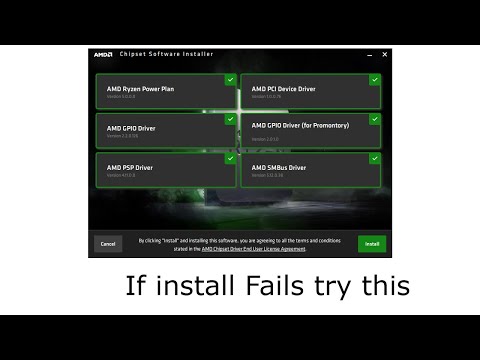
Oh man, have you ever been in the middle of updating something on your computer, and it just… stops? Like, there you are, all excited about getting the latest and greatest updates for your AMD chipset drivers on Windows 10. But then suddenly, it’s like time freezes.
You’re staring at that annoying little loading bar that’s stuck at 50%—or worse, 1%! Ahh! It feels like it’s mocking you. We’ve all been there—running out of patience as minutes turn into what feel like hours. You’re probably wondering if you’re going to have to cancel everything or find some magical solution.
Honestly, it’s pretty frustrating. Kind of makes you want to pull your hair out sometimes! But hang tight because there’s usually a way through these hiccups without having to scream “why me?” Trust me
Let’s chat about a few things that might help get you back on track in no time.
AMD Chipset Driver Stuck on Windows 10
Having trouble with the AMD chipset driver installation getting stuck on Windows 10? You’re not alone! It’s a real bummer when your plans get derailed by such issues. Let’s try to make sense of it and find a way out.
First, why does this happen? In many cases, it’s because of conflicts between old drivers and newer updates. These sticky issues might also be related to certain Windows processes running in the background that refuse to cooperate.
- Restart Your Computer: Sometimes, a simple reboot can work wonders. This will refresh the system and may unlock any processes causing delays.
- Use Safe Mode: Booting into Safe Mode could help bypass some conflicts by limiting active drivers and software. To do this, restart your PC and repeatedly hit F8 until you see the boot options. Then select “Safe Mode with Networking”.
- Disable Antivirus/Firewall: Your security software might be too zealous, blocking installations without telling you. Temporarily disabling them might clear the path for your update.
- Utilize Task Manager: Press Ctrl+Shift+Esc to access Task Manager. See if there’s any AMD or related process consuming resources or stuck; sometimes ending these tasks can help continue or restart the installation.
- Download Clean Installation: If you’re still stuck, visit AMD’s official website and download a fresh version of the driver package manually.
- Error Code Check:If there’s any error code popping up during installation, it could offer clues about what’s going wrong. Note it down for further investigation online.
Now, let me share a little story: I once tried updating my own system late at night—you know how curiosities strike at odd hours? And just my luck! It froze midway through installation. Turned out I hadn’t closed an app using significant bandwidth in background which was stalling everything else.
Remember this isn’t anything particularly unusual when dealing with high-tech stuff—you’re like an explorer solving computer mysteries! Just take one step at time while experimenting solutions until something clicks—and bam—problem resolved!
AMD Chipset Driver Update Freeze Causes
Updating your AMD chipset drivers on Windows 10, huh? A pretty routine task, yet sometimes things don’t go as smoothly as you’d hope. Like when the update seems to get stuck. You sit there staring at the screen, watching that loading bar… not moving an inch. Frustrating, right?
Why does this happen? Well, several reasons can be behind this little mishap.
- Internet Connection Woes: Sometimes, it’s merely down to a spotty internet connection. If you’re on Wi-Fi and it’s acting up like a petulant child refusing to do its homework, you might run into issues.
- Other Processes Interfering: Often your computer’s just trying too hard… Running too many apps or processes at the same time can interfere with the update.
- Existing Driver Conflicts: Got previous driver versions lingering around like unwanted guests? They might clash with new updates and refuse to let them through.
- Corrupted Files: Something could be amiss in the downloaded files themselves—maybe they got corrupted during download causing things to freeze mid-update.
So what can you do about it?
First off—breathe. We’ve all been there.
Tackle Internet Issues: Check if your connection is stable by observing other online activities or try using a wired Ethernet connection if possible for reliability’s sake.
Suspend Other Apps:: Close unnecessary apps before starting an update so that nothing’s hogging resources from under its nose.
Ditch Old Drivers: Out with old clunkers! Uninstall older versions prior installing new ones; fresh starts work wonders sometimes!
And should you feel comfortable in delving deeper:
You could *try* manually downloading from AMD’s official site instead—for those who prefer rolling up their sleeves and taking matters into their own hands—because once downloaded separately from manufacturers’ page directly rather than relying solely upon Windows Update service itself…well let’s say oftentimes results are more satisfying!
Hopefully these tips help clear that snag! Remember though—the goal is smooth sailing eventually; take steps slowly without rushing through errors cropping up along way until everything finally clicks together again peacefully at last—and isn’t life just full of those little moments where patience pays off spectacularly after frustrations dissipate away entirely?
AMD Cleanup Utility Installation Procedure
Sure! I totally get it when your AMD drivers just won’t install properly on Windows 10. It can be frustrating! Here’s how the AMD Cleanup Utility can save your day.
What is the AMD Cleanup Utility?
This tool essentially helps you remove all traces of previous AMD graphics and audio drivers from your system. It’s pretty handy when an update is stuck or fails repeatedly.
Before You Start:
- Create a system restore point. It’s always good to have a way back just in case something doesn’t go as planned.
- Save your work and close open applications. You want a smooth process without interruptions, right?
The Installation Procedure:
1. Download the Utility: Head over to the official AMD website to get the latest version of the Cleanup Utility. Make sure you’re downloading it from their site to avoid any sneaky malware.
2. Run as Administrator: Once downloaded, locate the file (usually in your Downloads folder), right-click on it, and choose “Run as administrator.” This ensures that you’re giving it enough permissions to work effectively.
3. Acknowledge Warnings: A message might pop up saying the utility will remove all AMD drivers and software components – click “OK” if you’re comfortable proceeding.
4. Sit Tight While It Works:
– The utility will do its magic by scanning for installed components – this may take a few minutes.
– As it works, it’ll show you which files it’s removing, like driver files or registry entries related to AMD products.
5. Your PC Will Restart:
– After cleanup finishes, let your PC restart automatically; don’t stop this part. It’s crucial for fresh starts!
6. Reinstall Drivers:
– Upon starting up again, visit AMD’s website once more but this time download and install the latest chipset driver for Windows 10.
Troubleshooting Tips:
- If after running everything seems off—like missing resolution options—make sure updates installed correctly by repeating installation steps if needed.
In my own experience with something like this over at my cousin’s place recently, his screen resolution got wonky after an update fiasco but using these steps totally sorted him out in just a few tries!
Remember: keep backups handy anytime big changes happen on systems – trust me; saves peace of mind big time!
Ah, the joys of tech updates! Remember that time when your AMD chipset driver update just wouldn’t budge on Windows 10? Yeah, it can be like watching paint dry. You’ve probably sat there staring at the screen as the progress bar seemed frozen in time. Frustrating, right?
Firstly, you’re not alone. Many folks have faced this puzzling situation where their update gets stuck and won’t complete. The thing is, drivers are like little translators that help your computer’s hardware talk to its operating system. When they’re out of whack, things can get messy.
Alright, let’s go over some ideas together on this one. One simple trick is to reboot your computer—sometimes that’s all it takes to nudge things back on track. If that doesn’t work, you might want to try downloading and installing the latest driver directly from AMD’s website instead of waiting for Windows Update to sort itself out.
Another approach is using “Device Manager” in Windows to manually update the drivers. I remember when I first did that—clicking through menus felt like diffusing a bomb—but hey, don’t stress! It’s quite straightforward once you’re in there.
For those moments when everything’s still stubbornly stuck no matter what you try—well—we’ve got another option: check for any conflicting software or happily forgotten updates lurking around.
I had a friend who discovered an old antivirus program was causing havoc during his updates—it was like finding an unexpected guest ruining a party! Once he sorted that out by updating or uninstalling unused programs… bingo!
Sometimes it’s all about patience and persistence with these little glitches; computers definitely have minds of their own sometimes—isn’t technology fun?
Hopefully next time you’ll have smoother sailing (or updating) with your AMD chipset!