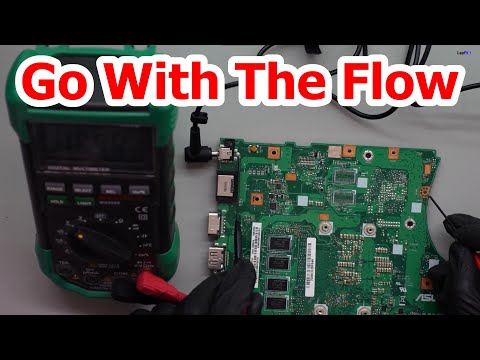
Oh man, if you’ve ever had that awful feeling when your computer just won’t cooperate, you’ll know what I mean. One moment it’s working like a charm, and the next—it’s like it forgot how to be a computer! You sit there scratching your head, wondering what went wrong.
Sometimes, it’s all about the motherboard. Yeah, that big ol’ piece of tech inside your machine. It’s super important ’cause it connects all those fancy components together. When it’s got issues? Boy, does everything go haywire.
We’re diving into motherboard component failures—what they look like and how you can figure ’em out. Ever been there? It’s quite a ride through the land of blinky lights and weird noises. Let’s see what’s up with this essential piece of gear!
Symptoms of Motherboard Failure
Hey, have you ever found yourself staring at your computer screen with a sinking feeling that something might be amiss? Maybe your machine isn’t booting up, or it just shuts down randomly. You could be dealing with a **motherboard failure**. Yeah, that heart of your computer can give you grief when it’s on the fritz!
Here’s how to spot those tell-tale signs without breaking into a sweat:
- Refusal to Boot Up: This is a classic case where the power button does nothing; no lights, no fan noise, nada. It’s like it’s giving you the silent treatment.
- Random Shutdowns or Restarts: If your computer has developed a mind of its own and decides to turn off without warning, it might be whispering, “Help!”
- Burning Smell or Smoke: Well, this one’s hard to miss! If you smell something burning or see smoke coming from your machine, unplug it immediately—it’s a big red flag!
- Error Messages from BIOS: You might get cryptic error messages on startup. These messages often point towards specific hardware issues linked to the motherboard.
- No Display on Monitor: If everything sounds like it’s working but nothing shows up on screen… could be your motherboard is failing in transmitting data properly.
And here’s an interesting example: I once had a friend whose computer would start up for precisely three minutes before shutting down completely—like clockwork! It turned out that his motherboard was overheating due to faulty capacitors.
Noisy Fans or Beeps: Ever heard strange noises just as you’re getting comfy for work? Beeps from within are like Morse code telling there’s trouble inside.
Now if you’re seeing these symptoms and scratching your head wondering what went wrong—think back. A surge protector can only do so much against unforeseen power spikes that may damage components over time.
Anyway keep calm! The reality is sometimes components wear out purely because they’ve been around awhile—not because of anything specific you did (phew!). However if repeatedly encountering these symptoms maybe contacting professional support could save lots hassle down line… trust me remember patience goes long way handling unpredictable tech issues!
Common Causes of Motherboard Problems
Oh, the motherboard! It’s like the heart of your computer, you know? And just like any heart, sometimes it has problems. Here’s a little guide to help you figure out what might be causing those pesky motherboard issues.
:
- Power Surges: One big cause for concern is power surges. It’s like when lightning hits nearby and makes all your electronics go haywire for a second. These sudden spikes can damage your motherboard components.
- Overheating: Computers can get pretty hot. Like if you’re playing an intense game or running a heavy application without proper cooling, things heat up quickly. Over time, this heat can fry components on your motherboard.
- Physical Damage: Sometimes we accidentally drop things or maybe the computer falls—boom! Physical impacts can cause minute cracks or bend the board itself leading to failures.
- Poor Manufacturing: Occasionally, it’s not you; it’s them. Some motherboards might leave factories with manufacturing defects. It’s rare but definitely possible!
- Short Circuits: Ever spilled coffee on your laptop? Liquids and electronics do not mix well! They can cause short circuits which may affect the motherboard’s functionality.
- Dust and Dirt Build-up: You’d be amazed at how much dust computers gather over time—like seriously! This dust can choke cooling systems leading to overheating issues that harm the motherboard.
- Incompatible Components: Trying to upgrade or add parts that don’t quite fit with each other? That incompatibility might give your poor old motherboard some headaches!
Think back to that time when my friend Anna was panicking because her computer kept restarting randomly—you’ve probably been there too—and guess what? It turned out she just needed to clean out some dust bunnies nestled cozy inside her case!
But remember: always handle these delicate operations carefully or ask someone who knows their way around tech stuff.
Motherboards are tricky beasts; they’re complex but understanding common causes helps in navigating through those issues better.
Sometimes fixing means learning why things got broken in first place – kind of makes sense right? And hey…keep calm!
Identifying Motherboard Diagnostic Tools
Sure thing! Let’s chat about motherboard diagnostic tools and how they can help you figure out what’s going on when things don’t seem quite right.
So, imagine you’re starting up your computer, only to be greeted by a blank screen or mysterious beeps. Pretty frustrating, right? That moment might remind you of the time when you tried to start your car, and it just wouldn’t budge. You’re left wondering what went wrong. Just like a car engine has its quirks, motherboards can show symptoms that something’s off.
Anyway, let’s dig into some useful tools to diagnose motherboard problems:
Power-On Self Test (POST):
- What it is: This is kind of like your computer’s morning stretch before it gets ready for action. When you turn on the PC, POST runs checks on essential hardware components.
- Signs of trouble: If there’s an issue, your system might give you a sequence of beeps instead of smoothly booting up.
- Fun fact: These beep codes vary by manufacturer! You might want to find your specific code in the manual or online.
Diagnostic LEDs:
- Description: Some motherboards have tiny LED lights that shine bright when something’s amiss. Each LED corresponds to different parts like CPU or RAM.
- Your action plan: Check which light stays on and consult the motherboard manual for what it points to—kind of like reading a secret message!
Error Codes Display:
- The gist: Fancier boards feature an error code display—a small screen with numbers guiding troubleshooting.
- How it helps: Once again: manuals are great companions here! They’ll have definitions for each code shown.
Sophisticated Software Tools:
- The modern method: Available software detects problems from within your operating system after it’s booted up (assuming things aren’t totally awry!).You could try utilities from brands like AIDA64 or HWMonitor; both work well but aren’t exactly magic wands—use them alongside other methods too!
Oh, the joys of computer tinkering! You know, there’s something about peering inside your computer case and seeing all those wires and circuits humming along. But then comes the time when things don’t work quite right. It’s like trying to decipher an ancient scroll sometimes.
You ever had one of those days where your beloved machine just won’t start up? We’ve all been there. You press the power button, nothing, nada! In such cases, one sneaky culprit could be a motherboard component failure.
Motherboards are kind of like the nervous system of your computer. They connect everything together: processor, memory, storage—it’s all on there. If something goes awry with one little bit of it? Oh boy, it’s like trying to find a needle in a haystack.
Symptoms can vary widely depending on what component’s having issues: maybe your display stays black as midnight or you hear that dreaded beep code signaling distress from within. Sometimes, it’s subtle stuff too—like random freezing or sudden reboots interrupting you just as you’re about to achieve something epic in Minecraft.
I remember this one time I was so sure it was my graphics card acting up since games kept crashing on me unexpectedly—turned out it wasn’t that at all but rather some sneaky capacitors misbehaving quietly on my motherboard! Talk ’bout being stumped for days with tests and trials running nonstop (coffee certainly helps).
Diagnosing these issues often starts by ruling things out first: checking other external components before diving deep into checking specific pinpointed parts using diagnostic tools designed for such adventures—or asking help from online forums where seasoned experts lend their wisdom generously while sharing anecdotes of their own woes too… seriously heartwarming!
Whether replacing bad RAM sticks or reseating improperly connected cables brings success eventually—and oh yes—the moment everything finally works seamlessly again? It feels nothing short euphoric after long hours trying various fixes tirelessly invested hoping they’d make miraculous difference!!
Remember though Motherboard failures aren’t always obvious nor do they follow easy–peasy patterns either so patience is key when dealing with them still every small victory counts along way bringing us closer reaching ultimate empowerment through knowledge gained hand-in-hand experience earned firsthand facing adversity head-on ourselves together united forever!!