Oh man, ever had one of those days where your tech just refuses to play nice? I swear, it’s like the universe has a sense of humor. So there I was, trying to get my USB devices working on VMware Workstation 8, and bam! Nothing. It was like they vanished into thin air.
You’d think something as basic as plugging in a USB would be hassle-free, right? But nope. Suddenly, I’m Googling like a madman trying to figure out why my virtual machine is giving me the silent treatment.
I mean, come on—technology is supposed to make our lives easier! Anyway, if you’re in the same boat and feeling like chucking your computer out the window (don’t do it!), there’s hope. Hang tight, we’ll get through this together!
Displaying USB Input Devices in VMware
Oh, USB devices can be a bit tricky sometimes, especially when you’re dealing with virtual machines like VMware Workstation 8! It’s common to find yourself in a pickle where your USB devices simply won’t show up. Don’t worry too much about it; happens to the best of us. Let’s see what might be going on.
First things first, you gotta ensure the USB device is indeed connected to your host machine. Like, physically check that cable—trust me, you’d be surprised how often it’s just not plugged in all the way! Once you’re sure it’s securely connected, then we can focus on getting it recognized by VMware Workstation.
- Check Compatibility: Ensure that your USB device is supported by VMware Workstation 8. Older versions may not support newer devices.
- Update VMware Tools: Sounds basic, but updating VMware Tools is crucial. Sometimes outdated tools stop recognizing connected hardware efficiently.
- Enable Auto Connect: Make sure that auto-connect for new USB devices is enabled in VMware settings. To do this:
- Select your virtual machine in the library.
- Go to “VM” in the menu bar.
- Select “Settings.”
- Dive into “USB Controller” and check if “Automatically connect new USB devices” is ticked.
- Add a Custom Filter:If nothing else works, try adding your device manually through a filter.
You can do this by navigating back to “USB Controller” and creating a filter
specific to your device’s vendor and product ID.
You can usually find these details in Device Manager if you’re using Windows—just right-click on
the device, go Properties -> Details and look at Hardware IDs.
Troubleshoot Connection Issues:
Sometimes disconnecting and reconnecting helps too! Oh yeah, it really does. It’s like giving everything a little nudge—a soft reset for attention!
And hey, if all else fails? Just restart both your host machine and virtual workstation—you know…turn it off and on again kind-of-solution.
Lastly imagine back when I was fixing my brother’s computer ages ago: forgot one step—and voilà! A simple overlook causes all sorts of chaos doesn’t it? So don’t fret over technical hiccups—stick at solving them with patience plus perseverance!
USB Device Detection Issue in VMware Workstation 8
Alright, let’s dive into this USB device detection issue in VMware Workstation 8. It’s a bit of a bummer when you plug in your USB devices and they just don’t get recognized by VMware, right? But don’t worry, it’s usually something we can tackle with a bit of tweaking.
First up, check if USB Support is enabled in your virtual machine settings. This might sound obvious, but sometimes it’s the little things that trip us up.
1. Open VMware Workstation and choose your virtual machine.
2. Click on “Edit Virtual Machine Settings.”
3. Head over to the “Hardware” tab and see if there’s a USB Controller listed there.
If you’ve got no USB Controller included, that could be your culprit! Just add one:
- Select “Add…” to open up the hardware wizard.
- Choose “USB Controller” and click “Finish.”
- Restart your virtual machine to apply these new settings.
Now what if the controller is there? Check out the connection status of the USB devices:
– Make sure the device is connected properly to your host computer.
– On VMware’s toolbar during VM operation, you’ll see an icon resembling a little plug when you connect a USB device. If it shows disconnected or nonexistent here—uh-oh—something’s off!
Troubleshooting tip: If reconnecting doesn’t work, try disconnecting from VMware and directly connecting back again:
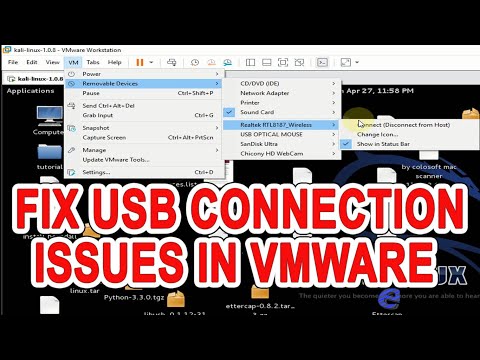
- Select “VM > Removable Devices > Device Name > Connect (Disconnect from Host)“. This lets virtualization take exclusive control over that device.
Sometimes though – bear with me – it’s more than just settings issues: outdated software! Make sure both VMware Workstation itself AND guest operating systems have their relevant updates installed because newer versions have better compatibility fixes baked-in.
Finally—for those who’ve been hitting their head against walls—it can be worth resetting permissions within admin-level accounts or rebooting everything (yes really!). Total fresh starts might clear whatever odd bug without obvious explanation was plaguing things!
So give these steps a try; sometimes life (and computers) just need adjusting lines here-and-there for smoother operations all around!
USB Device Recognition Issues in VMware Workstation 8 on Windows 10
If you’ve ever dealt with VMware Workstation 8 on Windows 10, you might have bumped into this little hiccup where your USB device just doesn’t want to be recognized. Frustrating, right? I’ve seen it happen plenty of times, and it can feel like your computer is playing tricks on you.
Here’s the scoop: USB recognition issues between VMware Workstation 8 and Windows 10 can stem from multiple factors. Let’s jump into some simple steps that could help you out.
- Check Compatibility: VMware Workstation 8 is an older version, and sometimes it doesn’t play nice with newer systems like Windows 10. Make sure you’ve updated everything—VMware tools included.
- Update Drivers: Your USB devices rely on drivers to communicate with the system. Head over to the Device Manager (just type it in the search box) and see if any drivers need a quick update.
- Enable USB Controller: Inside your VM settings, find the “USB Controller” settings. Make sure they’re enabled! It’s easy to overlook but crucial for making those connections.
- Select the Correct Connection: You can manually connect a USB device while your virtual machine runs by clicking “VM” from the top menu, hovering over “Removable Devices,” then choosing your particular device.
- ‘Run as Administrator’: Sometimes running VMware as an admin does wonders for getting things working smoothly again!
- Adjust USB Compatibility Settings:If things are still wonky, look at compatibility modes under ‘USB’ in VM settings; try toggling between USB versions (USB 2.0 or 3.0).This sounds simple but has helped me more times than I care count!
Imagine this—I once was in hurry getting project data onto my guest OS through a trusty thumb drive only have absolutely nothing happen… Being pressed time led down path hurried searches re-plugging until explored solutions above—worked magic!
So there we go! Those buzzy endpoints often sorted by basic tweaks above solve majority such cases—finally put slipperier loops rest almost guaranteeing smooth sailing exploring charms within virtual realm shifting dimensions real fun begins anew knowing everything recognized properly handy no longer run around circles getting nowhere fast hope these suggestions bright spot hunt sorting wrinkles world virtualization!
Oh boy, dealing with VMware Workstation 8 not picking up USB devices can be a real head-scratcher, can’t it? It’s like when you’re all set for a movie night and the remote just won’t work. Frustrating, right? You’ve got this great setup to virtually run another operating system on your computer and then bam! No USB devices.
So when you plug in that trusty USB drive and nothing happens—yikes—it can throw off your whole plan. It’s kind of like planning to bake cookies and realizing you’re out of flour at the last minute. Not cool.
There’s a bunch of reasons why this might happen. Maybe an innocent driver issue or something went haywire during the installation. And let’s not forget those sneaky settings that might be telling your workstation to ignore USB devices entirely.
If you find yourself in this jam, maybe start by double-checking if the host machine is recognizing the device first. Like making sure your cake ingredients are really missing before running to the store, you know? Sometimes just updating drivers or tweaking workstation settings does wonders.
It’s all about tinkering around until that satisfying “ding” when everything clicks into place—which feels pretty great once you get there!