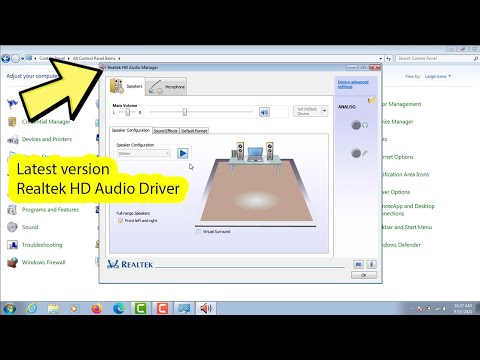
Oh man, remember those tunes we used to groove to on our ol’ Windows 7 machines? Good times! But sometimes, the tech gremlins decide you’ve had enough sound joy and you just can’t get your audio working.
No worries, I’ve got your back. Let’s get that sound driver sorted for your 32-bit system. It’s like bringing music back into your life, right?
Ever had one of those moments where everything’s working fine, then suddenly silence? Yeah… frustrating isn’t it? Just hang tight, I’ll show you how to fix it.
Promise it’s not rocket science. We’ll go through it step by step – simple as pie! Ready to bring that sweet sound back?
Best Audio Driver for Windows 7 32-Bit
Oh, the nostalgia of Windows 7! Many of us remember it fondly, especially if you’ve just dusted off an old laptop or desktop. So maybe you’re trying to get the best possible sound out of your classic machine, as it can make a huge difference in your listening experience.
Windows 7 and Audio Drivers
Windows 7 is like that old reliable friend who occasionally needs a bit of nudging to work smoothly. One key thing that often baffles people is getting the right audio driver for this operating system. If you’re running on a 32-bit version, there’s good news: there are some great options out there to boost your sound game.
The Essential Choice: Realtek HD Audio Driver
For most people using Windows 7, Realtek HD Audio Driver stands out as the go-to choice. You know how some brands just become synonymous with quality? That’s Realtek for you! It’s famous in many circles because it’s pre-installed on numerous motherboards and covers all audio basics quite effectively.
- Simplicity: Installing Realtek drivers is pretty simple—download, run the installer, follow along.
- Compatibility: This driver works with most chipsets; if you’re unsure about compatibility, chances are it’ll fit.
- User-friendly Interface: Once installed, tweaking settings is intuitive.
But what if Realtek isn’t compatible? Don’t worry!
C-Media Drivers as an Alternative
Another option might be C-Media drivers. Ever heard about them? Though not as popular as Realtek they do pack a punch:
- Diversification: Available across various devices from USB sound cards to onboard solutions.
- Ecosystem Support: Provides specialized features like expanded equalizers specific environments benefit well from it.
- Niche Fit:If older hardware doesn’t play nice with other options—it may still love C-Media’s offerings!
The Installation Process Explained!
Oh yes! Installation worries can feel overwhelming at times—but hang tight—we’ll navigate together:
1. Visit manufacturer’s website (Realtek or C-Media depending).
2. Locate supported downloads specifically labeled ‘Windows’ along ‘Version’ section.
3. Save file somewhere easy—like desktop.
4 Now double-click downloaded file—run setup following friendly instructions appearing onscreen.
5 After successful install reboot computer allowing changes tale effect complete circle!
And voila—you should now have crystal-clear tunes flowing through those speakers again 🤞 . As always check cables connections because sometimes silly missteps easily sneaks into process without noticing 😅 .
Do share feedback questions troubleshoot issue hints divinely bestowed by luck firsthand experiences etcetera below anytime during adventureship restoring forgotten magical sounds reigning supreme within Windows ecosystem realms too!).
Installing Windows 7 Sound Drivers
Oh, the joy of getting your Windows 7 system up and running smoothly! But then you realize there’s no sound. Frustrating, right? Don’t worry. This guide will help you, step by step, to install sound drivers on a 32-bit Windows 7 system.
Why Sound Drivers Are Important
Sound drivers act like a bridge between your audio hardware and operating system. Without them, your speakers or headphones might be just decorative pieces.
Steps to Install Windows 7 Sound Drivers
- Identify Your Audio Hardware
- Download the Correct Driver
- Install the Driver
- Restart Your Computer
- Troubleshoot If Necessary
- Double-click on the driver file you downloaded—pretty much like opening a jar.
- The setup wizard should pop up. Just follow along with those easy peasy steps they lay out for you.
- Your computer might ask if you’re sure about running this—it’s not being insecure, just cautious! Go ahead and click “Yes” or “Run.”
First things first: you must know what type of audio hardware is in your computer. This can typically be found in your PC’s documentation or by opening the Device Manager. You get there by typing “Device Manager” into the Start menu search box.
Visit the manufacturer’s website for your computer or motherboard. Once there, head over to their support section and look for downloads that match “Windows 7 32-bit.” Downloading directly from the manufacturer helps ensure compatibility and security.
Locate the downloaded file and double-click it to start installation. Often, it’s an executable (.exe) file that guides you through installing with step-by-step instructions—pretty simple!
While not always necessary, restarting helps finalize changes made during installation. It’s like giving your computer a fresh start with newly installed directives.
If sound still isn’t coming through after reinstalling drivers, you’ll want to revisit Device Manager. Look under “Sound, video and game controllers” for any issues highlighted with those little yellow warning triangles (yikes!).
A Little Anecdote For You
I recall when my friend Emily called me in panic because her laptop wasn’t playing any sound during our scheduled video call rehearsal (she was performing her first online concert!). We followed these steps together—and boom! Her music filled our call faster than I could even say “problem solved.”
So there you have it: simple steps that can save tons of stress when dealing with driver-related woes! You’ve got this; happy troubleshooting!
Installing Realtek Audio Driver on Windows 7 (32-bit)
Ah, the good old days of Windows 7. The nostalgia, huh? If you’re looking to install the Realtek Audio Driver on Windows 7 (32-bit), you’ve stumbled upon the right guide. It’s a bit like piecing together a puzzle, but with patience it’ll work.
First off, why do you need this Realtek driver anyway? Installing the correct audio driver is like getting that final missing piece in your audio setup puzzle. Without it, your sound might be crackly or non-existent – pretty frustrating if you ask me!
Here’s how you can get it sorted:
1. **Download the Driver**:
– Visit Realtek’s official site or a reputable source to find drivers suitable for Windows 7 (32-bit). You’ll see various options but go for those marked for “Windows 7” and “32-bit”.
2. **Run the Installer**:
– Once downloaded, double-click on the file to run it. A window will pop up asking if it’s okay to make changes – hit “Yes.”
3. **Follow Installation Instructions**:
– It’ll guide you through a series of prompts—just click “Next” till you’re all done.
4. **Reboot Your Computer**:
– After installation, restarting your computer helps seal in those changes like glue.
5. **Check Sound Settings**:
– Once you’re back up and running, jump into your Control Panel and check under Sound. See if Realtek is listed as one of your playback devices.
6. **Test Your Sound**:
– Play some music or pop onto YouTube just to make sure everything’s working smoothly.
You know how sometimes things still act up even after following directions? In case realtek doesn’t appear as expected:
– Check that Device Manager recognizes your audio controller.
– Ensure there aren’t any errors signaled by little yellow triangles next to any devices.
Anyhow—installing things manually can feel nerve-wracking at times (like balancing on one leg!) but give yourself credit! You’ve got this under control now armed with these steps lined out here… Go give it try!
Alright, let’s chat about something that might seem a bit old-school but is still super relevant to many folks out there—Windows 7 sound drivers for the 32-bit version. You know, it’s like going down memory lane. Back in the day, I remember helping my uncle with his computer; he’d always say, “I just want it to work! And honestly, isn’t that what we all want?
First off, installing sound drivers on Windows 7 isn’t rocket science, but it can feel a bit like putting together a puzzle when you’re not used to fiddling with computer settings. What’s the deal with sound drivers? Think of them as little translators that help your computer speak to your speakers or headphones.
Before you kick things off, make sure you’ve got the right driver for your specific sound card. Sounds obvious? But believe me, it’s something people often miss. Imagine trying to fit a square peg in a round hole—you get it.
Once you’ve got that sorted out and downloaded from either the manufacturer’s site or another reliable source (oh boy, do I have stories about downloading from sketchy sites—better avoid those!), you’re ready for action.
Here’s how you can tackle the installation process:
And then it’s mostly waiting—a bit like waiting for popcorn in the microwave. Once installed, restarting your PC is usually a good idea so everything settles in nicely.
You know what’s great after all this? That sweet sound when you open up your music app and everything plays without a glitch. It’s either silence or blissful tunes filling up your room—and that’s such an amazing feeling!
In moments like these—when things just work smoothly—I can’t help but grin and think “technology isn’t too bad after all.