Oh no, you’re having trouble with your USB wireless adapter on Windows 10, huh? Ugh, that can be so frustrating! One minute you’re surfing the web like a pro, and the next—bam!—no connection. Been there myself.
Honestly, tech issues always seem to pop up at the worst possible times. It’s like they know when you’re in a hurry or need to be online ASAP. You might think it’s this little gadget’s fault, but hey, sometimes it’s just Windows being Windows.
Maybe you’ve already tried unplugging it and plugging it back in? I know it sounds too easy, but you’d be surprised how often that helps. If only other things in life were as simple as restarting them!
Anyway, stick around because we’ll hash out what could be going on here.
Wifi Adapter Hardware Malfunction
It’s a frustration we’ve all felt, the dreaded moment where your USB wireless adapter just decides to sit out. Not cool, right? So you pop it in, and nothing. Especially on Windows 10, these hiccups can be annoyingly common. But let’s unravel what might be going on with your WiFi adapter hardware.
First things first, take a deep breath and double-check if the device is properly connected to the USB port. These small gadgets can sometimes seem like they’ve nestled in place when they really haven’t.
- Driver Issues: This is a big one! Missing or outdated drivers are usually the main culprits behind such malfunctioning acts.
- Compatibility Mess-ups: Sometimes, the adapter you’re using isn’t quite compatible with Windows 10 or maybe needs specific updates.
- Power Management Settings: Windows has this thing about power saving that can sneakily disable your USB to conserve energy.
Imagine you’re just trying to watch your favorite show and—boom—no Internet. Sounds like every day right? For driver hitches, it’s always smart to visit the manufacturer’s website (like TP-Link or NETGEAR) for the newest drivers. They often have magical instant-fixes hidden away in downloads.
On compatibility snarls: Have a peek at Windows Update settings for any lurking updates that could smooth everything out—because who doesn’t love surprises from Microsoft?
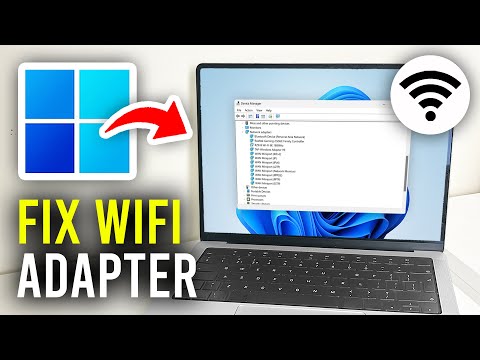
A wise trick?: Jump into Device Manager by typing it in that search bar down there on your taskbar. Once inside, find “Network adapters,” spot yours and give it an update nudge—or even disable and re-enable—that works wonders more times than not!
USB ports too crowded with other gadgets? It might help shifting around connections or unplugging different devices temporarily; trust me less congestion helps!
If all else fails, you got nothing but stubborn silence from them electrons… popping into Network Troubleshooter within Settings > Network & Internet could offer up fresh insights; hey leave no stone unturned right?
Let me know if stumbling blocks still haunt after trying these steps because tech issues may act sneaky now—but no worries we’ll crack ’em together!
Checking USB Wireless Adapter Compatibility on Windows 10
Hey there! So you’re trying to figure out if your USB wireless adapter is playing nice with Windows 10, huh? Let’s break it down together.
First things first, why compatibility matters. You know, it’s like trying to fit a square peg in a round hole—if it’s not the right fit, it just won’t work. That’s why making sure your adapter can dance perfectly with Windows 10 is key.
Check the Box and Documentation:
- Check Manufacturer’s Label: Your starting point should be the label on your wireless adapter or its packaging. Look for any mention of Windows 10 support.
- User Manual Insight: Sometimes the answer hides in plain sight within those little booklets you often throw aside—the user manual.
Now here comes an interesting bit. I once had this friend who couldn’t get his adapter working no matter what he did. Turned out he didn’t notice there was an updated manual online which clearly stated compatibility details! Sometimes these companies sneakily update things after you buy them.
Dive into the Device Manager: This is where we’re going techy-geeky style. But don’t worry—I got your back.
- Open Device Manager: Hit that Windows+X shortcut and find ‘Device Manager’ from the menu.
- Locate Network Adapters: Once inside Device Manager, scroll down and expand ‘Network adapters’. Your USB wireless device should show up here if properly recognized.
If your device has a little yellow exclamation mark next to it… uh-oh! It means there’s trouble in paradise—likely a driver issue or incompatibility.
The Driver Drama: When you need drivers specifically tailored for connecting successfully:
- Official Sites Only: Always grab drivers directly from official manufacturer websites; they usually have sections like ‘Support’ or ‘Downloads’. Steer clear of sketchy third-party sites—they could lead straight into malware territory!
- Select Correctly:: While downloading drivers sounds straightforward, be super sure they match both model number AND operating system version precisely before installing anything!
Trust me—you wouldn’t believe how many people download mismatched stuff!
Tune Up Those Settings!: Maybe everything else checks out good but settings still lurk as potential culprits.
Remember that friend whose saga I said earlier He realized he’d been disabling WiFi accidentally each time thinking something major was broken—turning around enabled solved all woes instantly making him feel both silly yet triumphant simultaneously.” Seriously!
That’s pretty much our ride through checking compatibility sorted now once sorted however don’t forget verifying performance getting expected speeds because nothing beats seamless streaming browsing…
Hope this helps guide along happily resolving woes ahead unravel them accordingly till another tale warrants retelling alike cheerio dear explorer may bytes align favorably grace bounty robust connections embrace aplenty enjoy savor persistent prosperity…
USB WiFi Adapter Compatibility with Windows 10
Having trouble getting your USB WiFi adapter to play nice with Windows 10? It can be maddening. Trust me, you’re not alone in this. Here’s what you might do to tackle that connection failure.
First things first: Check Compatibility
Before you dive into troubleshooting, make sure that your USB WiFi adapter is actually compatible with Windows 10. You’d think just plugging it in would solve the problem, right? But not all adapters are created equal. Sometimes they need specific drivers, which leads us to the next point.
Install or Update Drivers
Sometimes it’s as simple as having outdated drivers. The driver is like a translator between your hardware and the operating system—unfortunately, they sometimes speak different languages! Download the latest software from the manufacturer’s website if it didn’t automatically install when you plugged it in.
- Check Device Manager: Right-click on ‘This PC’, click ‘Manage’, then find ‘Device Manager’ in the sidebar.
- Select Network Adapters: Look for any yellow exclamation marks indicating a driver issue.
- Update Driver: Right-click on your network adapter and choose ‘Update driver.’
Tweak Power Management Settings
Windows loves saving energy—that’s great unless it turns off your device unexpectedly. Go into Power Management settings and make sure nothing’s interfering there.
- Mistake To Avoid: Don’t let Windows turn off your device: Uncheck “Allow the computer to turn off this device to save power” under each USB Root Hub’s properties.
Try Another USB Port or Computer
There might be an issue with that particular port or even computer’s settings themselves! Switch ports first; if no luck there move onto trying another device altogether—sometimes it’s about eliminating possibilities broadly until hitting true source point here.
So troubleshooting these gadgets often requires patience but don’t lose hope—the solution usually isn’t too far away once getting started down right path here!
Oh boy, technology can be such a rollercoaster ride sometimes, can’t it? I remember this one time I was all set for an important virtual meeting. I had my coffee, my notes ready, and then bam! My USB wireless adapter decided to take a vacation without notice. Ever been there?
So there I was, staring at my laptop with a mix of disbelief and mild panic. Now here’s the thing: these USB wireless adapters are like tiny magic wands that allow your computer to connect to Wi-Fi, right? When they work, it’s amazing—like having the whole world within reach at just a click. But when they don’t…well, it can feel like being stranded on an island.
I tried the usual stuff: unplugged the adapter and plugged it back in like some kind of tech wizard hoping for a miracle reboot. Nope! The little LED light just blinked at me mockingly. That led me down the rabbit hole of checking drivers in Device Manager. You know how Windows sometimes gets moody with drivers—they’re these little codes that help various bits of hardware and software talk to each other.
Anyway, after some trial and error (and a couple more cups of coffee), I realized my drivers needed updating. It’s funny how something seemingly small like outdated software can create such big hiccups.
In case you ever face this drama—and believe me many do—try updating those drivers first or maybe check if there’s interference from other devices. Sometimes even changing USB ports works wonders too! And hey, keeping an Ethernet cable handy never hurts either; it’s like having that comfy old blanket you need when times get tough.
Keep calm and tech on!