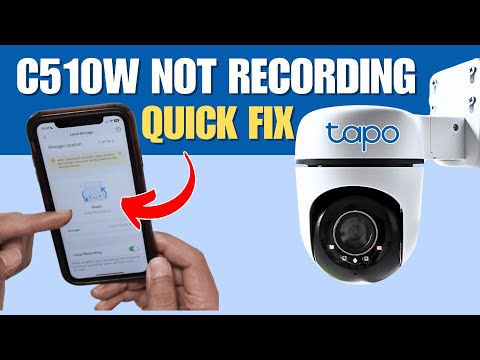
Oh boy, ever had one of those days with your Tapo C310 where it just doesn’t want to play nice? You know, you’re sitting there thinking everything’s fine and dandy, but your camera has other plans.
You set up this neat security cam to keep an eye on things, right? And bam! Suddenly, it’s not recording because the micro SD decides to check out. Super frustrating!
I mean, let’s be real—it’s like when you think you’ve recorded that amazing concert on your phone and realize you only got the last two seconds. Gah! Now you’re stuck wondering what’s next.
But hey, there’s always a way out of these tech hiccups. You just gotta find it! Ready to tackle this little issue together? Let’s roll up our sleeves and dive in.
SD Card Recording Not Working on Tapo Camera
Oh boy, it can be really frustrating when your Tapo Camera refuses to record on the SD card, right? Sometimes these gadgets seem to have a mind of their own! But hey, don’t worry. Let’s see what might be going wrong with that little memory card of yours.
First things first, check the compatibility of your SD card. You know, not all SD cards are created equal. The Tapo C310 usually works well with microSD cards from 8GB to 128GB with Class 10 or UHS-1 rating. If you’ve got something different in there, it might be playing hard to get!
- Format the SD Card: A fresh format can sometimes work wonders. Plug it into a computer and select FAT32 as the format option. This will ensure it’s clean and ready for action.
- Check for Physical Damage: Give that card a once-over for any signs of wear or damage. You never know—sometimes those tiny things can take quite a beating.
- Update Firmware: Make sure your camera’s firmware is up to date. Sometimes manufacturers release updates that fix bugs like this.
- Insert Properly: Did you insert the SD card completely? It should click into place and not pop out too easily.
You ever have one of those moments where you feel like technology is just mocking you? I remember one time my camera was being a real pain about recording… turned out I was using an ancient SD card from an old phone! Talk about feeling silly.
Moving on—if you think everything should be fine by now but it’s still acting stubborn, try another location or device with that same microSD card and see if recording works on there.
And finally, if nothing else seems off but it’s still misbehaving: reach out directly through **TP-Link’s support** channels—sometimes there could genuinely be an issue which only they can solve due hardware problems lingering underneath!
Hope some part here helps get those cameras rolling again!
SD Card Compatibility Issues in Tapo Camera
Dealing with an SD card compatibility issue in your Tapo C310 camera, huh? That can be a bit of a head-scratcher. You know, sometimes technology just doesn’t play nice. I’ve had my fair share of frustratingly mysterious tech problems, too. One time, I spent hours convincing my printer it wasn’t a toaster. Anyway, let’s see if we can figure this one out together!
Check the SD Card Type: First things first—make sure you’re using the right kind of card. Your Tapo C310 needs a microSD card. Not every microSD is going to work effectively; it needs to be Class 10 or UHS-I with up to 256 GB storage capacity.
Ensure Proper Insertion: Double-check that sucker is in there right! Sometimes it’s just the tiniest nudge away from being perfectly seated. When I used to fiddle around with old game cartridges as a kid, one little wiggle usually did the trick.
Format the SD Card:
- Backup: Before doing anything drastic like formatting (that means erasing everything), back up any important files.
- Tapo App Formatting: Open your Tapo app and navigate to the camera settings. There’s an option for formatting within the app itself—a useful feature.
- Manual Formatting: Use your computer for formatting if you’re still having trouble—ensure you format it as FAT32 or exFAT.
Test Another SD Card: Maybe you’ve got another microSD lying around? Try popping that one into your camera to see if there’s any difference in performance.
Possible Firmware Update Needed:
Sometimes these little gadgets need their brains updated! Go into your Tapo app and make sure both firmware and software are running on their latest versions.
Once upon a time, I figured out I’d been using an old version of my phone’s operating system all along—that changed everything when updated! Similar story here could help resolve quirks like these compatibility issues.
Hopefully one of those does fix things for you—but don’t stress too much if not immediately so because technology can give us quite a roller coaster ride occasionally! Keep tinkering till success comes by knocking at last door left unopened yet… Good luck fixing up what feels wonky now though really wishing rather fast solution instead turns fruitful real soon already back recording smoothly full steam ahead once more thereafter again onwards evermore henceforth forevermore future-forward momentous happenings rather excitingly upbeat fine happy ending outlook jubilantly anticipated most veritably indeed splendidly cheerily joyful yippee yay hooray moment utterly accomplished super great day definitely yes eventually better believe certainly!
SD Card Error Message Causes
Oh, SD card issues—what a headache, right? We’ve all been there. You pop that little card into your Tapo C310 camera, totally ready to capture every moment, and BAM! An error message pops up. So frustrating! Don’t worry; you’re not alone in this mess, and there are a few reasons why this happens.
- Incompatible SD cards: You might have an SD card that’s just not friends with your Tapo C310. These cameras can be a bit picky about the types of cards they like best. Make sure it’s compatible in both size and speed.
- Card formatting issues: Sometimes, the card itself needs a little refresh. If it’s formatted with something other than FAT32—for example NTFS—the camera could refuse to record on it. Reformatting it using FAT32 can often fix things.
- Corrupted data: Oh boy, corrupted files! This might happen if the card’s been bouncing around in various devices or if it’s been pulled out mid-operation too often. Any strange interruptions during read/write operations can cause this mess.
- Full storage capacity: You know how we sometimes get carried away and fill up our phone’s storage with pictures of our dogs? Yeah, SD cards aren’t limitless either! They need room to work.
- Poor quality or counterfeit cards: Believe it or not, some brands might look legit but don’t perform as promised. They may fail sooner than expected.
And here’s a little story for you: Last summer, I set up my own Tapo C310 to monitor my yard—you know how mischievous those squirrels can be! But no footage… Turns out I was using an SD card formatted in exFAT (whoops), which the camera didn’t like one bit!
Whenever you face such troubles with your camera, always start by checking these common culprits first before diving into more complex solutions—you’d be surprised at how often simple fixes work wonders!
Hope this helps lessen your frustration next time that annoying error message flashes across your screen!
Oh, the dreaded moment when you realize your security camera isn’t recording anymore! I know the feeling all too well. The Tapo C310 is nifty little gadget—until its Micro SD card decides to act up. You think everything is fine and dandy, capturing every movement around your house, only to find that it hasn’t recorded a thing. Frustrating, right?
First things first: check if the card is properly inserted. I’ve done this before where I thought it was in snugly, but nope! It’s amazing how often it’s something simple like that. Then there’s the compatibility issue – not every SD card is meant for prolonged recording tasks. Sometimes you might overlook it and pop just any old card in there.
Oh, and another one: formatting issues can be sneaky culprits too. If your computer can’t read what your camera is writing—poof—there goes your footage! It’s worth diving into the settings once in a while to ensure everything’s talking nicely.
One time at my buddy Rob’s place, we puzzled over this for ages until we just decided to reformat the card right from scratch on our computers with FAT32 format (yeah…it was one of those Saturday afternoons). Gave us both quite a laugh afterwards! And believe me or not…it worked like magic after that!
Anyway if nothing improves even after trying different cards—you might want to consider resetting or updating firmwares periodically—we all need refreshers now any then, right? Just remember technology has quirks of its own; sometimes taking things slow gets them back running again without further ado.
Meanwhile peace-of-mind knowing our home kept an eye-on continues winning any day despite occasional misbehaviours!