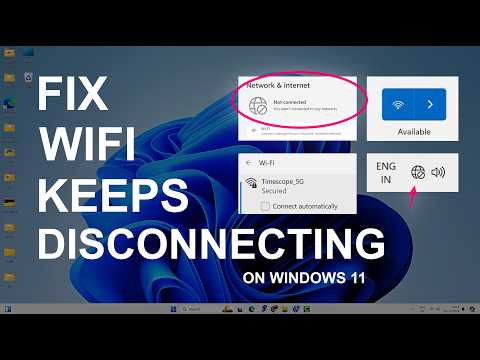
Ever been in the middle of an epic video call or streaming your favorite show when—poof!—the connection drops? It’s like the Wi-Fi fairy just decided to prank you. Super frustrating, right?
If you’ve got a laptop with Intel WiFi 6, this might not just be a one-time ghost in the machine. Nope, it’s a recurring headache for some folks. They’re seeing their connections drop *way* more often than usual.
And it’s not even about how close or far you are from the router! So weird. You’re probably scratching your head wondering why it’s happening and what to do next.
Hang tight; we’ll figure it out together and see if we can get that online groove back on track.
Frequent Wi-Fi Disconnections on Laptop
Oh, Wi-Fi connection issues can be a real headache, can’t they? One minute you’re happily browsing; the next, bam—a drop in the connection. It’s especially annoying when you rely on your laptop for work or watching your favorite shows.
So, what’s the deal with frequent Wi-Fi disconnections, particularly with Intel’s WiFi 6? Let’s dive into this topic and explore some possible reasons and solutions.
First off, there could be a few things at play here:
- Driver Issues: Your network adapter driver might be outdated or misbehaving. Updating it can sometimes do wonders. For instance, you might notice improved stability after installing the latest driver from Intel’s website.
- Power Management Settings: Laptops often try to save power by putting your Wi-Fi adapter to sleep. To change this setting, access your device manager—sounds techy but it’s as simple as right-clicking on ‘This PC’, then heading into ‘Properties.’ Under ‘Network adapters,’ right-click on your Intel adapter and choose ‘Properties.’ Look for power management options!
- Router Compatibility: Sometimes your router may not fully jive with newer technology like WiFi 6. It might help to check if there’s a firmware update available or even consider switching to a different frequency band—like moving from crowded 2.4GHz to swifter 5GHz.
Another tip is checking if Windows updates recently led to these issues. It happens! If a recent update coincides with problems starting up, rolling back that update could give relief—just like going back in time before everything went haywire!
In some quirky cases, interference can play a role too! Your microwave or cordless phone using nearby frequencies might mess things up when both are running at once.
And remember those days when you’d call it a day only after turning things off then on again? Always start there because giving rebooting another shot sometimes surprisingly fixes connectivity woes!
There you have it—a handful of friendly tips showing what possibly disrupts connections along potential paths easing troubles away without breaking sweat unnecessarily!
Intel WiFi 6 Connection Drops on Windows 11
Struggling with the Intel WiFi 6 connection dropping on Windows 11? I’ve heard from quite a few folks wrestling with this issue. You’re definitely not alone!
This can be super frustrating, especially when you’re in the middle of something important, like an online meeting or streaming your favorite show. But hey, let’s see if we can make it a bit less annoying.
First off, it’s usually helpful to understand what might be causing these connection drops. The Intel WiFi 6 adapter tends to face compatibility issues with some systems running Windows 11. And sometimes, simply tweaking a few settings can make your internet work smoothly again.
- Updating Drivers: Sometimes the simplest fixes are also the most effective ones. If you haven’t updated your drivers in a while… do it! It could resolve those drop issues. Head over to the Device Manager: search for “Device Manager” in Windows Search, then find your network adapter under “Network adapters,” right-click on it and select “Update driver.”
- Power Management Settings: Yep! Make sure power management settings aren’t messing things up. Go back into Device Manager again and find that same adapter. Right-click and go into Properties this time—then look for the Power Management tab uncheck “Allow computer turn off device save power”. It sounds silly? but trust me it’ll help.
- Network Reset: Giving your network settings reset is like turning them off/on again which works wonders almost magically sometimes! You know?, Go through these simple steps: Settings > Network & Internet > Status; under Advanced Network Settings click Network reset button.
- Check Router Firmware: Routers have their own software called firmware which might need an update too… sorta like apps requiring updates every now & again except routers ain’t needing them nearly as often!
In one instance someone shared they’d tried everything but none worked until just realigning physical placement of router relative laptop position—no joke! Really did wonders signal strength improvement right there immediate results witnessed himself!
Intel Wi-Fi 6 Connectivity Issues on Windows 10
Ever had one of those days where your Wi-Fi just doesn’t want to stay connected? Annoying, right? I know how it feels. You’re trying to get some work done, and boom—the connection drops. If you have an Intel Wi-Fi 6 card in your laptop, let me tell you, you’re not alone.
Why might this happen? It’s often the little things. Firmware and driver updates can sometimes go rogue. Changes may create conflicts with Windows 10 and the network drivers themselves.
So what can you do? Here are some ideas—simple stuff, nothing too techy:
- Update Your Drivers: First off, check if there’s a driver update from Intel available. They often release fixes for these glitches.
- Roll Back Driver: If updating doesn’t help—or makes things worse—you could try rolling back to an earlier version.
Sometimes it’s just a matter of tweaking settings:
- Device Manager: Go to your Device Manager (just search for it in the start menu). Find your Wi-Fi adapter under “Network adapters” and check the “Power Management” tab. Uncheck “Allow the computer to turn off this device to save power.”
Here’s a little trick I once used when helping my friend out—it worked like magic!
Troubleshoot Network Issues:
1. Open Settings in Windows.
2. Navigate to “Network & Internet”.
3. Click on “Status,” then choose “Network troubleshooter.”
This can sometimes identify hidden issues! It might prompt you with specific steps or offer automated solutions.
What about hardware problems? Well, they’re less common but still possible:
- If you’re comfortable opening up your laptop’s back panel, make sure your Wi-Fi card is seated correctly.
If all else fails… you might want consider checking with Intel support or forums for any ongoing problems specific models are having—they’re sup super helpful most times.
Experiencing drops can be really frustrating when you’re trying keep everything running smoothly at home or work–but hopefully these tips will help tide things over till something more permanent comes along!
Ah, the joys of WiFi—when it works, it’s like magic. But sometimes, especially with newer tech like Intel’s WiFi 6, things don’t go quite as smoothly as we hope. Picture this: you’re in the middle of an important video call or streaming your favorite show, and suddenly… poof! The connection drops. It’s like someone pulled the plug on your internet dreams.
You get that momentary jolt of panic followed by disbelief and maybe a sprinkle of frustration. I’ve been there too! And when it happens repeatedly, it can feel downright maddening.
WiFi 6 is supposed to be the next big thing, right? Faster speeds, better reliability—all that jazz. But sometimes these advancements come with their little quirks and hiccups. Laptops equipped with Intel’s WiFi 6 have reportedly been experiencing connection drops that leave users scratching their heads.
Why is this happening? Well, there could be several culprits here. Sometimes it’s a driver issue—it’s like your laptop’s language for talking to the network gets garbled up or outdated. Other times, router compatibility issues poke their head in; not every router plays nice with every device out there.
But don’t lose hope just yet! Often simply updating drivers can smooth things out. Think of those updates as giving directions to lost tourists; they help guide everything back on track!
If you’ve tried all that and still find yourself watching buffering wheels more than actual content—ugh—I totally get why you’d consider throwing something across the room (or at least fantasize about it). Just remember though: tech often improves after initial hiccups roll through town—and once working perfectly again—you’ll hardly remember what life was before solid streaming bliss returned!