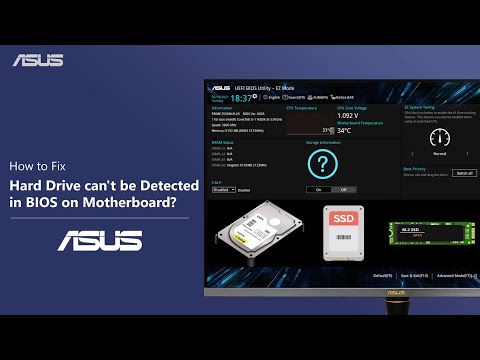
Oh no! You sit down, ready to tackle some work, or maybe enjoy a bit of downtime on your computer. But guess what? Your Fujitsu hard drive’s playing a vanishing act—completely undetectable by the BIOS. Yikes! That can be so nerve-wracking.
I mean, you’re thinking everything’s going smoothly, and then bam, your hard drive pulls a disappearing trick. It’s like when you misplace your keys right before leaving the house.
Don’t worry; we’ve all been there with tech hiccups like this one. Before jumping to conclusions and imagining the worst-case scenario for your beloved files or data, let’s chill for a sec.
We’ll go through some simple checks and fixes together right here. And hey, fingers crossed it won’t be too complicated to get things back on track!
BIOS Compatibility Check for HDD Detection
We’ve all been there. You power up your computer, only to realize that the BIOS isn’t detecting your Fujitsu hard drive. This can be frustrating, right? But don’t worry, understanding the compatibility of your BIOS with your hard drive is crucial. Let’s dig into some details about how to troubleshoot this issue.
First off, why does this happen? Well, it could be a few things: maybe there’s a loose cable connection or an outdated BIOS version. Sometimes the problem’s even in the settings! You ever had a loose shoe lace that keeps tripping you up? It’s kind of like that—annoying but fixable.
- Check Physical Connections: Make sure all cables connecting the hard drive to the motherboard are snug and secure. A slightly out-of-place cable could be causing all this fuss.
- Access BIOS Settings: On starting up your computer, enter into BIOS by pressing keys like F2, Delete or Esc (it varies by manufacturer). Once inside, look around for anything related to storage devices.
- SATA Configuration: Ensure that SATA ports are enabled and properly set on AHCI mode if necessary because some drives play nicer in specific setups.
- Update BIOS Version: An older version might lack support or have bugs affecting detection.
Check for an update on the manufacturer’s website following their guide carefully—it feels like updating an app on your phone after all!
If these steps don’t resolve it right away don’t lose hope! Sometimes computers just need a little nudge—or reboot—to see changes take effect after tinkering within those techie menus.
Remember when I couldn’t find my glasses but they were on top of my head? Troubleshooting feels much similar; simple solutions often escape us initially until something clicks!
So take it easy starting one step now at time till you get everything lined back working smoothly again—no more wearing hardware blindfolds–seeing through clearly once more once ‘ol Fujitsu gets detected perfectly fine again too!
Fujitsu Hard Drive Missing in BIOS
If you’re facing a situation where your Fujitsu hard drive is missing in BIOS, you’re probably a bit frustrated and puzzled. But don’t worry—it’s something that happens sometimes, and we can try to figure it out together.
First things first, check the obvious stuff. You know how sometimes you have those “aha” moments? Like, checking if your stove is plugged in when it doesn’t turn on? It’s kind of like that here.
- Check the physical connection: Open up your computer (carefully!) and make sure the hard drive cables are securely connected. Sometimes they get loose or disconnected—you never know!
- Dive into BIOS settings: To access BIOS, restart your computer and press the designated key quickly (often it’s F2, Delete, or another function key). Once inside, navigate around to ensure all settings related to drives are correct. This can feel like looking for an old pair of socks; you just gotta keep at it until you find what’s missing.
- Verify power supply: Electrical hiccups happen more often than we think. Ensure the power cable is delivering juice to the hard drive.
Now let’s say you’ve done all this basic detective work but no luck yet. Oh boy! It might be time for some advanced exploring… Don’t worry; I’m sure we got this!
- SATA port issues: Try connecting your Fujitsu hard drive to a different SATA port on your motherboard—a simple switcharoo sometimes solves more problems than you’d expect.
- Tweak with CMOS battery reset: Remove CMOS battery from motherboard gently—it’s that small coin-sized battery! Wait about 5 minutes before reinserting—give everything fresh start-up grounds surprisingly well!
- Inspect jumpers if applicable: On older drives: check their jumper settings (little plastic pieces on pins) arranged according specifications found online/manuals provided by manufacturer).
If none of these workarounds do any magic—hey don’t sweat it—you still have a couple other possibilities…
Like testing your hard drive on another computer (does it show up there?) or trying different hardware combinations. This is where you might need someone else’s system next-door—or maybe that extra laptop collecting dust somewhere!
In case testing elsewhere proves successful (phew!), then possibly an issue could lie within current system’s configuration/hardware compatibility—it happens… things change over time—and sometimes things don’t mesh quite perfectly together forevermore…
If after all attempts listed here results remain unchanged—a stubborn ghost haunting lives inside circuits—consider reaching out Fujitsu support portal helpfulness advice according specific model inquiries needing addressing anyway?