Oh no! Your NVIDIA MX250 decided to go on vacation, huh? And right when you need it the most, too. Computers, I tell you…
So your GPU isn’t showing up on Windows 10. That’s a bummer, and I totally get how frustrating that can be. But don’t worry!
We’ll figure this out together one step at a time. It’s like when my dog decides to hide my socks—annoying, but with a little effort, we always find them.
Let’s take a deep breath and see what’s going on here. You got this!
NVIDIA Graphics Card Detection in Windows 10
Oh man, you know how frustrating it can be when your shiny NVIDIA MX250 just refuses to show up on Windows 10? Let’s dig in and see what’s going on and how you might fix it.
Why Isn’t the GPU Detected?
Sometimes, Windows 10 can be a bit shy about recognizing hardware. VPN settings, software mishaps, or even driver quirks might cause some hiccups. And then, there are those mysterious occasions where everything looks fine but still doesn’t work.
First steps to Consider:
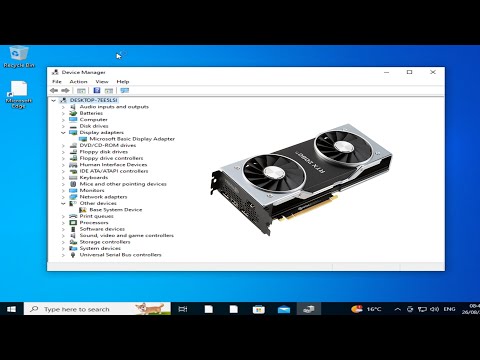
- Device Manager Check: Open your Device Manager. Just type that into the search bar at the bottom of your screen and hit enter. Look under “Display adapters.” Is your GPU listed there? If not, we might be dealing with a classic case of “missing GPU.”
- Scan for Hardware Changes: Sometimes a little nudge is all that’s needed. In Device Manager, go to the top menu and click “Action”, then select “Scan for hardware changes.”
- Update or Rollback Drivers: Click right (the ol’ right-click) on the adapter. Choose either “Update driver”, or if you’ve recently updated and now everything’s haywire, try rolling back.
- NVIDIA Control Panel: Find out if your laptop’s defaulting to integrated graphics instead of our dear MX250. You can usually adjust these settings in the NVIDIA Control Panel – just make sure it’s installed!
Sneaky Software Troubles
You know what else? Antivirus programs can sometimes be real party poopers by blocking drivers or related processes unintentionally. Disabling them briefly (you didn’t hear it from me!) might help sniff out if they’re behind this mischief.
Tweaking BIOS Settings
BIOS updates! Oh boy… That’s a ride many fear! But oftentimes manufacturers publish BIOS updates that add support for more hardware components like GPUs. Venturing into your BIOS settings during boot (usually tapping something like Esc or F2) allows tweaking those detection preferences.
A Few Words of Experience…
I remember once helping my buddy Sam – we spent hours trying all kinds of interventions – only realizing he never checked his laptop’s support website for driver downloads! Manufacturer-specific drivers could save loads of time over generic ones downloaded directly via Windows Update.
So yeah!
GPU Detection Failures
Oh, the joys of dealing with GPU detection issues! If your NVIDIA MX250 isn’t showing up on Windows 10, you’re not alone. This kind of hiccup can be quite frustrating, especially if you’re eager to run a new game or a demanding application.
Check Device Manager
First things first: open up Device Manager. It’s like the control room for all your hardware components. When you’re in there, look under “Display adapters.” If you see your MX250 listed, but with a warning icon, there might be a driver issue.
Update Your Drivers
Drivers are like translators between your operating system and hardware. Sometimes they get out of date or act funny after an OS update. You can grab the latest drivers from NVIDIA’s official website or use Windows Update as a quick fix.
Enable Your GPU in BIOS
Now here’s where it gets techy! You might need to check if the GPU is enabled in the BIOS settings. Restart your computer and enter BIOS mode (often by pressing F2 or Delete during boot). Look for some setting related to integrated peripherals or similar wording and make sure the MX250 is enabled.
Check System Compatibility
Believe it or not, not all systems are created equal! Make sure that your laptop model officially supports this graphics card on Windows 10. Check the manufacturer’s website for any specific updates or patches needed for compatibility.
Troubleshoot Conflicts
Sometimes other hardware conflicts with your beloved GPU. Peripherals like external monitors can sometimes take priority over what you’d expect as defaults—unplug them and see if anything changes.
- NVIDIA Control Panel: If detected correctly, use this to configure settings specific to games or apps.
- Event Viewer: Another spot where error logs may hint at what’s wrong.
- Error Codes: Make note of any codes that pop up; these will help when searching more specific solutions online.
And that’s pretty much it! With these steps, you should have a fighting chance at getting that pesky NVIDIA MX250 back online. If none of these tricks work out though—don’t worry—it doesn’t hurt reaching out for some professional help if things stay stubbornly unresponsive.
GPU Fan Active but Not Detected
Hey, let’s talk about a pretty common issue folks bump into with their computers. You know that moment when your GPU fan is whirring like it’s doing its job, yet your system is acting like the GPU isn’t even there? Yeah, that’s frustrating! Especially if you’ve got an NVIDIA MX250 card and Windows 10 is giving you the silent treatment.
So what gives with that? Well, a few things can cause this hiccup. Let’s break it down into bite-sized bits.
- Driver Woes: One of the usual suspects here is outdated or missing drivers. Drivers are like translators between your hardware and Windows, so if yours went on strike, nothing’s happening. Check Device Manager. If you see any yellow triangles around “Display adapters,” well there’s your sign.
- BIOS Settings: Sometimes, BIOS settings need a nudge to play nice with your GPU. Restarting and hitting the BIOS keystroke (usually something like F2, Del, or Esc) might reveal whether or not integrated graphics are prioritized over your dedicated one.
- The Power Factor: Sounds odd but hey—ensure power connectors are snugly fit especially in desktops; laptops generally handle this internally but you never know!
- Cable Connection: For desktop users: double-check those cables connecting both inside and out (like between motherboard & monitor).
- NVIDIA Control Panel:: If everything else looks good—hooray—it might be something finicky in software land needing attention through NVIDIA’s control center where adjustments can turn mysteries visible again.
One time my buddy Mike struggled endlessly thinking his card was dead only because he’d disabled certain services unknowingly sending things south fast track! After days he finally nailed down lingering driver conflicts keeping recognition blocked despite perfect physical installation.
Oh, the moments when your computer just seems to want to test your patience—like when your NVIDIA MX250 decides it’s going to play hide and seek! You boot up Windows 10, expecting everything to work smoothly as usual, and then bam, the GPU isn’t detected. That little pang of frustration is all too real.
I remember a time when I was getting ready for a big presentation at work. The PowerPoint slides were perfect, or at least I thought they were until I wanted to fine-tune some graphics. That’s when I realized my trusty GPU had vanished into thin air. Panic mode: activated! Sound familiar?
So what’s going on with that sneaky MX250? Sometimes it’s just a matter of outdated drivers playing tricks on you. It’s like those friends who wait until the last minute to tell you they’re running late—annoying but fixable. A quick visit to the NVIDIA website for some driver updates might be all it takes.
Or maybe it’s Windows up to its own antics after an update that didn’t quite mesh well with your system setup. You know how it goes; you turn off your computer all innocent-like after approving an update, only for a world of problems waiting patiently upon reboot.
Don’t forget about BIOS settings either—a whole universe on its own if you’re not familiar with it. Sometimes the integrated graphics are prioritized over discrete ones like our elusive MX250.
It’s kind of like trying every key in the lock before finding the one that clicks perfectly into place—sometimes it takes patience and tenacity, possibly even a bit of tech-savvy detective work!
Most folks can juggle through Device Manager skills or check their cables diligently without needing tech support: unlocking those “aha!” moments and learning something valuable along this quest for visibility in more ways than one!
And in case tech problems still get too overwhelming—remember there are always community forums buzzing with real people sharing their stories (and solutions!).