Oh man, ever get that feeling when you buy something super cool like a shiny new SSD, and it’s just not living up to the hype? You’ve probably heard all those swoon-worthy claims about blazing 5000 MB/s speeds. But then—surprise—it’s running slower than expected.
Maybe you’re sitting there thinking, “Did I do something wrong?” Or “Is my SSD broken or what?” Don’t worry; you’re definitely not alone in this tech mystery. Sometimes the solution is simpler than you’d believe.
Join me on this little journey as we figure out why your SSD might not be hitting those dream speeds. It’s kind of like solving a puzzle with a friend, you know? Let’s see what we can uncover together!
CrystalDiskMark Sequential Read and Write Test
Oh, the frustration when your shiny new SSD promises you lightning speeds, like 5000 MB/s, but then—bam!—you barely scratch that surface. So let’s dig into this a bit.
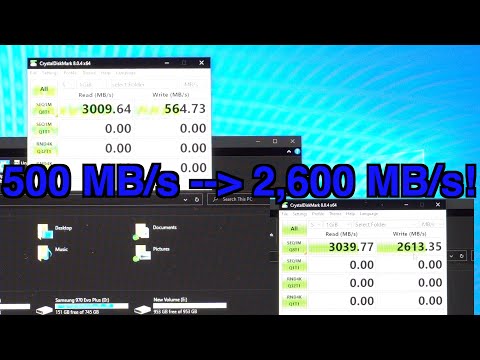
CrystalDiskMark is a nifty little tool that many folks use to measure their disk speed. It basically checks how fast your drive can read and write data sequentially. Sequential read and write mean reading or writing large blocks of data in order, kind of like watching a whole movie rather than jumping from scene to scene.
Now, if you’re testing your SSD with CrystalDiskMark and not hitting those advertised 5000 MB/s speeds—don’t panic just yet! There are reasons for this:
- Your Setup: First thing to check is if your computer supports the speed. For instance, make sure you’re using an NVMe slot instead of a SATA slot because the latter won’t support those high speeds.
- Caching: Some drives use caching to boost performance temporarily. If cache fills up during testing, the speeds might drop.
- System Bottlenecks: Your motherboard or processor might be holding back that speed—you know, like trying to watch Netflix on dial-up?
- Firmware Updates: Sometimes manufacturers release updates improving drive performance. So check if there’s an update available for your SSD model.
- Background Processes: Those sneaky apps running in the background can mess with test results by gobbling up resources.
Okay so here’s a quick heads-up: different testing software can yield different results due primarily due to how they measure and test data transfer rates.
In my case? I had this one time where I thought I’d splurged on crazy-fast storage only to find it lagging behind expectations—turns out I hadn’t installed it correctly into its correct M2 slot! Silly me, huh?
Make sure everything’s set up right: Double-check connections; try disabling unused processes before running tests again—and hey—it’s always good practice keeping those drivers updated!
If these steps don’t bring things back up-to-speed (literally!), then reaching out for more hands-on help might steer you clearer towards resolving any deeper-rooted issues lurking around beneath all those bits’n’binary mysteries swirling inside your machine—that trusty tech friend nearby should come handy right about now!
Hope this helps clear things up! Happy computing!
SSD Speed Test Procedure
Having trouble with your SSD not hitting those promised 5000 MB/s speeds? Ugh, I totally get it. Speed is kind of the main reason you probably got that fancy Solid State Drive (SSD), right? Let’s dig into what you can do to figure out what’s going on.
First thing: make sure your hardware’s compatible. It sounds basic, but not all computers or setups are fit for these blazing speeds. Check if your motherboard and SSD are both linked up through PCIe 4.0. Sometimes even if you have a snazzy SSD, your system might not support the latest connection standards.
Next up is actually running those speed tests! Here’s a quick way to do that:
- Choose a test tool: You’ll want to grab a tool like CrystalDiskMark or AS SSD Benchmark for Windows. If you’re on macOS, Blackmagic Disk Speed Test is pretty good.
- Install and set it up: Once installed, open the application and select the right drive—don’t want to test the wrong one now!
- Select test settings: For accuracy, stick with default settings at first. This usually involves reading and writing several megabytes worth of data multiple times.
- Run the test: Hit that start button (or whichever runs the test) and watch as numbers like read/write speeds pop up in front of you.
Alrighty! So you’ve run the test and you’re still scratching your head wondering why it’s underperforming? Here’s where other things come into play:
- Cables matter: If you’re using SATA cables rather than connecting via M.2 directly onto motherboard, there might be bottleneck—SATA has lower bandwidth compared with NVMe PCIe connections.
- You might need an update: Check if firmware updates are available for both storage device itself any BIOS updates from system manufacturer could boost performance significantly!
Finally let’s address background processes draining power from achieving full potential; think antivirus scans or some downloads happening simultaneously affecting results could really skew things unexpectedly!
Once upon time I tried upgrading my own setup thought everything was good but turned out port choice messed whole experience around until realized switched ports—that change blew mind seeing improvement overnight!
It may just take reviewing settings/ports without prior knowledge although tech always puts surprises us sometimes tweaking here may solve mystery faster than originally imagined possible right away hope worked through whatever kept back now cruising same thrilling lightning-fast league real soon yeah!
SSD Enclosure Performance Bottleneck
Ever tried upgrading your computer’s speed with a snazzy SSD but felt like you didn’t quite get what you bargained for? You’re hardly alone. Folks often expect their new SSDs to deliver lightning-fast speeds—like, say, 5000 MB/s—but end up disappointed when reality says otherwise. Let’s unpack why that might happen, shall we?
Understanding Bottlenecks
Picture this: Your SSD is raring to go, but something’s holding it back. That “something” is a bottleneck. It’s like trying to fill a tank through a straw; the water can flow only as fast as that narrow straw allows.
- Interface Matters: If your enclosure uses an older USB interface (like USB 3.0), it might max out around 500 MB/s.
- Cable Type: The cable connecting the enclosure could be limiting speed if it doesn’t support higher data rates.
- Chipset Limitations: Some enclosures have internal chipsets that simply can’t handle those top speeds.
The Right Setup Is Crucial
You’ve invested in this high-speed drive, so you want it to live up to its name, right? One pivotal factor is ensuring every component in the chain supports those speedy transfers.
- M.2 vs SATA: M.2 NVMe SSDs are generally faster than SATA ones—but only if connected properly.
- PCE Express Support: Ensure your motherboard and enclosure fully support PCIe express lanes for maximum throughput.
Troubleshooting Your Setup
Digging into your setup might need some patience. When I first set mine up, I swapped different cables and ports until everything sang harmoniously.
- Check Driver Updates: Drivers affect how devices communicate with each other— out-of-date ones could slow things down significantly.
- Bios Settings: Your BIOS settings should allow every bit of juice possible from hardware features like PCIe lanes; take time exploring advanced options there!
Do bear in mind not every system can reach top-tier performance even under ideal conditions—each element must play ball together beautifully! Who knew tech had such nuances?!
Ah, the joys of technology! Remember when we used to watch our computers boot up while sipping on a cup of coffee, hoping it’d be done before we finished drinking? Those days are gone—thanks to SSDs. They’re like sprinters compared to the sluggish marathon runners that hard drives were. So if you’ve got an SSD and it’s not reaching those super-fast speeds promised on the box, it can be pretty annoying, right?
First things first: your setup matters. It’s kind of like driving a Ferrari in a traffic jam; even the fastest car isn’t gonna blaze past anyone if there’s something slowing it down. Sometimes, what holds your shiny new SSD back is compatibility with your motherboard or the type of connection you’re using. Not all motherboards support those blazing fast PCIe 4.0 speeds that some new SSDs promise.
Then there’s this thing called thermal throttling—sounds fancy, huh? It just means that if your SSD gets too hot under pressure (like when copying huge files), it’ll slow itself down to cool off. Kind of how you start slurring words after eating spicy food too fast… slows things down till you catch your breath.
But here’s a kicker: software settings can play tricks too! Make sure nothing in your system settings or BIOS is holding back performance by mistake—or worse yet, treating your speed demon as if it’s jogging in safe mode for… no good reason!
And let’s not forget about firmware updates! I had this experience once where updating just transformed my SSD’s performance from being stuck at pedestrian speeds right back into breakneck glory—it was honestly amazing.
So yeah, check these few simple human errors along with keeping everything updated will likely keep frustrations at bay while letting you savor every byte zooming past faster than ever before!