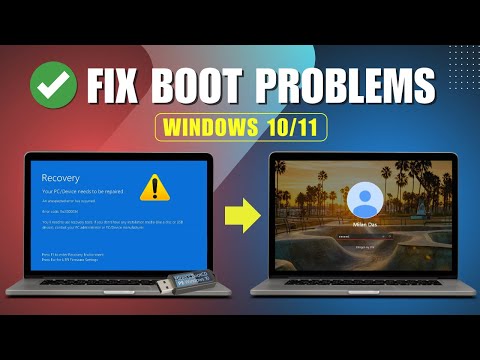
Alright, picture this: You’re chilling at home, sipping your coffee, when bam! Your computer throws a tantrum. Black screen, weird noises—total drama. It’s like your PC just decided to go rogue on you. Frustrating, right?
But listen up. There’s this superhero tool called Hiren’s BootCD ISO that can swoop in and save the day. Sounds fancy? Oh, it’s tech wizardry in a tiny package.
Imagine it as your trusty sidekick for fixing PC hiccups. Whether it’s sorting out boot issues or rescuing lost data, this little USB stick has got your back.
And hey, it’s not magic—it’s just smart tech stuff made easy for folks like us who aren’t exactly computer wizards. You with me? Let’s dig into how it works!
Repairing Windows with an ISO File
Oh, dealing with computer troubles can be a real headache, can’t it? But don’t worry, I’ve got your back on this one. If your Windows is acting up and you want to repair it using an ISO file, especially with tools like Hiren’s BootCD, you’re in for a straightforward process. Let’s walk through how to do this.
First things first: What’s an ISO file? Imagine it like a digital box that holds all the data you’d find on a physical CD or DVD. Pretty neat, huh? It’s commonly used for software installation and repair tasks.
Now, Hiren’s BootCD is an incredibly useful tool when you’re trying to fix or recover your PC. It’s packed with utilities that help you troubleshoot all sorts of issues. So if your Windows system isn’t booting right or having glitches running normally, using this can be a lifesaver.
Here’s how you can use an ISO file for repairing Windows:
- Download the Hiren’s BootCD ISO: Head over to their official website to grab the latest version of the ISO file. Make sure it’s the authentic site—there have been copycats out there.
- Create a bootable USB drive: You’ll need something like Rufus—a small tool that helps make USB drives ready for action. Plug in an empty USB stick (at least 4GB), fire up Rufus and select the downloaded Hiren’s BootCD ISO.
- Boot from USB: Restart your computer and enter into the BIOS menu—usually by pressing keys like F2 or DEL as soon as it starts up (before Windows boots). Change the boot order so it checks USB devices first.
- Select tools for repair: Once Hiren’s BootCD interface appears (which feels pretty cool by the way), you’ll see loads of handy utilities: disk management tools, backup solutions—you name it! Choose what fits your problem best.
It’s comforting knowing all those tools are at hand without needing access to running Windows itself! Remember though: always keep backups just in case anything unexpected happens during repairs.
And there were times I thought my old laptop was beyond saving—but thanks significantly because these resources came into play when little else did!
Hope tackling whatever issue has cropped up gets simpler now having tips underlined here today… Like always makes sense keeping systems healthy regularly too besides being ready should emergencies occur again someday down road (fingers crossed not soon though!). Good luck!
Rufus Bootable USB Creation Steps
Creating a bootable USB drive with Rufus and Hiren’s BootCD ISO is quite the adventure. It’s like having a little magic wand in your pocket for fixing PC issues. Let’s take it step by step, shall we?
First, let’s gather our tools. You’ll need:
- A USB drive with at least 2GB capacity (bigger is better for extra files)
- The latest version of Rufus. You can find it easily online.
- The Hiren’s BootCD ISO, which is a fantastic utility collection for PC repair.
Got everything? Great! Let’s make that magic happen:
1. Launch Rufus:
Your first task is to plug in your USB drive and open the Rufus program. It’s super user-friendly, kind of like making toast—pretty straightforward.
2. Select Your Device:
You’ll see a “Device” dropdown at the top; this shows all connected drives. Make sure you pick your USB drive from this list. Double-check it’s the right one to avoid any unpleasant surprises!
3. Choose the ISO File:
- Hit that little button next to “Boot selection.” It looks like an optical disk icon.
- A file explorer window will pop up, allowing you to choose your Hiren’s BootCD ISO file.
Select Partition Scheme and File System:
- This part sounds fancy but isn’t too tricky—promise!
- If you’re using it on most modern PCs, select “GPT” partition scheme and “FAT32” as the file system.
4. Start Formatting and Copying Files:
Eager to get started? Just hit “Start”! Rufus will warn you that all data on the USB will be wiped out before it proceeds—so, better back up anything necessary first.
Sit Back and Wait…
This might take a few minutes while Rufus works its magic behind the scenes copying files over to make things work perfectly when you need them most!
Tada! You’ve now got yourself a nifty bootable USB with Hiren’s tools ready whenever you’re dealing with tricky computer gremlins lurking around! Pretty neat huh?
Hiren Boot CD Compatibility Requirements
Understanding the compatibility requirements for Hiren’s BootCD can feel like unlocking a puzzle box. But once you know what to look for, the path tends to become clearer!
First off, let’s highlight some important things about Hiren’s BootCD ISO itself. It’s a versatile toolkit mainly used for PC repair and recovery tasks. Quite handy when your computer decides to throw one of those unexpected curveballs at you, right?
- Processor: Most modern systems should have no issue here. It typically requires an x86 processor, which is standard in pretty much every non-Mac computer since, well, ages ago.
- RAM: Make sure there’s enough memory available—at least 512MB RAM should do it. More is better if you’re planning to run multiple tools simultaneously. Think of RAM as the short-term memory of your computer!
- Storage Device: You’ll need either a CD/DVD drive or a USB port if you’re going for the USB version. Pop that on your list!
- Mothership (BIOS/UEFI): Depending on how old or modern your system is, there might be different steps here:
- The BIOS setup might only catch legacy boot options.
- The newer UEFI firmware generally supports both Legacy and UEFI modes.
- Screens Are Important Too: The display doesn’t often get mentioned but needs support for VGA resolution (640×480) or above.
Let’s toss in a little practical life story: Imagine you’re at home one rainy day trying to fix mom’s aging desktop that’s been blue screening nonstop? With Hiren’s BootCD running smoothly thanks to knowing these compatibility essentials upfront—you’d likely save yourself from any surprise hardware hiccup frustrations!
In terms of operating systems? It runs independently off whatever OS was being used before—what we call ‘bare-metal’, actually meaning it doesn’t need Windows/Linux etc., already loaded up beforehand.
So remember these basics next time when preparing efforts aimed towards glitch-free expeditions into tech world endeavors using trusty Hiren toolkit!
Oh man, Hiren’s BootCD. That tool brings back memories! It’s like having a magic toolbox for PCs. I remember the first time I stumbled upon it—a buddy of mine was in a panic because his computer refused to start. You know the kind of panic that makes you want to throw your hands up and scream? Yeah, that kind.
So, Hiren’s BootCD is this handy little ISO file packed with utilities for fixing all sorts of PC woes. You burn it onto a CD or slap it on a USB stick and boot your computer from there. Suddenly, you’re greeted with this treasure chest of tools—disk partition managers, antivirus programs, system performance benchmarks—you name it!
It’s perfect for that “oh no” moment when your PC doesn’t get past the dreaded blue screen or when files go mysteriously missing. One time I used it when my own laptop was trapped in an endless boot loop. Not fun! But thanks to Hiren’s, I got into the system recovery console and sorted things out without losing my data.
Now, sure it’s not always straightforward if you’re not technically inclined. But most folks with some tech curiosity can figure it out by poking around a bit. It’s also become more user-friendly over the years with its Windows 10 PE version on Hiren’s BootCD PE—it even has a familiar desktop environment now.
In any case, whenever my friends run into digital trouble and reach out in desperation—or just plain old confusion—Hiren’s BootCD is usually part of my go-to advice toolkit. It’s like having an old-school Swiss Army knife but for computers; everyone should keep one around just in case life’s electrons misbehave!